> ## Documentation Index
> Fetch the complete documentation index at: https://docs.minoa.io/llms.txt
> Use this file to discover all available pages before exploring further.
# Salesforce Integration
> Complete guide to setting up and configuring the Minoa Salesforce integration
Minoa delivers a **native Salesforce integration** that embeds value selling directly into your CRM workflow. With bi-directional data sync, custom objects, and a dedicated Lightning component, your sales team can create, track, and share business cases without ever leaving Salesforce.
The integration provides **full flexibility for custom reports and analysis** of your value selling efforts. Track which deals have business cases, measure engagement with prospects, and analyze how value selling impacts win rates—all using Salesforce's powerful reporting tools. Whether you're running forecasting meetings, building executive dashboards, or measuring ROI on your value engineering investments, Minoa's deep Salesforce integration has you covered.
## What Gets Synced
Become Minoa Opportunities with all key fields: name, stage, close date, value, and owner.
Become Minoa Accounts, linked to their associated opportunities with optional metadata fields.
Minoa business cases write back to Salesforce as custom `Minoa_Business_Case__c` records.
***
## How It Works
### Data Sync (Salesforce → Minoa)
Minoa automatically syncs opportunity and account data from Salesforce via REST API:
* **Sync frequency**: Every 15 minutes
* **Incremental sync**: Only fetches opportunities modified since the last sync to minimize API calls
* **Data synced**: Opportunities, Accounts, Contacts, and configured custom fields
### Write-Back (Minoa → Salesforce)
When you create or update a business case in Minoa, the data is written back to Salesforce:
* **Custom Object**: `Minoa_Business_Case__c` stores business case details linked to each Opportunity
* **Real-time updates**: Changes in Minoa are reflected in Salesforce immediately
### Minoa Salesforce App
The optional Minoa Salesforce App provides:
* A custom Lightning component for the Opportunity page
* The `Minoa_Business_Case__c` custom object definition
* Pre-configured fields for business case data
***
## Integration Setup Guide
### Prerequisites
* Admin access to your Salesforce org (for installing the managed package)
* Admin or Integration permissions in Minoa
### Connect Salesforce
Open the [Minoa app](https://app.minoa.io) and sign in using your Google account or SSO. Wait for the page to refresh while your account is being set up. Contact your Minoa representative to receive administrator permissions.
In Minoa, navigate to **Settings** → **Integrations**.
Click **Connect Salesforce**, enter your Salesforce domain (e.g., `yourcompany.my.salesforce.com`), and authenticate through Salesforce.
Authorize Minoa to access your Salesforce data. Once connected, opportunity and account data will begin syncing for users that have signed up to Minoa.
Once connected, Minoa syncs automatically every 15 minutes. No manual action required.
### Install the Minoa Salesforce App
The Minoa Salesforce App adds a custom Lightning component to your Opportunity pages and creates the `Minoa_Business_Case__c` custom object.
Installation requires Salesforce Administrator privileges. If you don't have these permissions, share this guide with your Salesforce Admin.
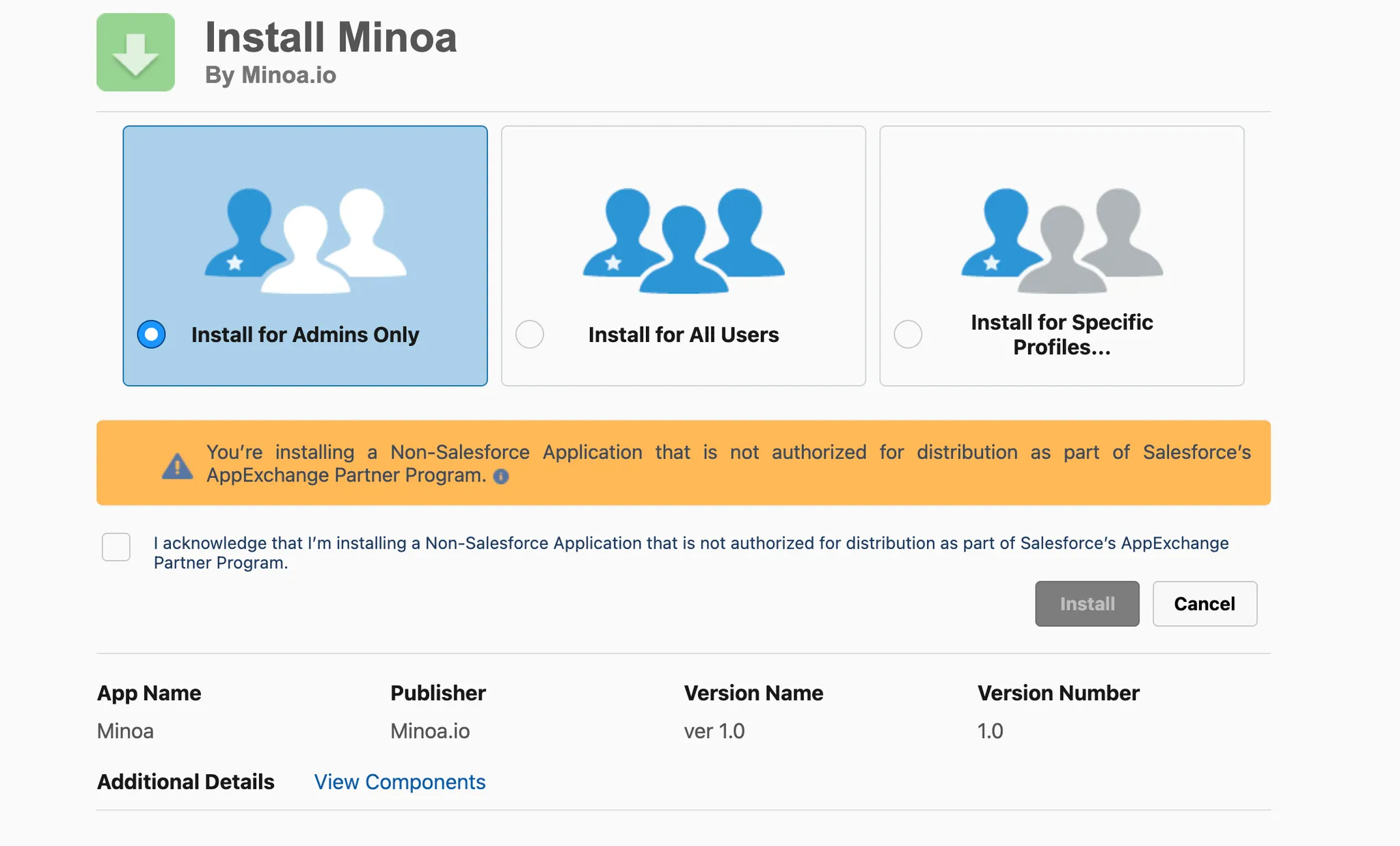
Open the install link: [Install Minoa Salesforce App](https://login.salesforce.com/packaging/installPackage.apexp?p0=04tRo0000010QpxIAE)
Click the "I acknowledge" checkbox and choose **Install for All Users**.
After a few seconds, you'll see a success message confirming the installation.
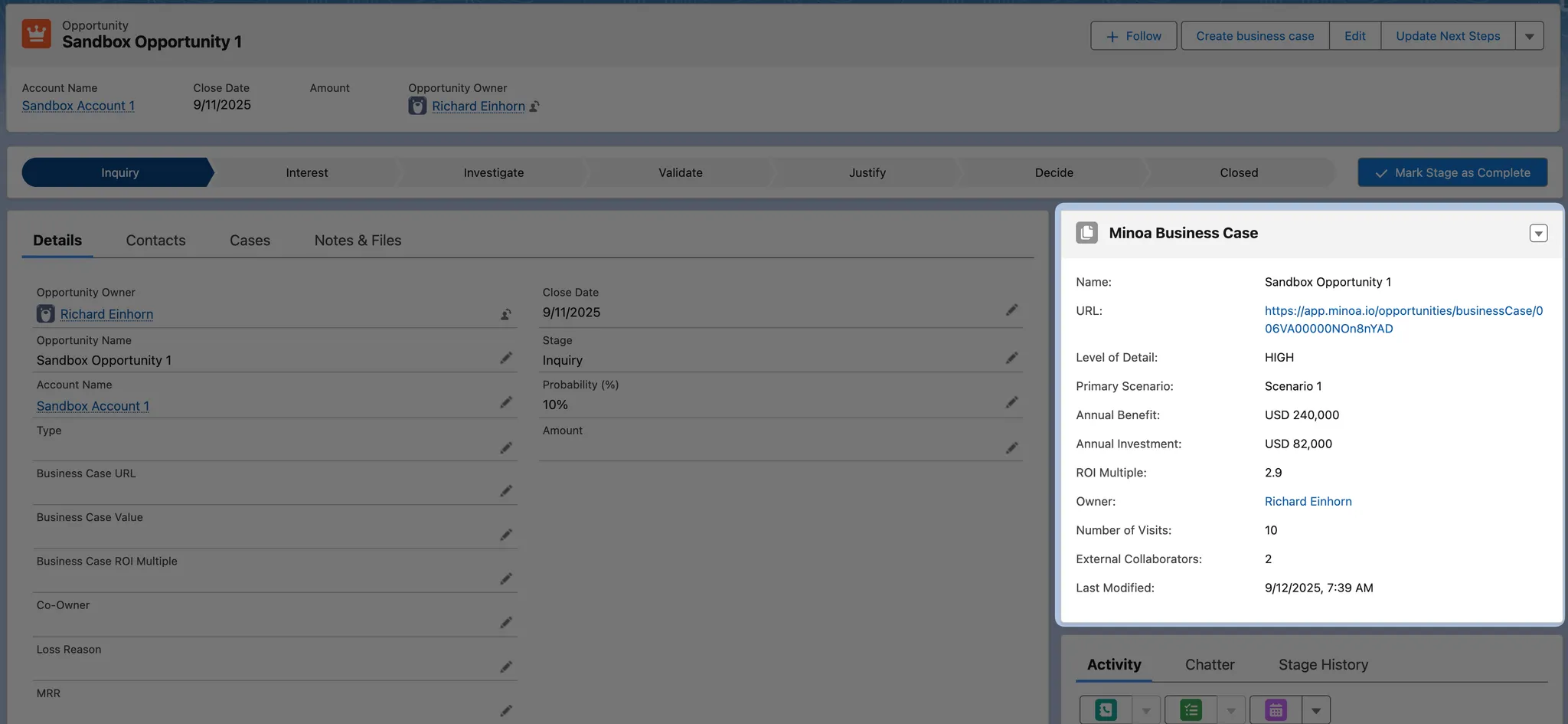
Open any Opportunity record, click the gear icon (⚙️), select **Edit Page**, search for `minoaBusinessCase` in the Components panel, drag and drop it onto the page, then click **Save** and **Activate**.
***
## Configuration Options
Access the configuration modal from **Settings → Integrations → Salesforce → Manage**.
### Opportunity Field Mapping
| Salesforce Field | Minoa Field |
| ------------------ | ---------------- |
| Opportunity Name | Opportunity Name |
| Amount (or custom) | Value |
| Close Date | Close Date |
| Stage | Stage |
| Is Won / Is Closed | Status |
| Description | Description |
| Owner | Owner |
| Created Date | Created At |
### Business Case Write-Back Fields
When you create or update a business case in Minoa, these fields sync to the `Minoa_Business_Case__c` object in Salesforce:
| Field | Description |
| ---------------------- | -------------------------------------------------------------------------------------------------------------------------------------------------- |
| Annual Benefit | Total benefit value over the full contract duration, summed across all use cases in the first scenario |
| Annual Investment | Total investment cost for the full contract duration |
| ROI | Return-on-investment multiple for the full contract duration, rounded to one decimal (e.g. `2.5` represents a 2.5x return) |
| External Collaborators | Number of external collaborators who have **joined** the business case. Pending invites and removed/declined collaborators are not counted |
| Level of Detail | Business case maturity bucket — `LOW`, `MEDIUM`, or `HIGH`. See [Level of Detail](/pages/analytics/level-of-detail) for the full scoring breakdown |
| Number of Visits | Total count of recorded visits to the business case across all viewers |
| URL | Direct link to open the business case in the Minoa app (`https://app.minoa.io/opportunities/businessCase/{id}`) |
The Salesforce integration is **bi-directional**: opportunity data flows from Salesforce into Minoa, and business case data writes back from Minoa to Salesforce.
### Custom Opportunity Value Field
If your organization uses a custom field to track opportunity value (instead of the default `Amount` field), you can configure Minoa to use that field.
Good candidates include ARR fields, TCV fields, or any custom currency field like `Opportunity_USD_Value__c` or `Total_Contract_Value__c`.
### Co-Owners for Opportunities
By default, Minoa shows opportunities to the Opportunity Owner. Configure additional co-owners to give other team members access to relevant opportunities:
**Option 1: Additional Owner Field**
* Select a custom Salesforce field that references another user (e.g., `Presales_Engineer__c`, `Solutions_Consultant__c`)
* The user referenced in this field will see the opportunity in their Minoa dashboard
**Option 2: Opportunity Team Roles**
* Select one or more Opportunity Team Member roles (e.g., "Value Engineer", "Solutions Architect")
* Users assigned to these roles on an opportunity will see it in their Minoa dashboard
* You can configure up to 5 different team roles
Additional Owner Field and Opportunity Team Roles are mutually exclusive. Choose one approach based on how your organization structures deal teams.
Minoa opportunities have one owner and one co-owner. While you can configure multiple team member roles to listen for, Minoa will only add up to one additional co-owner per opportunity.
### Account Metadata Fields
Configure which Salesforce Account fields should sync to Minoa for account context:
| Minoa Field | Default Salesforce Field | Description |
| --------------- | ------------------------ | ------------------------------- |
| Description | `Description` | Company description for context |
| Headcount | `NumberOfEmployees` | Employee count for sizing |
| Industry | `Industry` | Industry classification |
| Annual Revenue | `AnnualRevenue` | Company revenue |
| CRM Lead Source | `AccountSource` | How the account was acquired |
You can map these to custom fields if your organization uses different field names.
### Sync Management
* **Last synced at**: Shows when the last successful sync occurred
* **Reset**: Force a full resync of all opportunities (useful after changing configuration)
* **Sync now**: Trigger an immediate sync instead of waiting for the scheduled interval
* **Multi-currency**: Shows whether your Salesforce org has multi-currency enabled (read-only)
* **Re-Auth**: Re-authenticate the Salesforce connection if you encounter permission issues
* **Backfill**: Recreate all `Minoa_Business_Case__c` records in Salesforce from Minoa data
***
## Securing the Integration
We recommend using a dedicated **integration user** with minimally scoped permissions for the Minoa Salesforce integration. This follows security best practices and makes it easier to audit integration activity.
### Required Permissions
The integration user needs **read access** to:
* `Accounts`
* `Opportunities` and related objects (`OpportunityTeamMember`, `OpportunityLineItem`)
* `Contacts`
* `Users`
The integration user needs **read, write, and delete access** to:
* `Minoa_Business_Case__c` (custom object created by installing the Minoa managed package)
**Additional permissions may be required** depending on your Salesforce configuration. Because `Minoa_Business_Case__c` is linked to Opportunity via a parent–child (master-detail or lookup) relationship, certain Salesforce configurations may enforce cascading rules or sharing settings that require the integration user to have broader permissions on the parent Opportunity object (e.g., edit access). If you experience permission errors when Minoa creates, updates, or deletes business case records, review your org's relationship settings between `Minoa_Business_Case__c` and Opportunity and adjust the integration user's permissions accordingly.
### Setting Up an Integration User
1. Create a dedicated Salesforce user (e.g., `minoa-integration@yourcompany.com`)
2. Assign a Profile or Permission Set with the minimum required permissions listed above
3. Use this user's credentials when connecting Minoa to Salesforce
Using a dedicated integration user ensures that if an employee leaves the company, the integration continues to function. It also provides clear audit trails for all Minoa-related API activity.
***
## Using the Salesforce App
The Minoa Salesforce App adds a custom component to your Opportunity pages that displays business case information.
### Create a New Business Case
If no Minoa Business Case record is linked to the Opportunity, the component displays a **Create Minoa Business Case** button. Clicking this button redirects to the Minoa app where you can create a new business case that automatically syncs back to Salesforce.
### Review an Existing Business Case
If a Minoa Business Case is linked to the Opportunity, the component displays:
* Estimated value and ROI
* Number of external collaborators
* Level of detail indicator
* Number of prospect visits
* Last updated timestamp
### Quick Actions
* **Open in Minoa**: Opens the business case in the Minoa app for editing
* **Copy Sharing Link**: Copies the prospect-facing link to share the business case
### Configuring Component Visibility
You can control which users see the Minoa component using Salesforce's standard component visibility settings:
1. In Lightning App Builder, select the minoaBusinessCase component
2. Click **Set component visibility**
3. Define filters based on user profiles, roles, or custom conditions
### Showing Value Realization Fields
If you've installed the latest Minoa Salesforce App, the widget can also surface [value realization](/pages/value-realization/introduction) progress on the Opportunity:
* **Realized Benefit To Date** — the actual benefit delivered so far (cumulative through the current month) from the business case's Value Realization scenario.
* **Projected Benefit To Date** — the benefit the matching plan expected to have delivered by today, for an at-a-glance pacing comparison.
These map to the `Minoa__Realized_Benefit_To_Date__c` and `Minoa__Projected_Benefit_To_Date__c` fields on `Minoa_Business_Case__c`, and appear only when the business case has a Value Realization scenario.
Admins control whether these fields show on the widget using the **Show Value Realization** property on the component:
1. In Lightning App Builder, select the minoaBusinessCase component
2. In the component properties panel, toggle **Show Value Realization** on or off
3. Click **Save**
### Multi-Language Support
The Minoa Salesforce App supports translations. Contact us for instructions on translating the component text for your organization's languages.
***
## Show Business Case in Forecast
You can create custom Opportunity fields to track business case status for forecasting, deal reviews, and analytics tools like Clari.
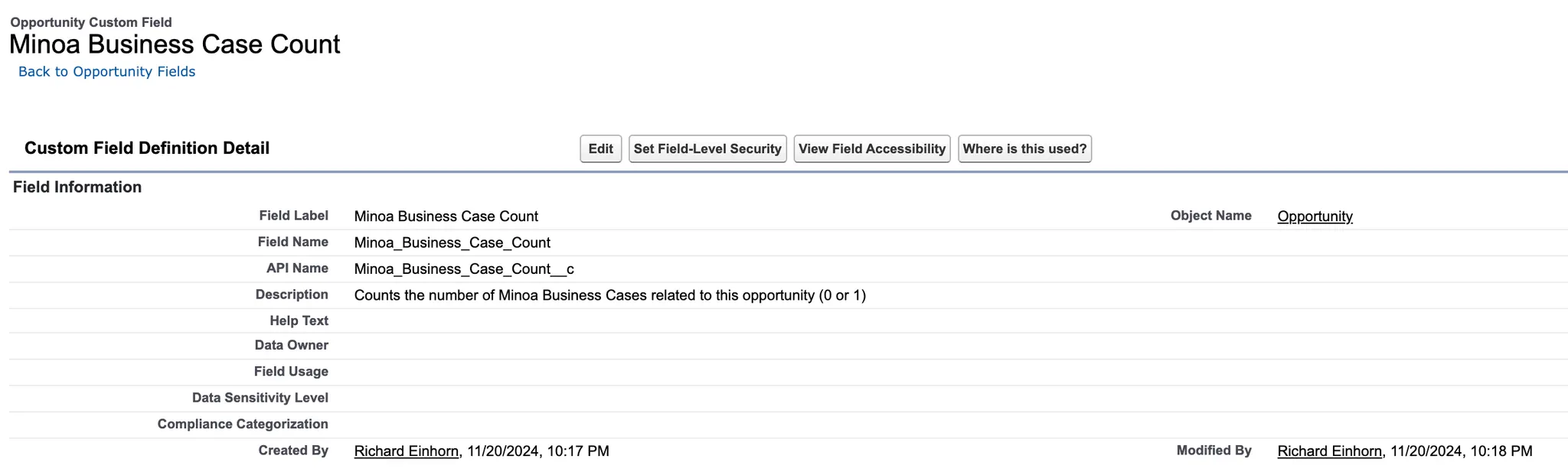
### Create a Roll-Up Summary Field
1. Go to **Setup → Object Manager → Opportunity**
2. Click **Fields & Relationships → New → Roll-Up Summary**
3. Name the field (e.g., `Minoa_Business_Case_Count`)
4. Select `Minoa_Business_Case__c` as the related object
5. Choose **COUNT** as the roll-up type
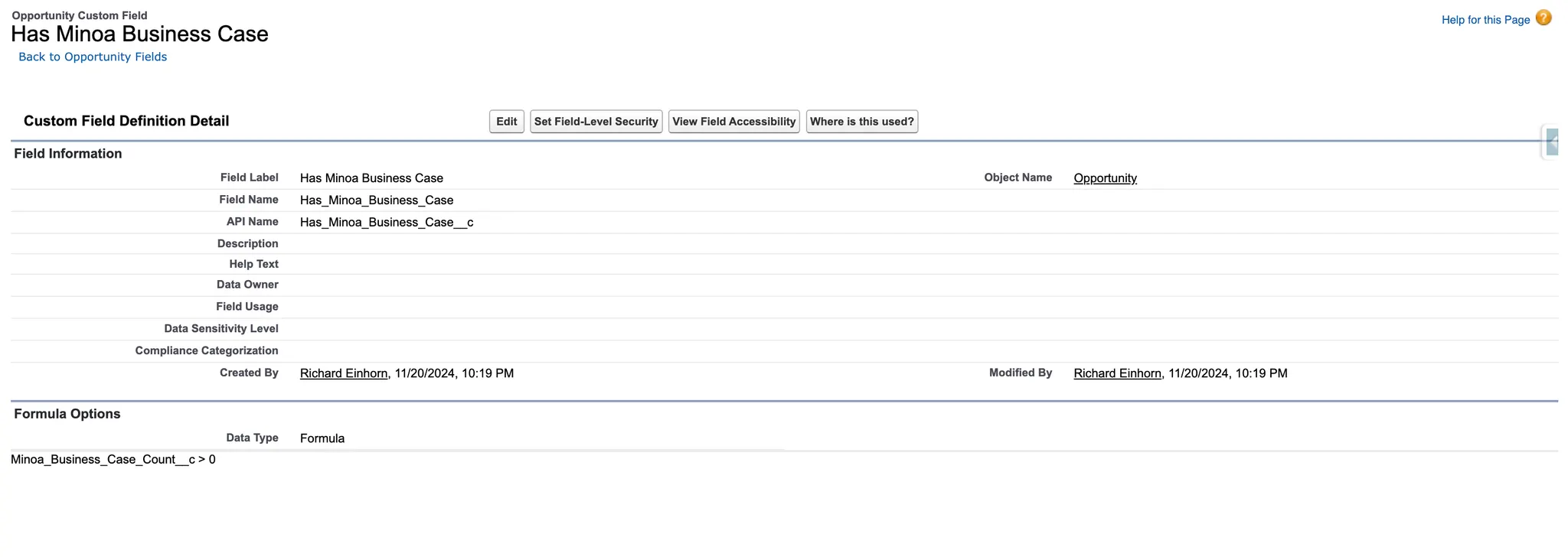
### Create a Checkbox Formula Field
1. Create a new Formula field on Opportunity
2. Set the return type to **Checkbox**
3. Use the formula: `Minoa_Business_Case_Count__c > 0`
4. Name the field (e.g., `Has_Minoa_Business_Case`)
### Using in Clari
To display the checkbox in Clari's pipeline view:
1. Log in to Clari as an admin
2. Navigate to **Settings → Data Integration → Salesforce Fields**
3. Add the `Has_Minoa_Business_Case` field to the integration
4. Sync and add the field to your pipeline view columns
***
## Upgrading the Salesforce App
### Version History
| Version | Release Date | Key Changes |
| ------------- | ------------ | ----------------------------------------------------- |
| 1.2.0 | March 2026 | Fixed navigation error in minoaBusinessCase component |
| 2.0 (2nd Gen) | 2025 | New fields, auto-refresh, redesigned layout |
| 1.1 | Sept 2025 | Initial managed package release |
### Upgrading to 2nd Generation
Minoa released a 2nd generation Salesforce package with significant improvements:
**New Features:**
* `External_Collaborator_Count__c` – Count of external collaborators
* `Level_Of_Detail__c` – Business case completeness indicator
* Auto-refresh when returning from Minoa
* Optimized layout with better information hierarchy
The 1st and 2nd generation packages share the same namespace and cannot be installed simultaneously. You must uninstall the old package before installing the new one.
In Salesforce, go to **Setup → Installed Packages** and locate the package named **Minoa** (Publisher: Minoa, Version 1.0).
Check if any reports, dashboards, or Lightning pages reference Minoa components. Remove these references before uninstalling. Custom dashboards and reports will need to be recreated after the upgrade.
From **Installed Packages**, click **Uninstall** next to Minoa. Optionally save a copy of package data for 48 hours. Resolve any uninstall blockers and confirm.
Open the [2nd Gen install link](https://login.salesforce.com/packaging/installPackage.apexp?p0=04tRo0000010QpxIAE), select **Install for All Users**, and verify the new fields are available on `Minoa_Business_Case__c`.
Open [Minoa Integration Settings](https://app.minoa.io/settings?tab=integrations), click **Manage** on the Salesforce integration, click the **Backfill** button, and wait for the process to complete.
**No data will be lost.** All business case data is stored in Minoa and can be backfilled to Salesforce after installing the new package.
***
## Troubleshooting
**Check user access.** Ensure the Salesforce integration user has access to the opportunities you expect to see.
**Verify permissions.** The integration user needs read permissions on Accounts, Opportunities, Contacts, and Users.
**Wait for the next sync.** Syncs run every 15 minutes. Check back shortly or trigger a manual sync from **Settings → Integrations → Salesforce → Sync Now**.
**Check app installation.** Ensure the Minoa Salesforce App is installed in your org.
**Verify the widget.** The minoaBusinessCase component must be added to your Opportunity page layout.
**Check permissions.** The integration user needs read, write, and delete access to `Minoa_Business_Case__c`.
OAuth tokens occasionally expire. To reconnect:
1. Go to **Settings → Integrations → Salesforce**
2. Click **Re-Auth**
3. Re-authenticate with Salesforce
Also verify that the integration user's password hasn't expired and that API access is enabled for their profile.
**Upgrade the Salesforce App.** This was a known bug in versions prior to 1.2.0. The minoaBusinessCase component was incorrectly calling `.then()` on a navigation method that doesn't return a Promise.
Install the latest version of the Minoa Salesforce App from the [install link](https://login.salesforce.com/packaging/installPackage.apexp?p0=04tRo0000010QpxIAE) to resolve this issue.
Minoa processes Salesforce data in batches to stay within API limits. For large orgs (10,000+ opportunities), the initial sync may take several cycles to complete. Incremental syncs after that are much faster since only modified records are fetched.
## Getting Help
If you encounter issues during setup or have questions:
* **Email**: [support@minoa.io](mailto:support@minoa.io)
* **Slack**: Reach out to your Minoa contact for real-time support