> ## Documentation Index
> Fetch the complete documentation index at: https://docs.minoa.io/llms.txt
> Use this file to discover all available pages before exploring further.
# Viewing a Business Case Shared with You
> A quick guide to opening and reviewing a business case you've received
You've been invited to review a business case — great! Minoa is the platform your vendor uses to build and share business cases. You don't need an account or a password. This guide walks you through how to open it.
Your vendor shares a business case link with you directly or via an email invitation.
Open the link and enter your email address so your vendor knows who is reviewing the case.
Check your inbox for a verification email and click the link inside.
The verification link takes you straight into the business case.
## Receiving the invitation
Your vendor can share the business case with you in two ways:
* **Direct link** — sent to you via email, Slack, or any other channel
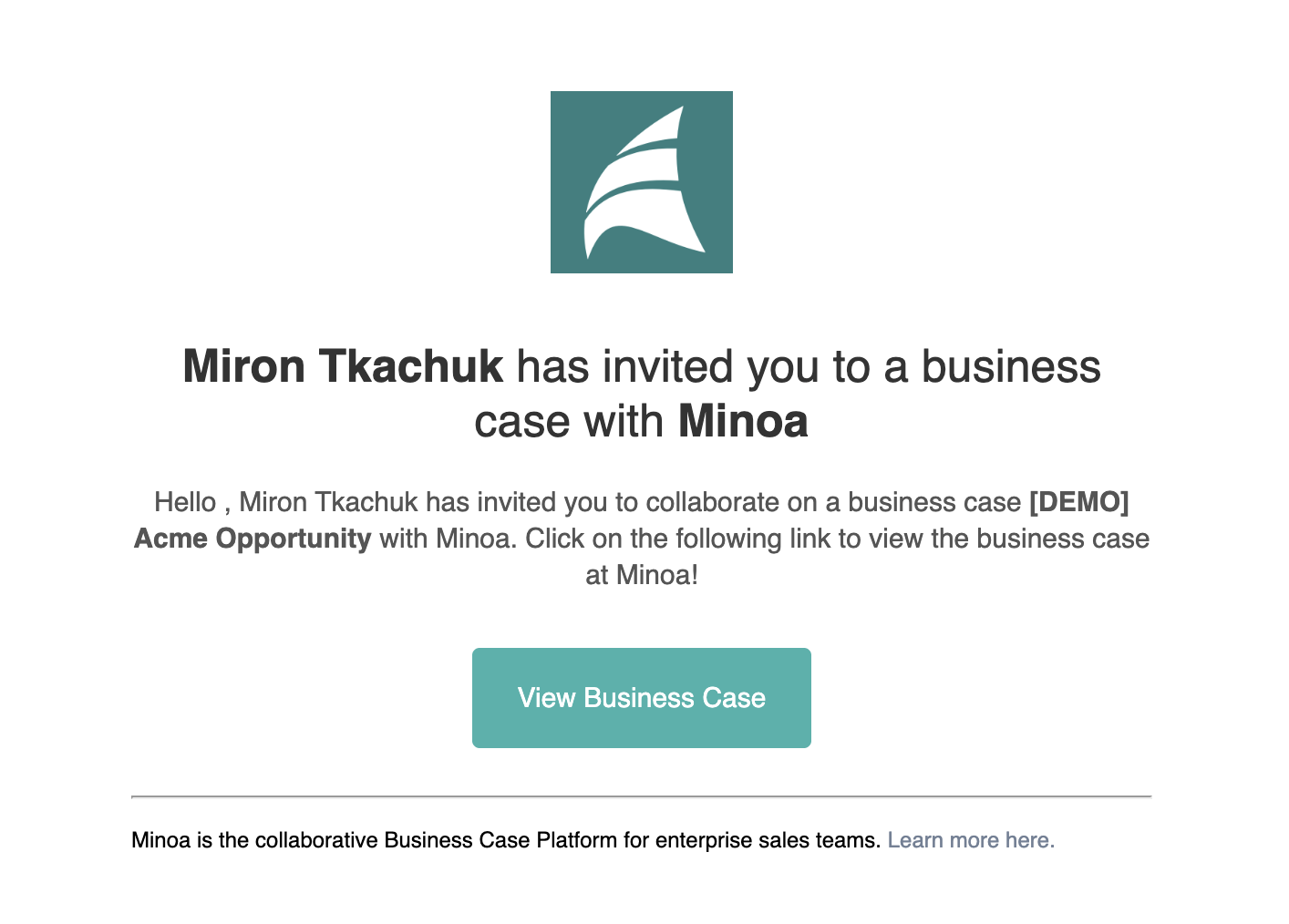
* **Email invitation** — an automated email from Minoa with a **View Business Case** button
## Verifying your email
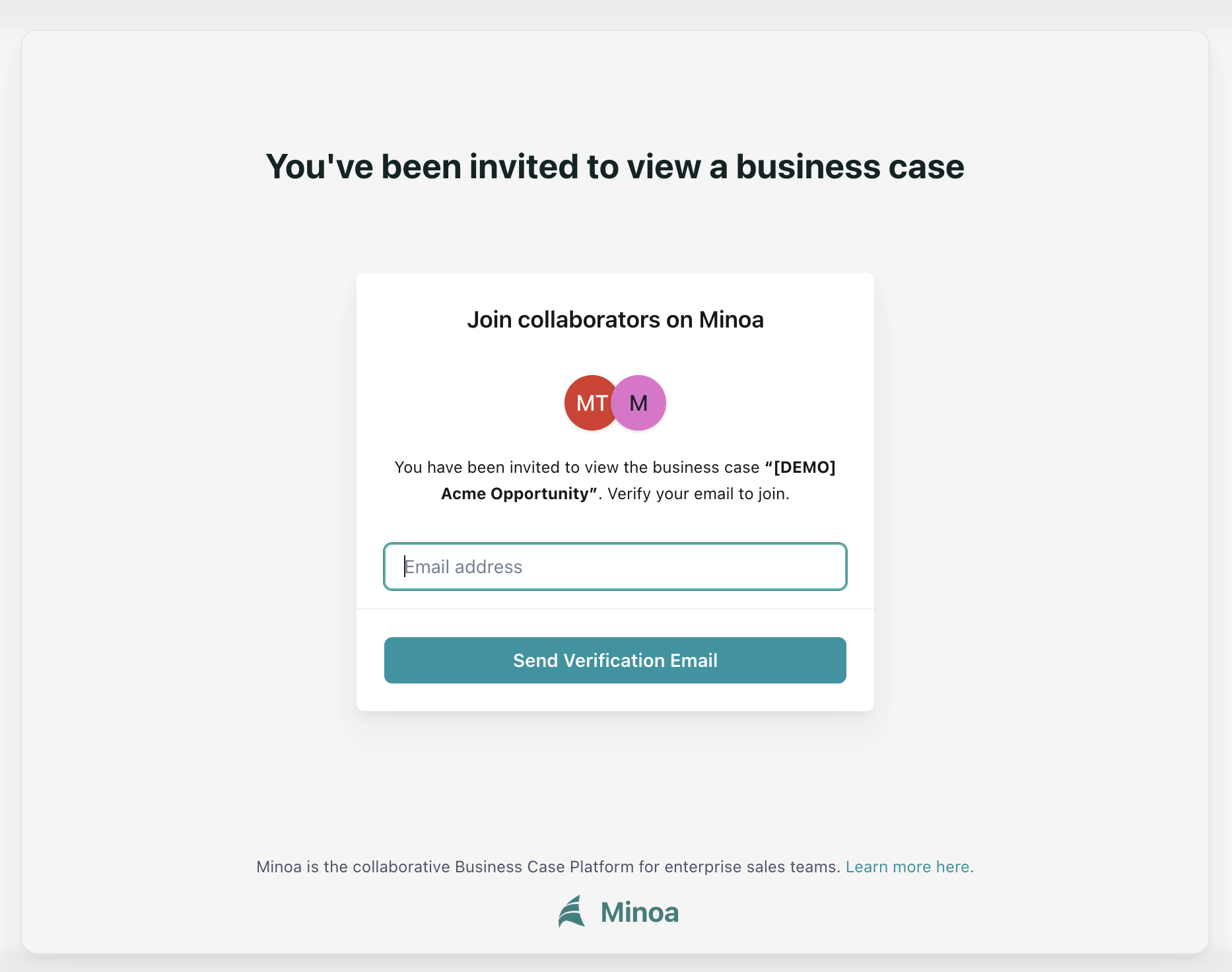
When you open the link, you'll be asked to verify your email address. This lets your vendor know who is reviewing the business case — no account or password is needed.
1. Enter your email address in the **Email address** field
2. Click **Send Verification Email**
Email verification ensures your vendor knows exactly who is reviewing and collaborating on the business case. Your email is never shared with third parties.
## Opening the verification email
After submitting your email, you'll receive a verification email from Minoa. Open your inbox and click **Verify Email & View Business Case**.
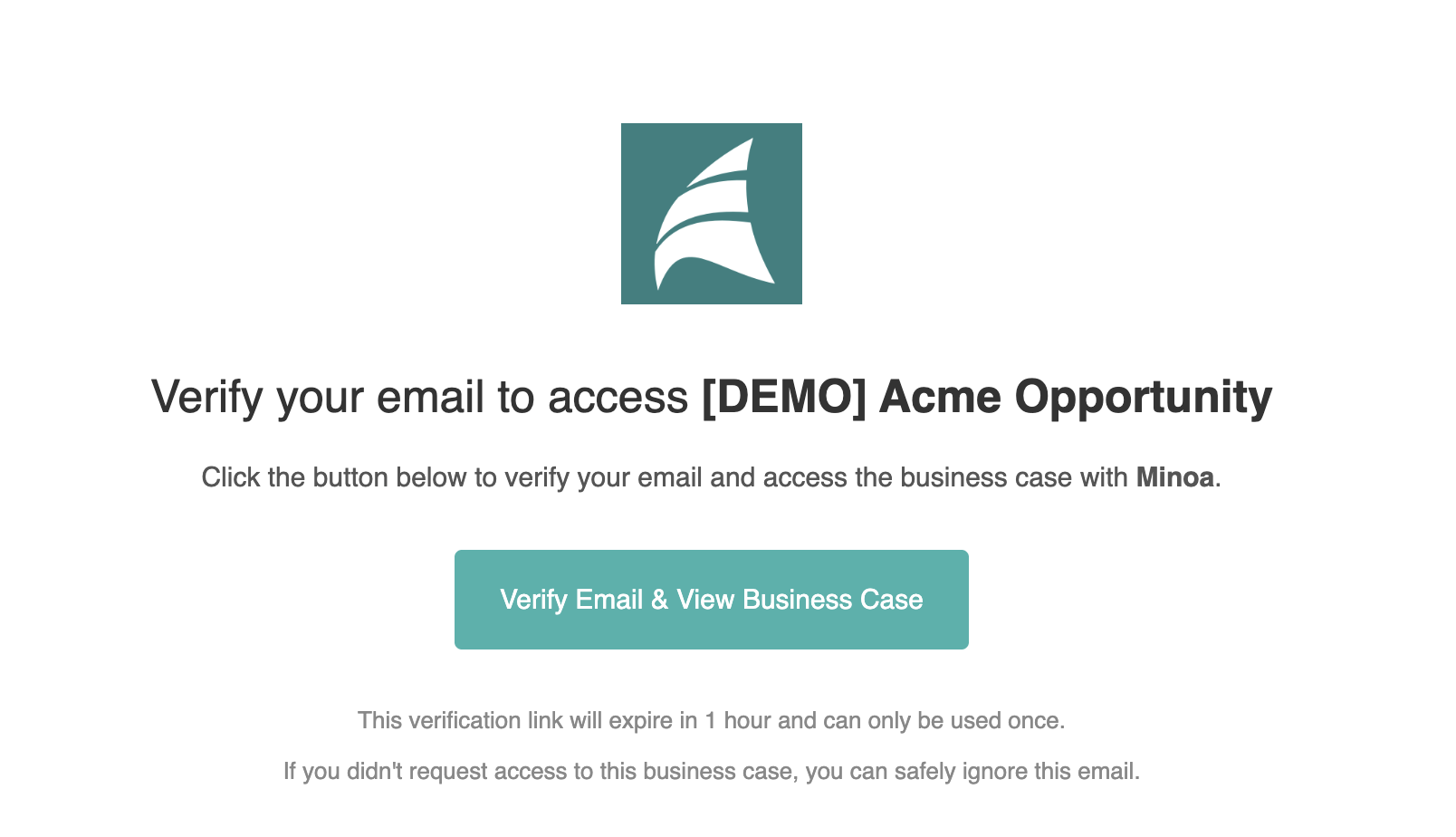
Verification links expire in 1 hour and can only be used once. If you requested multiple verification emails, only the link in the **most recent** email will work. Always open the latest email to guarantee access.
## Handling expired links
A verification link will not work if it:
* is **older than 1 hour**
* has **already been used once**
* is **not the most recent** link you requested (only the latest verification email is valid)
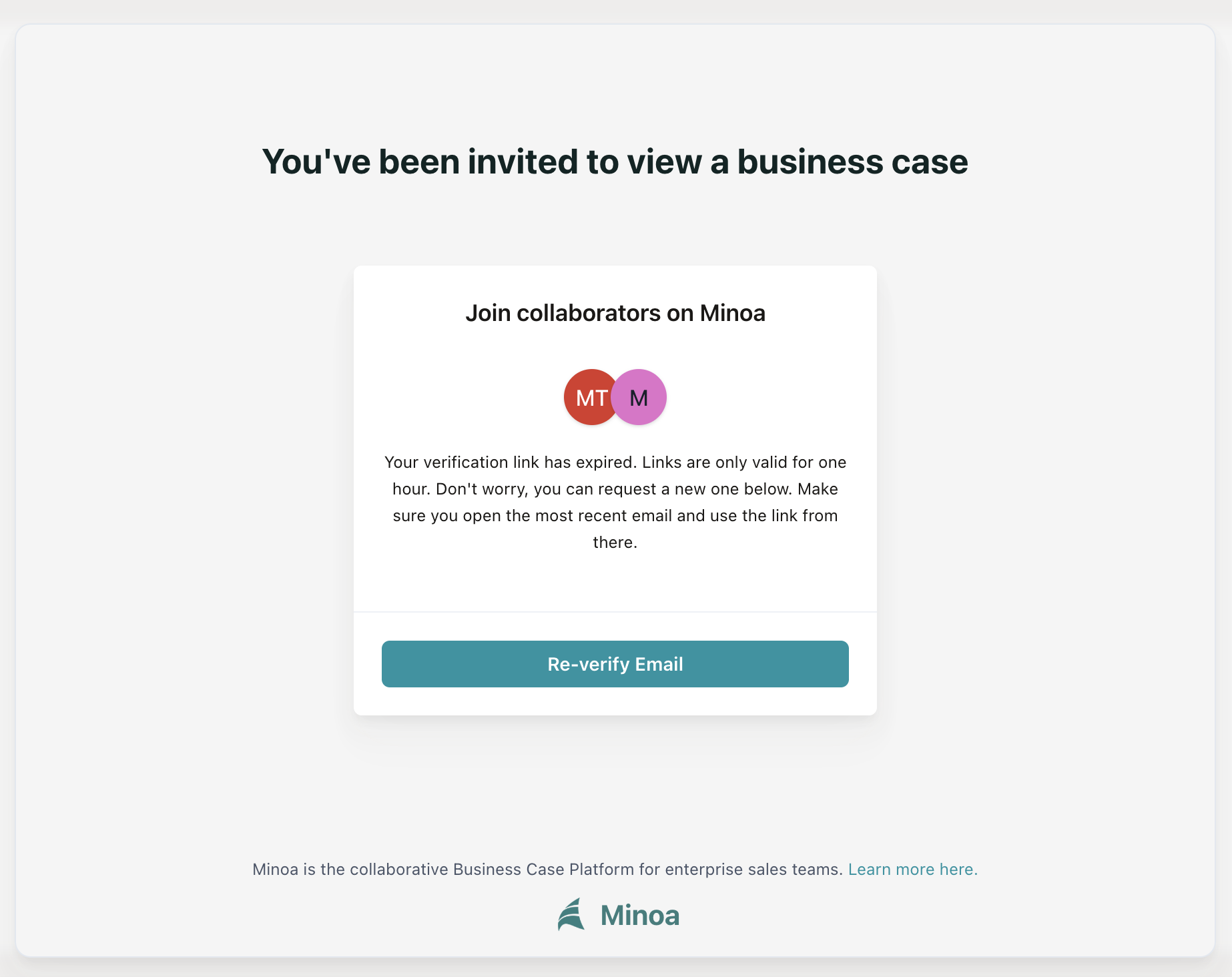
If any of these apply, you'll see a message that your verification link has expired.
1. Click **Re-verify Email**
2. Enter your email address and click **Send Verification Email**
3. Open the **most recent** verification email in your inbox — older emails will not work
4. Click **Verify Email & View Business Case** in the new email
Once you successfully access a business case, Minoa saves a cookie that remembers you on that device. You won't need to verify again unless you clear your browser data or were browsing in incognito mode.
## Reviewing the business case
After clicking a valid verification link, you'll land directly on the business case.
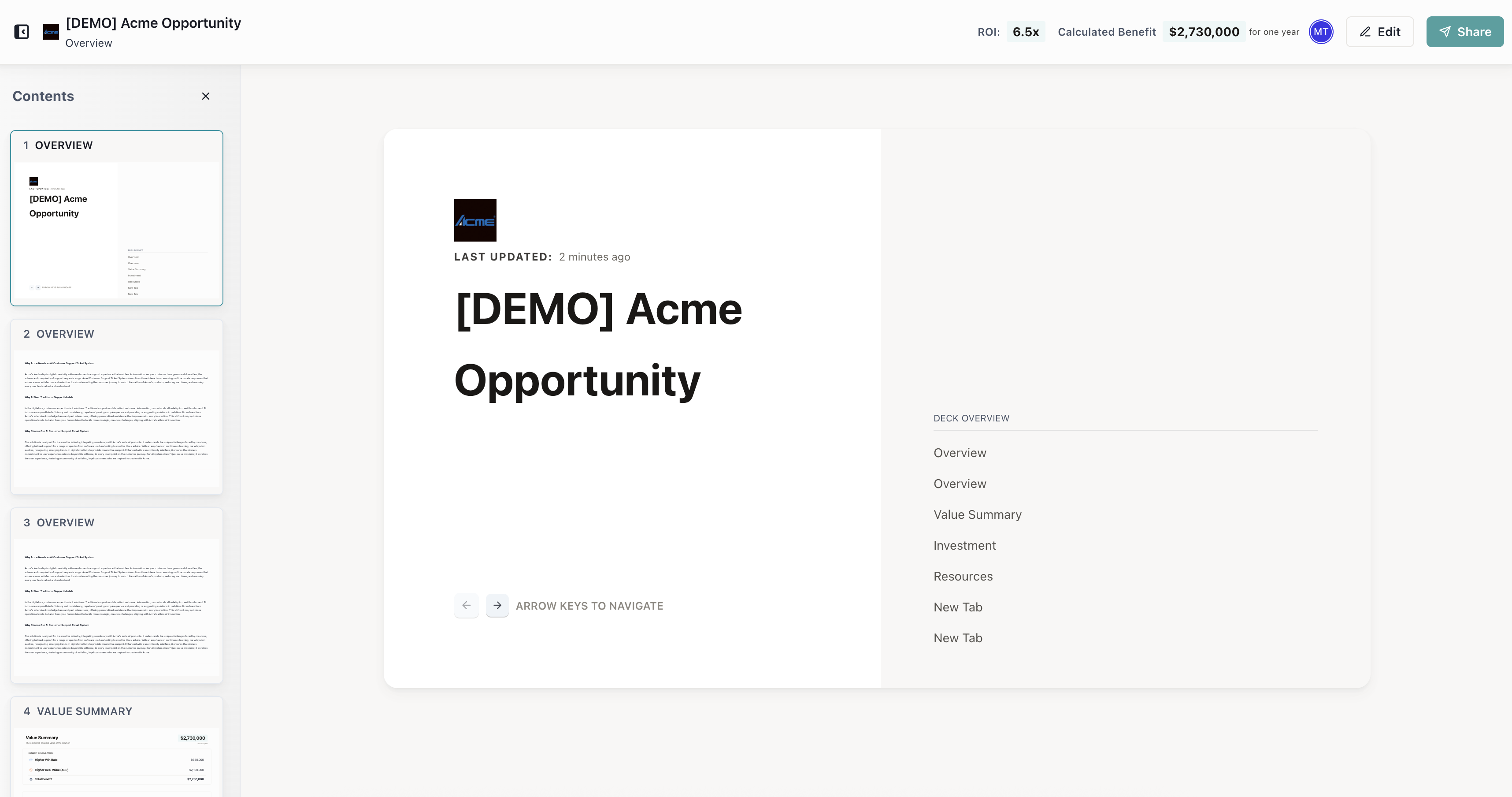
You don't need a password or an account. The verification link is the only thing you need to access the business case. Bookmark it or keep the email handy for quick access.