> ## Documentation Index
> Fetch the complete documentation index at: https://docs.minoa.io/llms.txt
> Use this file to discover all available pages before exploring further.
# Building a basic business case
> End-to-end guide from finding an opportunity to sharing a complete business case
This recipe walks you through building a complete business case—from locating your opportunity to sharing a polished ROI calculation with your prospect.
Your opportunities should be synced from your CRM. Choose an opportunity and click Create business case.
Review and enrich the context Minoa has about this deal. Add call transcripts, connect CRM opportunities, or
upload files like RFPs. The more context you provide, the better your use case suggestions will be.
Minoa AI analyzes your context and suggests relevant use cases. The loading screen can take 2-3 minutes
depending on how much context there is to review—it's always worth the wait as suggestions improve with
additional context.
Browse and filter all available use cases, review internal notes or calculations for each one, and add them to
your business case.
Review all unlocked inputs that typically have default values. Fill in what you know about your prospect to make
the business case personalized and meaningful.
Define the pricing terms for the deal. (You can always choose to hide the investment)
Invite your collaborators into the business case or share a slide deck
## Finding your opportunity
Your home page displays all business cases in your workspace. Use these tools to find the right one.
### Search and filter
Use the search bar to find opportunities by name. Click **Filters** to narrow by:
* **Opportunity Status** – Open, Closed Won, or Closed Lost
* **Opportunity Owner** – Filter by yourself, specific team members, or entire teams
* **Business Case** – Show only opportunities with or without business cases
* **Level of Detail** – Low, Medium, or High to identify which cases need more work
Business cases are typically created after an initial discovery call. The transcripts from your calls provide context for Minoa AI to recommend use cases and generate an executive summary.
## Create a new business case
1. Click **Create business case** on an open opportunity in Salesforce or directly in Minoa
2. The new business case will be linked to your Salesforce opportunity
## Configure context
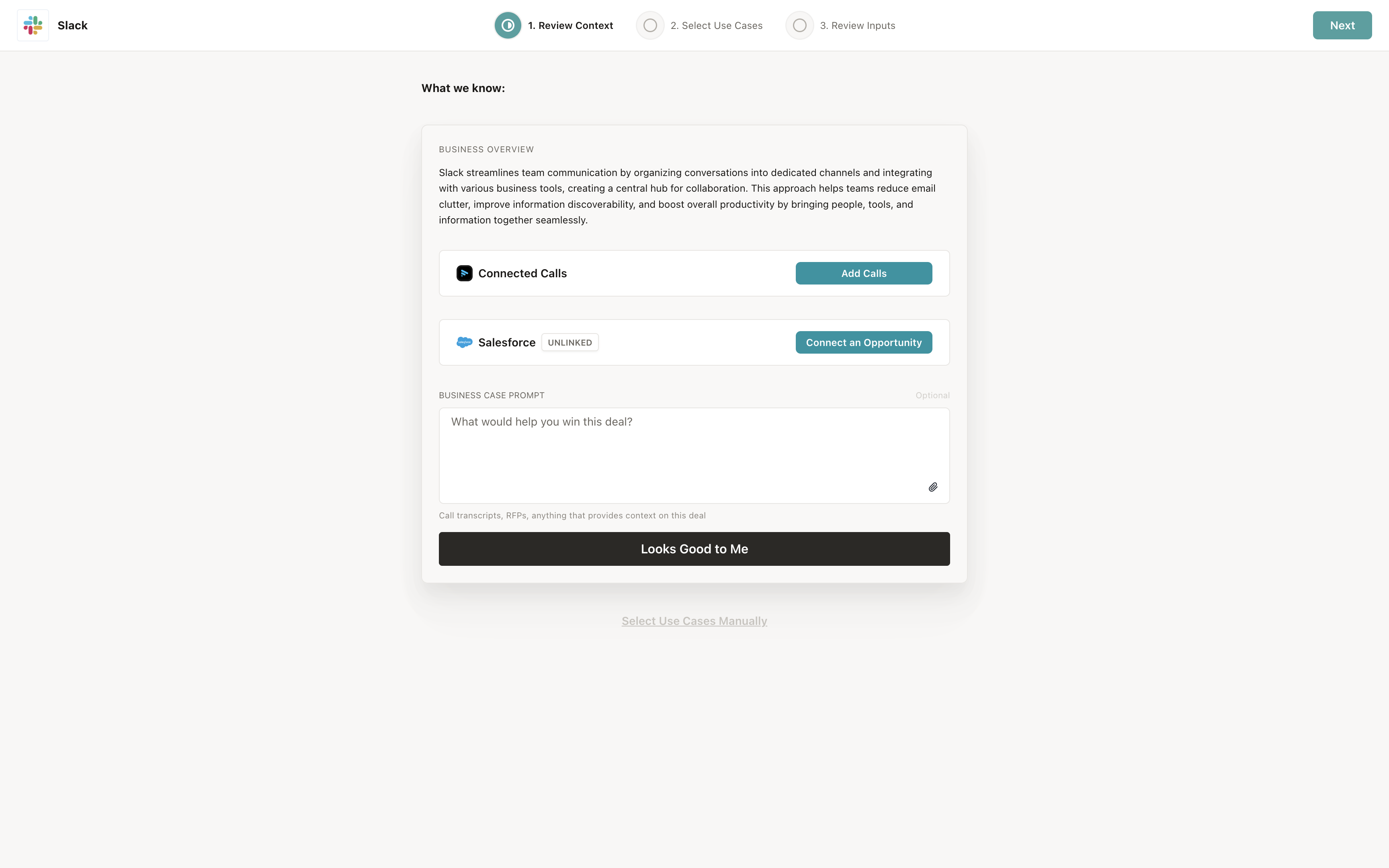
The context step is where you review and enrich what Minoa knows about this particular deal. The more context you provide, the better your use case suggestions and generated content will be.
What you see depends on your tenant setup:
* **If you have a CRM connected**: You'll see an accordion showing the connected opportunity details. If the business case isn't already linked to an opportunity, you can connect one here.
* **If you have a call recorder connected**: You'll see an accordion for connected calls. The system automatically tries to attach all calls associated with the opportunity, but you can add or remove calls as needed.
* **All users**: You can add a prompt in the Business Case Prompt field or attach files like RFPs, call transcripts, or Salesforce notes.
### Adding calls
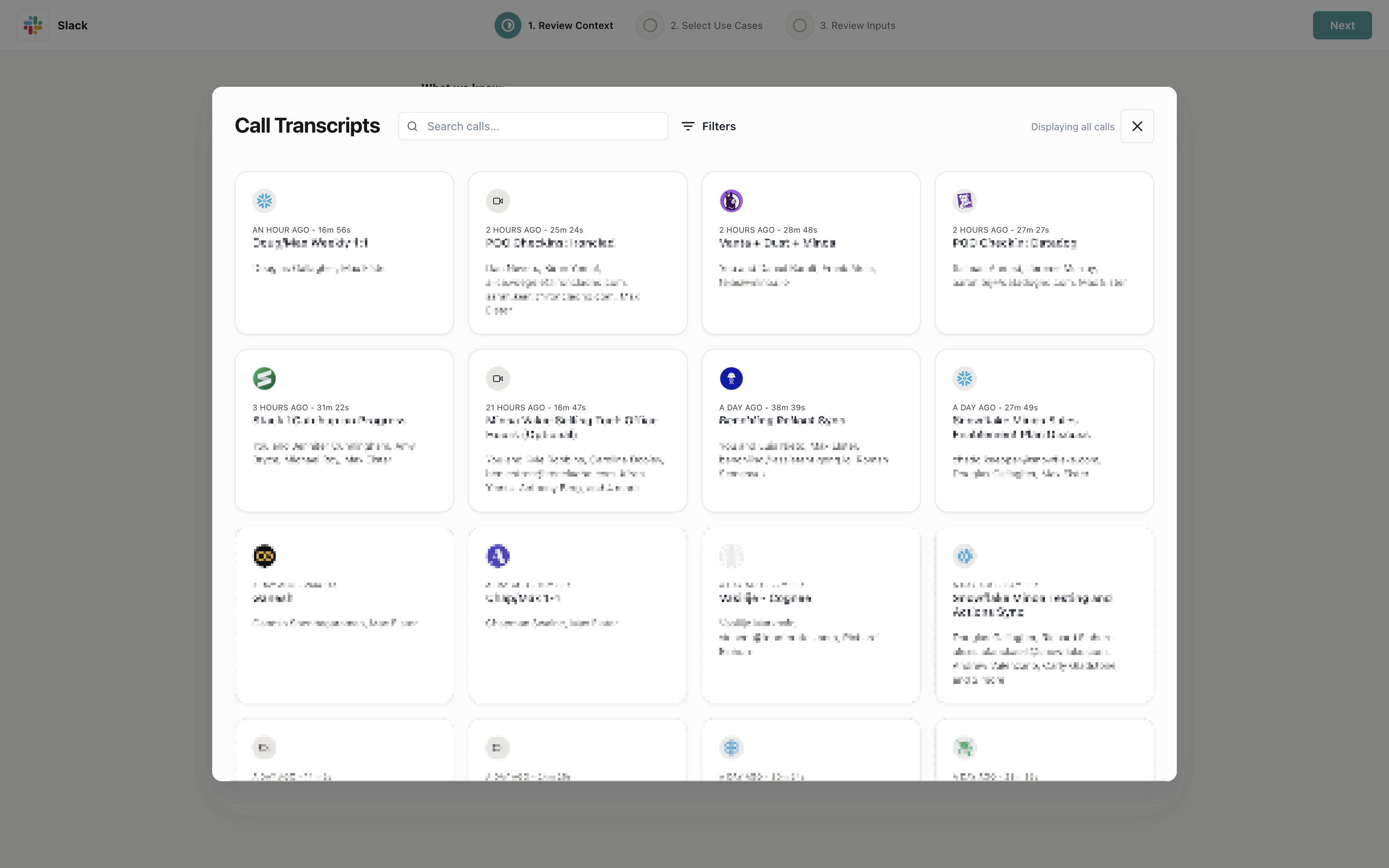
If you have a call recorder like Gong, Chorus, Fathom, or Momentum connected, you can add multiple calls to provide rich context from your discovery conversations.
1. Click **Add Calls** in the Connected Calls section
2. Select the calls you want to include
3. The system automatically tries to attach calls associated with the opportunity, but you can add or remove them as needed
### Connecting an opportunity
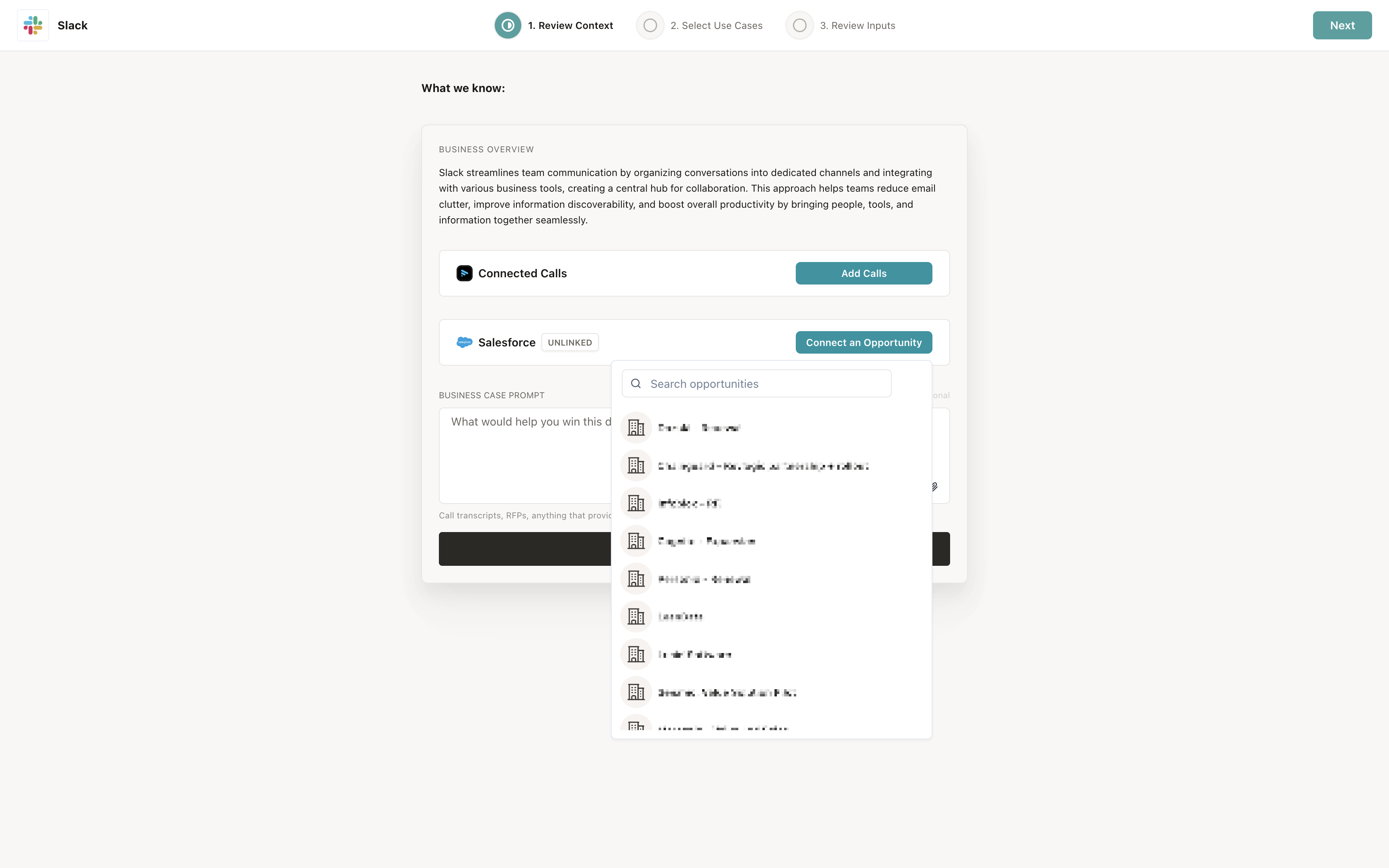
If your business case isn't already linked to a CRM opportunity, you can connect one here to sync deal information.
1. Click **Connect an Opportunity** in the CRM section
2. Search and select the opportunity from your CRM
3. The business case will now be linked to that opportunity
### Adding files and prompts
You can attach files like RFPs, call transcripts, or Salesforce notes, or add a custom prompt to guide Minoa AI's suggestions.
1. Type your prompt in the **Business Case Prompt** field (optional)
2. Click the paperclip icon to attach files
3. Files are automatically saved and will be analyzed along with your other context
When you're done reviewing and adding context, click **Looks Good to Me** to proceed.
## Review suggested use cases
After you've configured your context, Minoa AI analyzes everything you've provided and suggests relevant use cases. The loading screen can take 2-3 minutes depending on how much context there is to review—it's always worth the wait as the suggestions and generated content only improve with additional context.
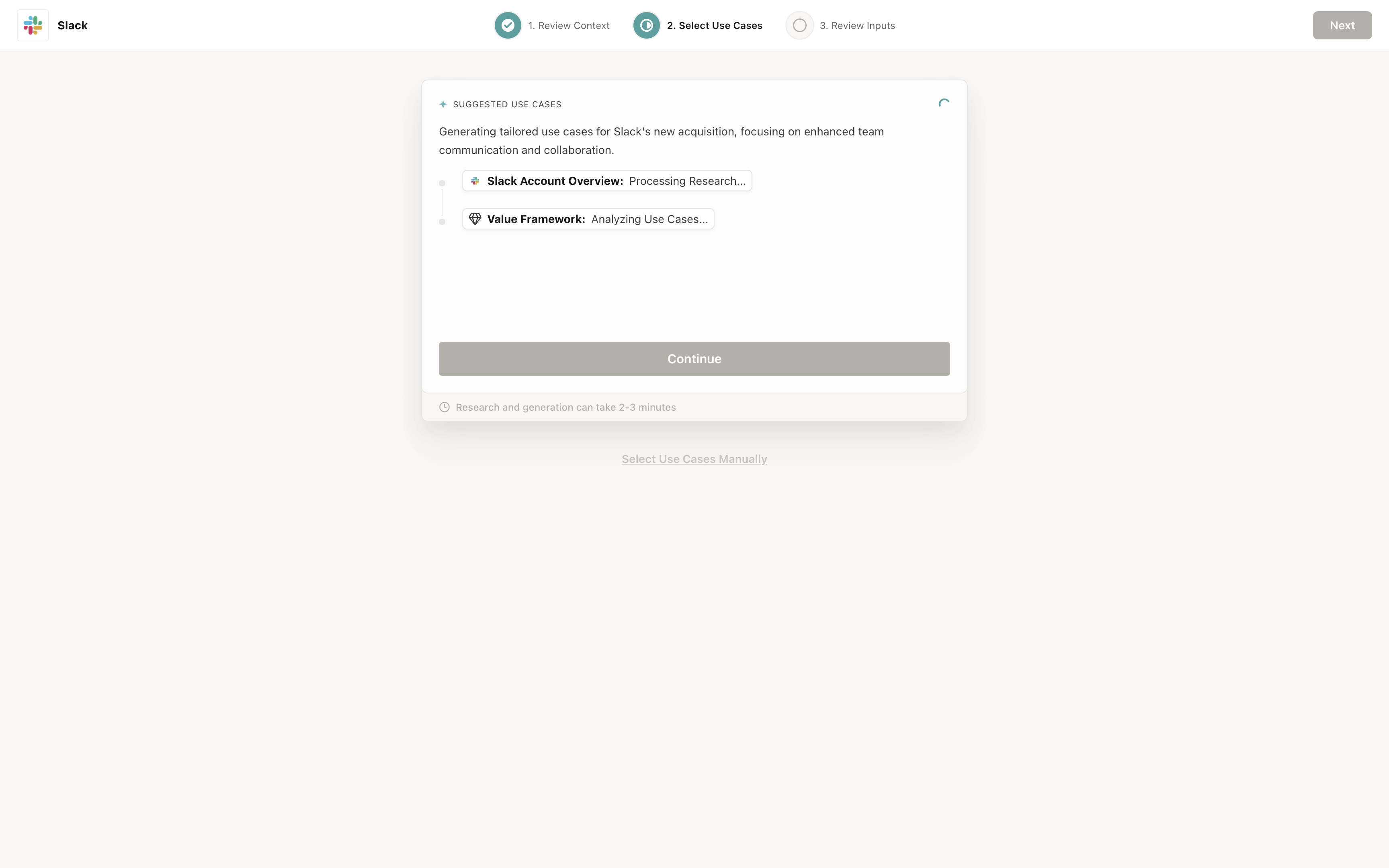
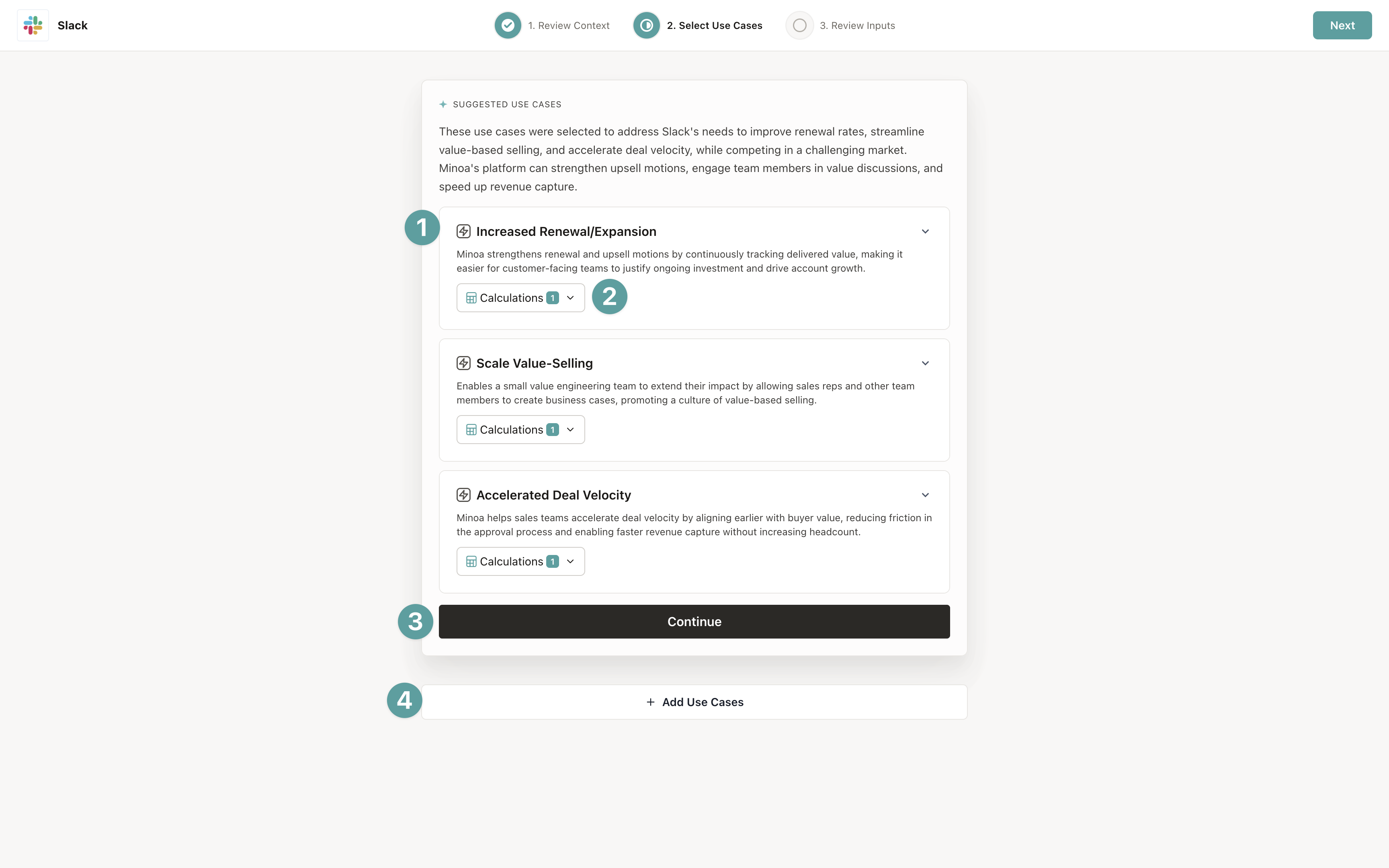
Once the analysis is complete, you'll see a set of suggested use cases with explanations of why they're relevant to your deal.
1. The name of the use case. Later you can rename these to be more accurate to your prospect.
2. The calculations that are included in the use case. Open the dropdown to change the calculation.
3. Click continue to advance to step 3 (Review Inputs)
4. Click the secondary link to choose your own use cases.
## Add use cases from shopping cart
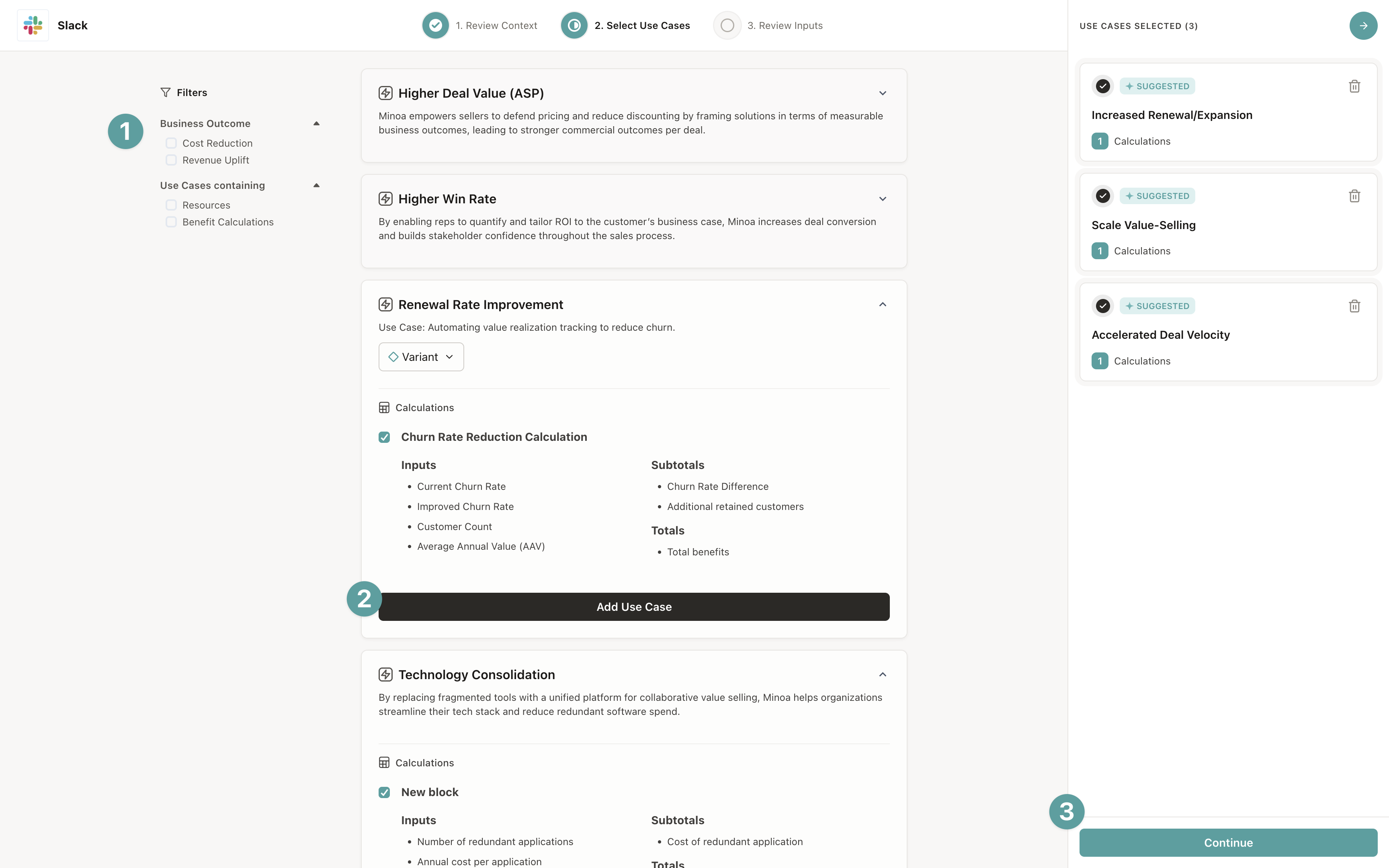
If you want to add more use cases beyond the suggestions, you can browse the full catalog using the shopping cart experience.
1. Filter use cases by properties, industry, or vertical
2. Add use cases to your selection
3. Click **Continue** when you're ready
## Review inputs
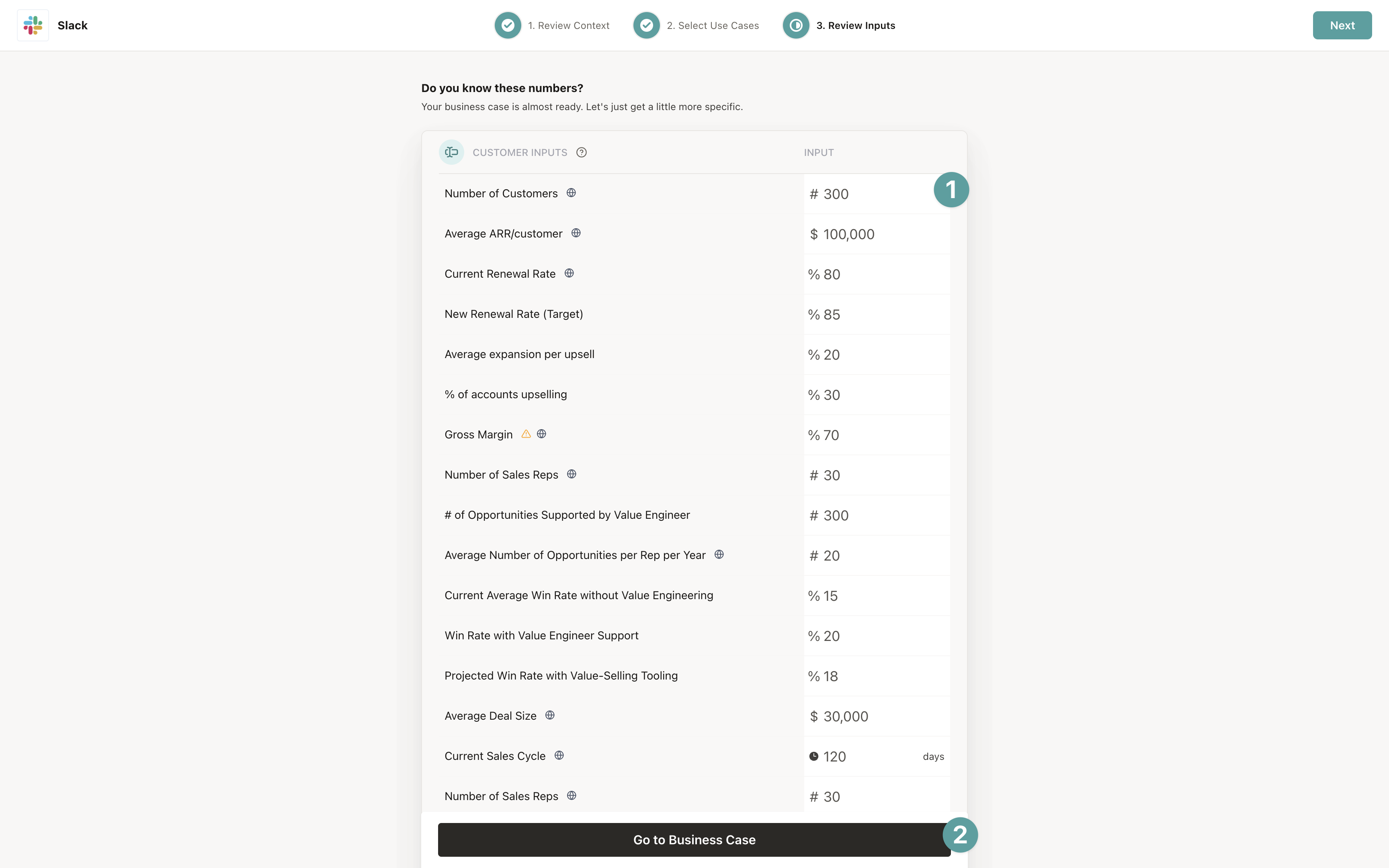
Before finalizing your business case, you'll be presented with a list of all unlocked inputs. These typically have default values, but it's very important that you review these and fill in what you know about your prospect. That's what makes a business case personalized and meaningful for a prospect.
1. Review each input in the list
2. Update values with what you know about your prospect
3. Leave defaults for values you don't have yet—you can always update them later
4. Click **Go to Business Case** when you're done
You can also send the inputs to your prospect as a survey. Click the **Inputs Survey** icon in the left toolbar of
your business case to set up and manage your survey. Group your inputs to your liking—locked inputs won't show up
in the survey. Share the link and responses will appear automatically on your use case cards.
## Adding an Investment
Once you've tailored your use cases to the prospect you can define the pricing structure for this deal. Don't worry, you can always hide the investment to keep the conversation focused on benefit in the early stages.
1. Navigate to the Investment Tab
2. Add a recurring and/or one-time fee
3. Manage the visibility with the icon button in the top right of the investment section

## Sharing your Business Case
Now that you have the core of the business case set up, you have several options for how to share.
### Option 1 (Recommended): Collaborate directly in the Business case
Business cases with clear evidence of collaboration is directly correlated with increased win rates.
1. Click the share button in the top right
2. Add the email of your champion
3. Make sure they have the Editor role assigned
Your champion will have a limited view of the business case. They won't be able to see hidden tabs or change the contract length, but they can add input values and help you craft the story of the business case.

### Option 2: One-Page Business Case
A document version of your business case that you can regenerate to pull in your latest changes. A link to the original business case is included at the bottom.

### Option 3: Export
You have the option to export your business case as a slide deck with your branding. Slide exports can be a great way to leave an asset with your champion to share internally.
1. Click the export icon in the left toolbar of your business case
2. Select Google Slides, Powerpoint, or PDF
3. ❗️ Ensure your browser isn't blocking popups. This is the most common reason for a failed export. Look for a Lock icon near the url of the page.
4. Open the exported document. If it's Google slides or PDF you can add or remove whatever content you'd like. Remember to copy the deck to your organization's drive.
