> ## Documentation Index
> Fetch the complete documentation index at: https://docs.minoa.io/llms.txt
> Use this file to discover all available pages before exploring further.
# Prompt the Agent with Your Voice
> Speak your prompt instead of typing it, in the language you think in
The prompts that get the most out of the agent are the long ones. Full context, the number, where it came from, what you want changed. Those are also the ones nobody types.
Voice input removes that trade. Click the mic, say the whole thing out loud, and the agent gets the prompt you would have written if you had five minutes.
 ## Step by step
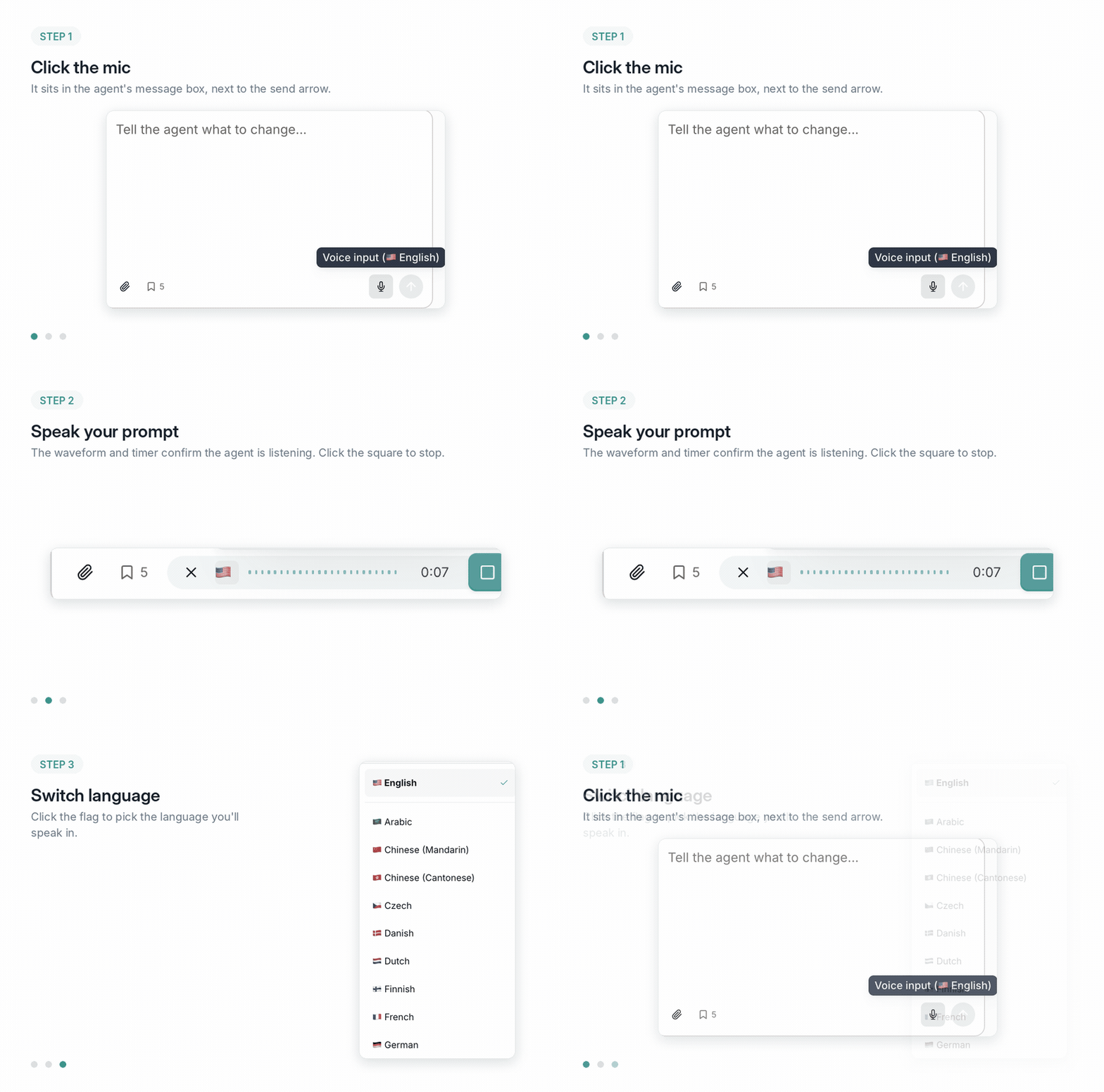
Start a conversation with the agent inside any business case or on the Docs tab of a deal. Voice input works anywhere you can type to it.
The mic sits in the message box, to the left of the send arrow. Hover it and you will see which language it is currently set to.
## Step by step
Start a conversation with the agent inside any business case or on the Docs tab of a deal. Voice input works anywhere you can type to it.
The mic sits in the message box, to the left of the send arrow. Hover it and you will see which language it is currently set to.
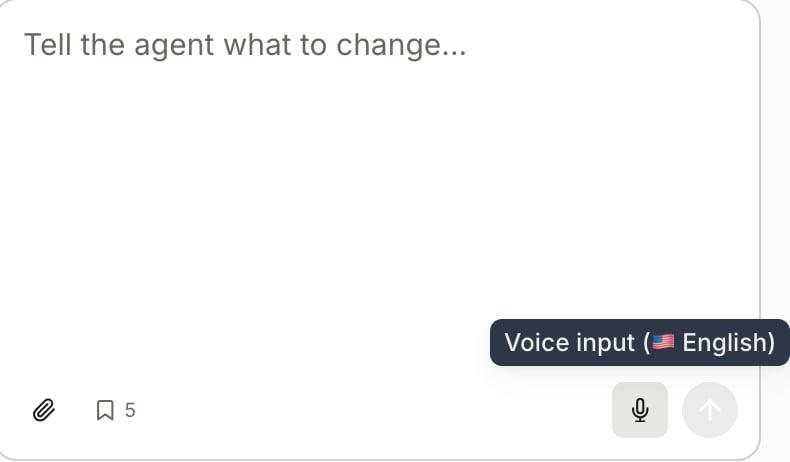 The message box turns into a recording bar. The waveform and the timer tell you it is listening.
 Three controls, left to right:
| Control | What it does |
| :- | :- |
| **✕** | Cancels the recording. Nothing is transcribed. |
| **Flag** | Switches the language you are speaking in. |
| **Square** | Stops recording and transcribes. |
The transcript lands in the message box as ordinary text. It is not sent yet. Fix a mangled product name, add the detail you forgot, then hit send.
Your browser will ask for microphone access the first time. If you blocked it by reflex, re-enable it in your browser's site settings for app.minoa.io.
## Speak in your own language
Click the flag in the recording bar and pick from the list. English, Arabic, Mandarin, Cantonese, Czech, Danish, Dutch, Finnish, French and German are all in there, and the list keeps going.
Three controls, left to right:
| Control | What it does |
| :- | :- |
| **✕** | Cancels the recording. Nothing is transcribed. |
| **Flag** | Switches the language you are speaking in. |
| **Square** | Stops recording and transcribes. |
The transcript lands in the message box as ordinary text. It is not sent yet. Fix a mangled product name, add the detail you forgot, then hit send.
Your browser will ask for microphone access the first time. If you blocked it by reflex, re-enable it in your browser's site settings for app.minoa.io.
## Speak in your own language
Click the flag in the recording bar and pick from the list. English, Arabic, Mandarin, Cantonese, Czech, Danish, Dutch, Finnish, French and German are all in there, and the list keeps going.
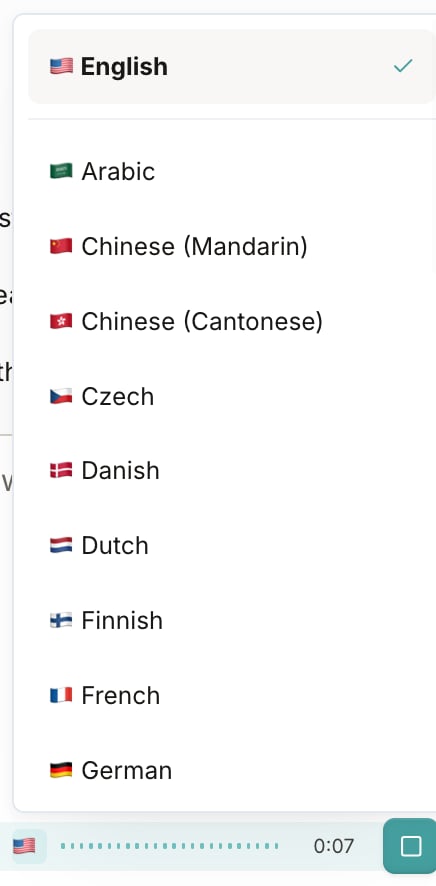 The setting sticks for your next recording, so a German-speaking seller sets it once.
**Understanding you and writing for your buyer are two different things.**
The agent can take your prompt in any language on that list. What it writes into your value story documents and business cases is governed by the languages your admin has enabled in **Value Intelligence Settings**, not by the language you spoke.
So you can talk the agent through a case in German. Whether that case renders in German for your buyer depends on whether German is enabled and your use cases are translated. See [Internationalization](/pages/value-framework/internationalization).
## Don't see your language?
Email [**support@minoa.io**](mailto:support@minoa.io) and tell us which one. We add languages based on what customers ask for, so your request moves it up the list.
## What to actually say
Voice rewards the prompts typing punishes. Four that work:
* **The full correction, in one breath.** "The twelve minute default is wrong for them, their team said twenty two minutes on the March third call, update it and record that the customer gave us that number."
* **Everything you remember from the call.** Dump it. Let the agent sort out which parts are use cases and which are noise.
* **The chained edit.** "Create a best case scenario, push adoption to eighty five percent, add a three month onboarding phase at thirty percent ramp, then show me payback for both."
* **The walk-through request.** "Walk me through this case as if I have never seen it, then tell me which number my champion cannot defend on their own."
Say numbers the way you would say them out loud. "Twenty two minutes", not "22". The transcript handles it, and you are not reaching for the keyboard mid-sentence.
You can now brief the agent the way you would brief a colleague, in the language you think in, without typing a paragraph.
## Related
* [Agent Recipes](/pages/recipes/agent-recipes) for what to ask once you are talking to it
* [Build a Value Story w/ the Business Case Agent](/pages/recipes/using-minoa-agent) for the wider agent walkthrough
* [Internationalization](/pages/value-framework/internationalization) for which languages your business cases can be presented in
This documentation is built and hosted on [Mintlify](https://mintlify.com), a developer documentation platform.
The setting sticks for your next recording, so a German-speaking seller sets it once.
**Understanding you and writing for your buyer are two different things.**
The agent can take your prompt in any language on that list. What it writes into your value story documents and business cases is governed by the languages your admin has enabled in **Value Intelligence Settings**, not by the language you spoke.
So you can talk the agent through a case in German. Whether that case renders in German for your buyer depends on whether German is enabled and your use cases are translated. See [Internationalization](/pages/value-framework/internationalization).
## Don't see your language?
Email [**support@minoa.io**](mailto:support@minoa.io) and tell us which one. We add languages based on what customers ask for, so your request moves it up the list.
## What to actually say
Voice rewards the prompts typing punishes. Four that work:
* **The full correction, in one breath.** "The twelve minute default is wrong for them, their team said twenty two minutes on the March third call, update it and record that the customer gave us that number."
* **Everything you remember from the call.** Dump it. Let the agent sort out which parts are use cases and which are noise.
* **The chained edit.** "Create a best case scenario, push adoption to eighty five percent, add a three month onboarding phase at thirty percent ramp, then show me payback for both."
* **The walk-through request.** "Walk me through this case as if I have never seen it, then tell me which number my champion cannot defend on their own."
Say numbers the way you would say them out loud. "Twenty two minutes", not "22". The transcript handles it, and you are not reaching for the keyboard mid-sentence.
You can now brief the agent the way you would brief a colleague, in the language you think in, without typing a paragraph.
## Related
* [Agent Recipes](/pages/recipes/agent-recipes) for what to ask once you are talking to it
* [Build a Value Story w/ the Business Case Agent](/pages/recipes/using-minoa-agent) for the wider agent walkthrough
* [Internationalization](/pages/value-framework/internationalization) for which languages your business cases can be presented in
This documentation is built and hosted on [Mintlify](https://mintlify.com), a developer documentation platform.