> ## Documentation Index
> Fetch the complete documentation index at: https://docs.minoa.io/llms.txt
> Use this file to discover all available pages before exploring further.
# Managing Slide Templates
> Configuring slide exports with branded decks and dynamic variables
Business Cases can be exported to PDF, PowerPoint, or Google Slides using a custom master template that affects your business case deck's content, structure, and visual appearance.
## Understanding master templates
Master templates are Google Slide presentations that define how your business case will be rendered on export. They use *variables* to act as placeholders - when you export a business case, each variable will be replaced with its appropriate value. This saves you the time and hassle of building custom decks and copy/pasting content.
The master template applies to all users in your organization and is configured by the Minoa Support team. Please reach out to us if you want to create your custom master template, make edits to an existing master template, or remove it from your organization. If you'd like full control over chart styling (colors, fonts, layout), we can also set up [custom chart spreadsheets](#chart-variables) for your organization.
The slide export functionality scans the master template and intelligently splits content. For example, if multiple use cases are selected, slides that include a variable for a use case will be repeated in the final deck for each use case. Empty placeholders will be removed. Slides without any variables will show up in every deck and can be used to separate dynamic content or include static information (e.g. company overview, product information, disclaimers, …).
## Variable reference
Variables are wrapped in double curly braces: `{{variableName}}`. The following sections document all available variables organized by category.
### Global variables
These variables are available anywhere in the deck.
Use these variables to display account details, user information, and the current date on your slides.
### Account name
Displays the name of the account associated with the business case.
```
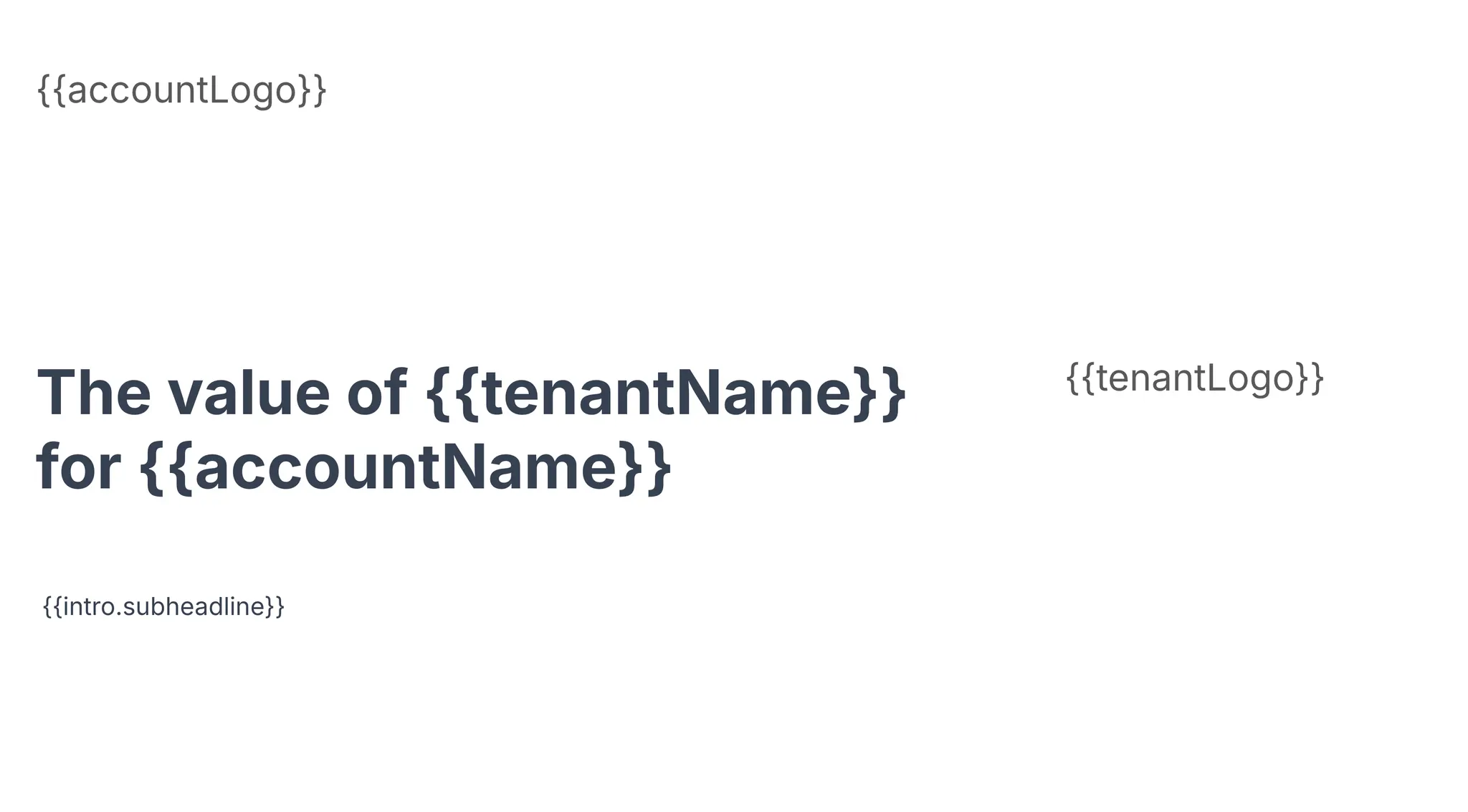
{{accountName}}
```
### Tenant name
Displays the provider or tenant name for your organization.
```
{{tenantName}}
```
### Author user name
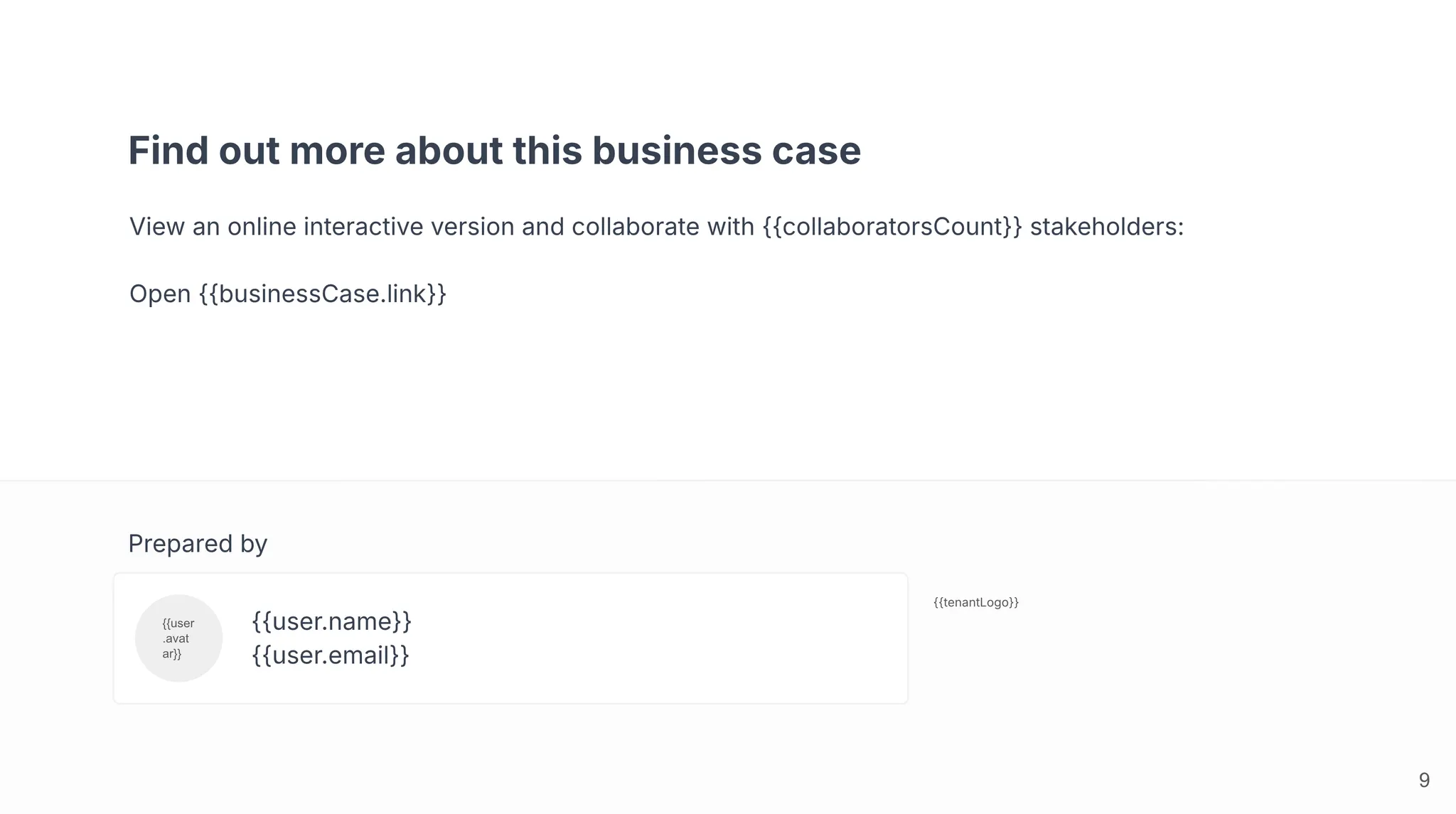
Displays the name of the user who created or owns the business case.
```
{{user.name}}
```
### Author email
Displays the email address of the business case author.
```
{{user.email}}
```
### Current date
Displays the current date in a localized format based on user settings.
```
{{date}}
```
Use these variables to display metadata about the opportunity and business case.
### Opportunity name
Displays the name of the sales opportunity linked to this business case.
```
{{oppName}}
```
### Business case link
Provides a URL link to the online version of the business case.
```
{{businessCase.link}}
```
### Collaborators count
Displays the number of collaborators who have access to the business case.
```
{{collaboratorsCount}}
```
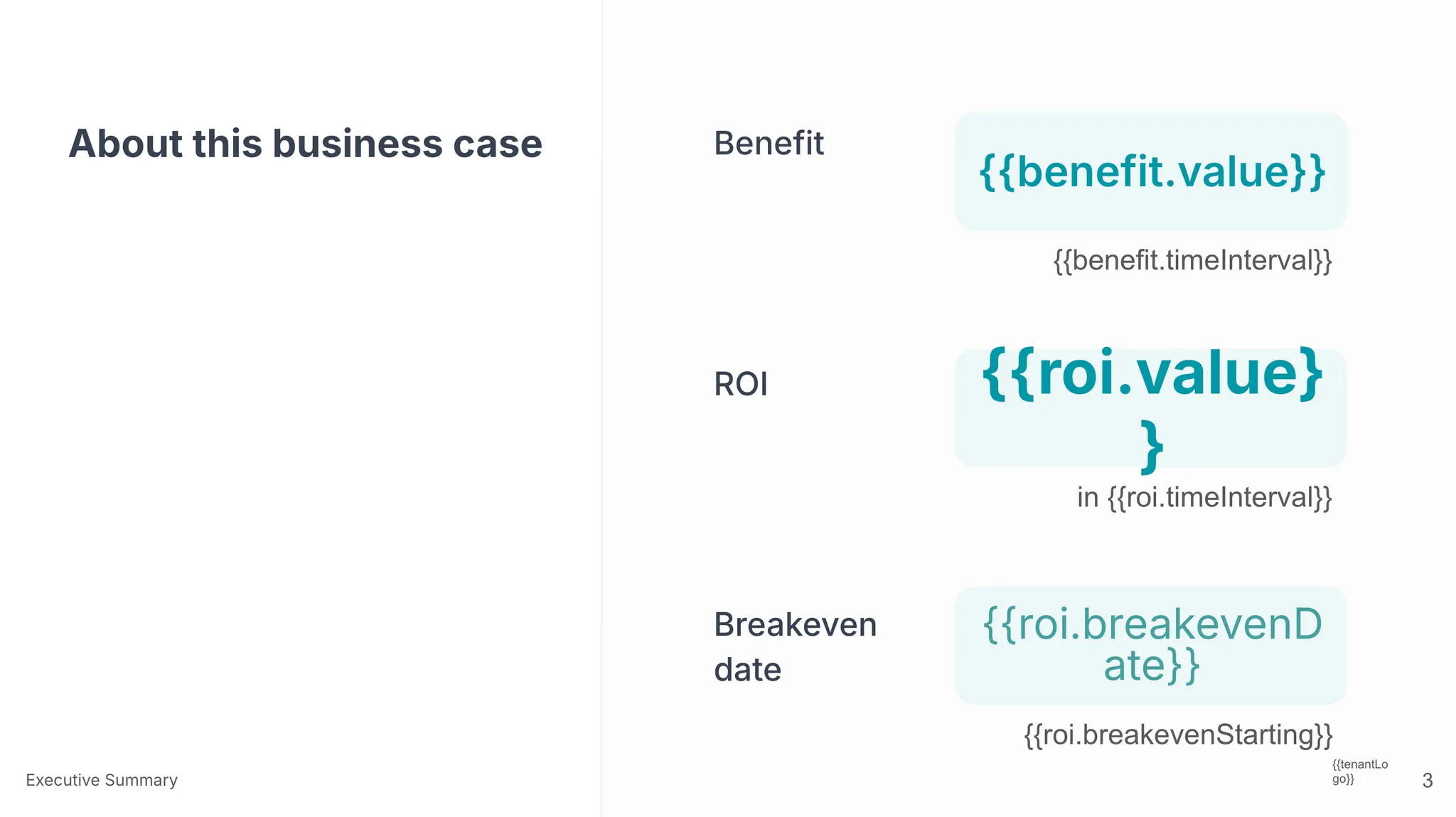
Use these variables to display calculated benefit totals and time intervals.
### Total benefit value
Displays the total calculated benefit value across all selected use cases.
```
{{benefit.value}}
```
### Net benefit value
Displays the net benefit calculated as total benefit minus total cost.
```
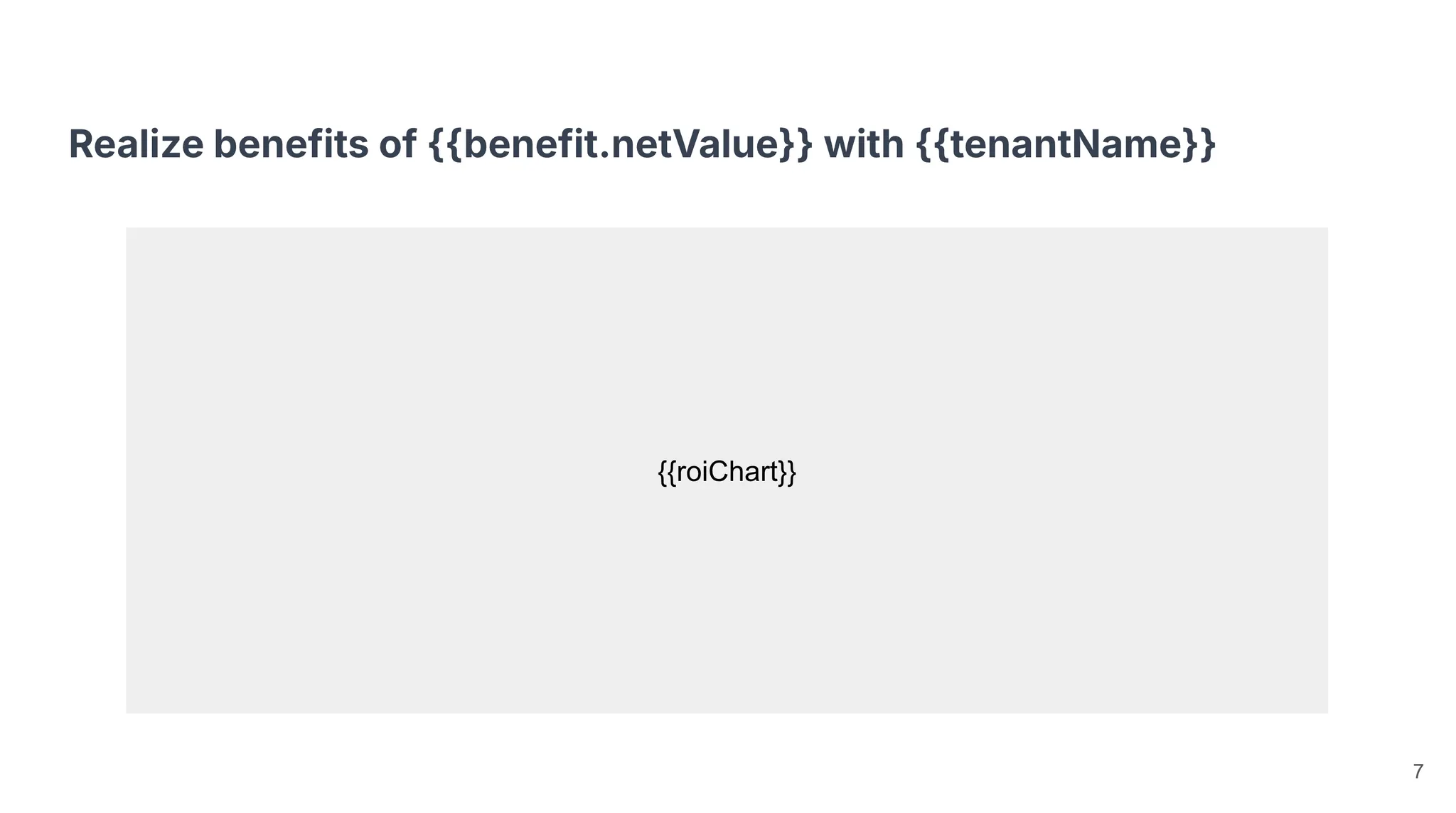
{{benefit.netValue}}
```
### Benefit time interval
Displays the time period for benefits, such as "for 24 months".
```
{{benefit.timeInterval}}
```
### Contract duration in years
Displays the contract duration expressed in years.
```
{{benefit.timeIntervalYears}}
```
Use these variables to display ROI calculations, payback periods, and cost of inaction metrics.
### ROI value
Displays the ROI as a multiple, such as "3.5x".
```
{{roi.value}}
```
### ROI time interval
Displays the time period over which ROI is calculated.
```
{{roi.timeInterval}}
```
### Breakeven date
Displays the projected breakeven date, such as "March 2025".
```
{{roi.breakevenDate}}
```
### Breakeven starting text
Displays contextual text like "Starting now" for breakeven calculations.
```
{{roi.breakevenStarting}}
```
### Payback period
Displays the calculated payback period for the investment.
```
{{roi.paybackPeriod}}
```
### Payback delay months
Displays text describing any delayed payback period.
```
{{roi.paybackDelayMonths}}
```
### Cost of inaction
Displays the calculated cost of not taking action.
```
{{roi.costOfInaction}}
```
### Cost of inaction time interval
Displays the time period for the cost of inaction calculation.
```
{{roi.costOfInactionTimeInterval}}
```
Use these variables to display pricing and contract duration information.
### Annual cost
Displays the annual cost of the offer or solution.
```
{{offer.cost}}
```
### Offer time interval
Displays the contract duration for the offer.
```
{{offer.timeInterval}}
```
### Contract duration months
Displays the contract duration in a formatted string.
```
{{contractDurationMonths}}
```
Use these localized label variables to ensure consistent terminology across different languages and regions.
### Gross benefit label
Displays the localized "Gross Benefit" label.
```
{{label.grossBenefit}}
```
### Net benefit label
Displays the localized "Net Benefit" label.
```
{{label.netBenefit}}
```
### Investment label
Displays the localized "Investment" label.
```
{{label.investment}}
```
### TCO label
Displays the localized "TCO" (Total Cost of Ownership) label.
```
{{label.tco}}
```
### Use case benefit label
Displays the localized "Use Case Benefit" label.
```
{{label.useCaseBenefit}}
```
### Overview heading
Displays the localized "Overview" heading text.
```
{{heading.overview}}
```
Use these variables to display realized values from the value realization scenario. These are useful for expansion deals where you want to show delivered value alongside new projected value. Variables return empty strings if no value realization scenario exists.
### Value realization benefit value
Displays the total realized benefit from the value realization scenario.
```
{{historic.benefit.value}}
```
### Value realization net benefit
Displays the net realized benefit (benefit minus cost) from the value realization scenario.
```
{{historic.benefit.netValue}}
```
### Value realization ROI
Displays the realized ROI as a multiple from the value realization scenario.
```
{{historic.roi.value}}
```
### Value realization payback period
Displays the realized payback period from the value realization scenario.
```
{{historic.roi.paybackPeriod}}
```
### Value realization investment cost
Displays the investment cost from the value realization scenario.
```
{{historic.offer.cost}}
```
Additional global variables for miscellaneous content.
### Intro subheadline
Displays the subheadline text for introduction slides.
```
{{intro.subheadline}}
```
### Use case variables
These variables are used on slides that display use case information. Slides containing use case variables will be repeated for each selected use case.
Use these variables to display the name, description, and value of individual use cases.
### Use case name
Displays the name of the use case.
```
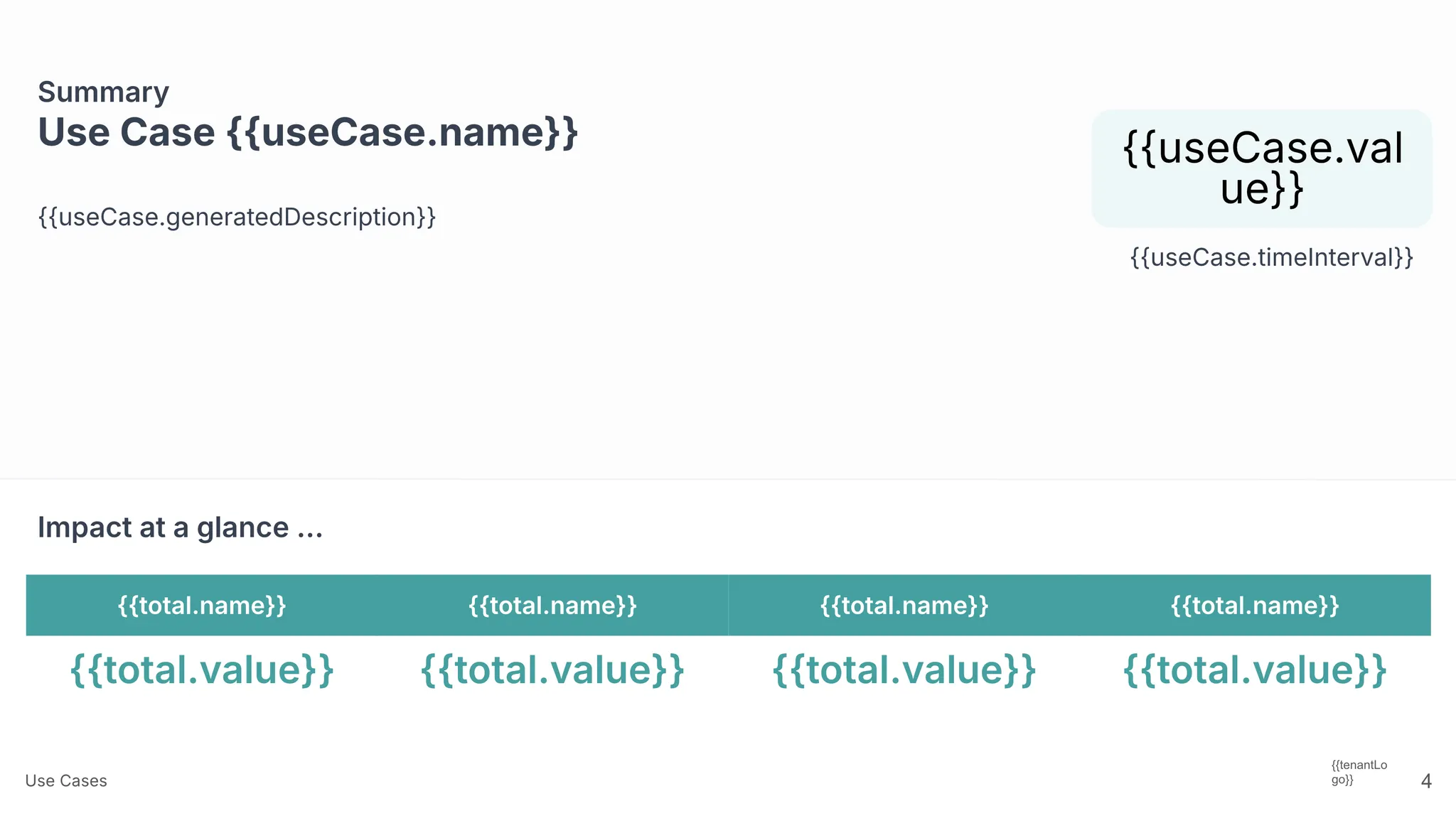
{{useCase.name}}
```
### Use case description
Displays the manually entered description for the use case.
```
{{useCase.description}}
```
### AI-generated description
Displays an AI-generated description of the use case based on its inputs and context.
```
{{useCase.generatedDescription}}
```
### Use case value
Displays the total calculated benefit value for the use case.
```
{{useCase.value}}
```
Use the formula variable to render calculation breakdowns as formatted math expressions. Formulas span the full width of the slide and inherit styling from the placeholder box.
### Formula placeholder
Renders the use case calculation as formatted math showing the breakdown (e.g., Input A × Input B + Subtotal = \$50,000). Supports multiple formulas per slide with automatic layout. Works best with fewer than six inputs.
```
{{formula}}
```
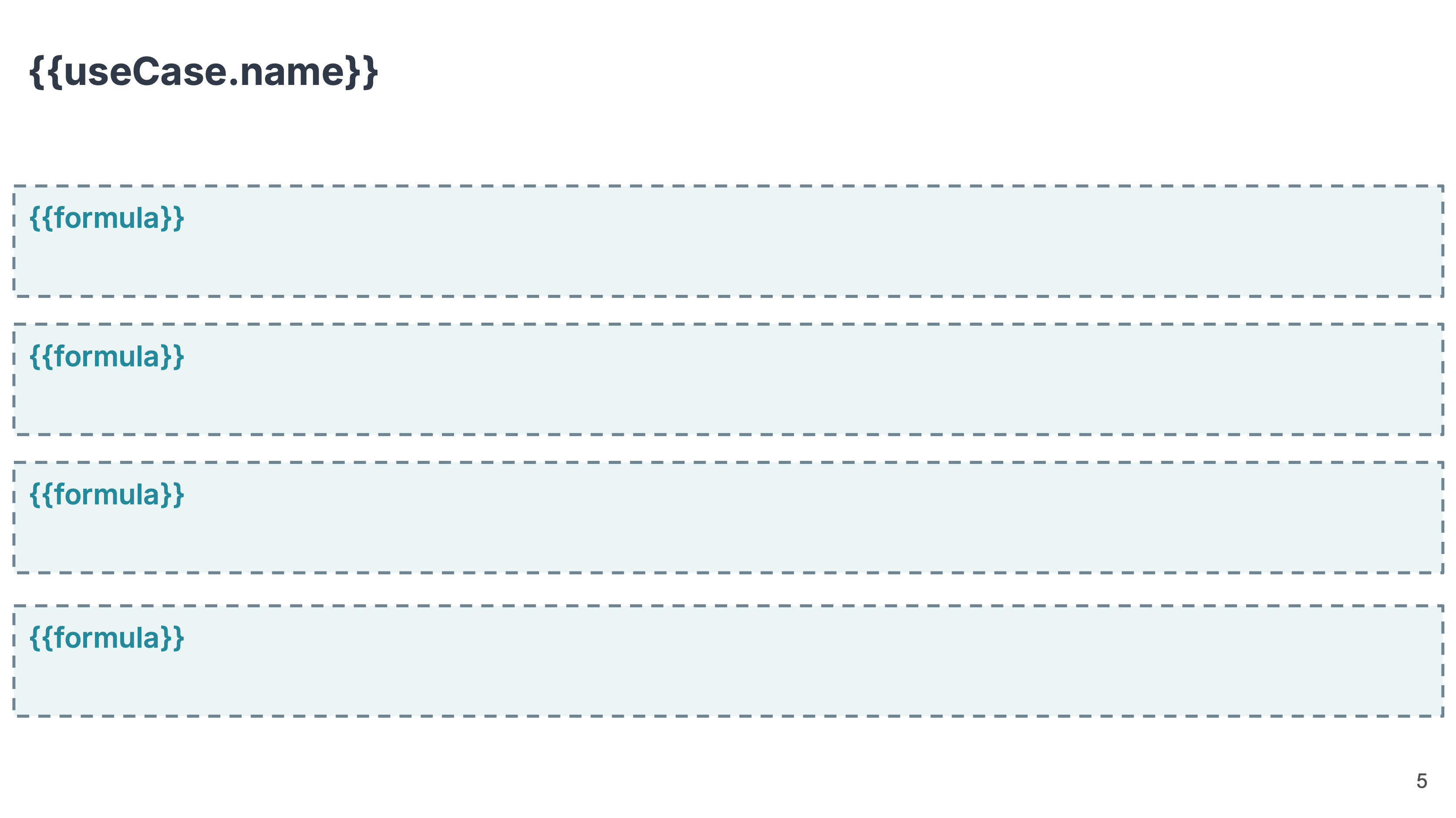
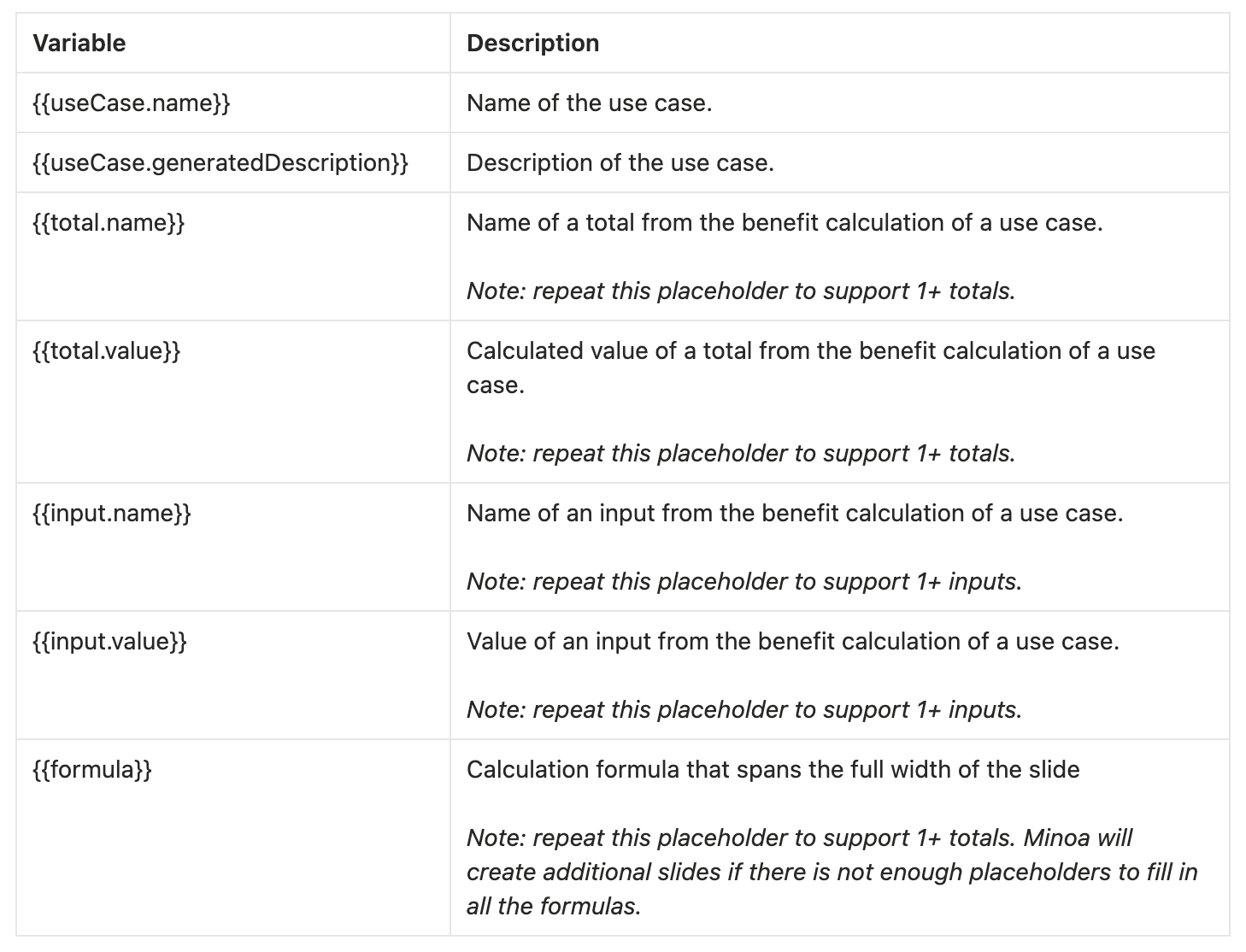
Use these variables to display calculation breakdowns as individual line items. Add multiple placeholders for inputs, totals, and formulas - the export will only include up to the number of placeholders you provide.
### Input name
Displays the name of a calculation input.
```
{{useCase.input.name}}
```
### Input value
Displays the value of a calculation input.
```
{{useCase.input.value}}
```
### Subtotal name
Displays the name of a subtotal in the calculation.
```
{{useCase.subtotal.name}}
```
### Subtotal value
Displays the calculated subtotal value.
```
{{useCase.subtotal.value}}
```
### Total name
Displays the name of the final total.
```
{{useCase.total.name}}
```
### Total value
Displays the final calculated total value.
```
{{useCase.total.value}}
```
### Property group variables
Variables for displaying totals grouped by properties. If there are no use cases with the corresponding property value assigned, the placeholder will be filled with 0. If a use case belongs to multiple values within a property category, its value will be equally distributed between values. Use cases without any property value in a category will be assigned to "other".
Use property group variables to automatically calculate and display totals for use cases grouped by specific property categories and values. Property values are normalized (spaces and camelCase are converted to lowercase).
### Property value format
Displays the total value for all use cases with a specific property value. Replace `categoryName` and `tagName` with your actual property category and value name.
```
{{tag.categoryName.tagName.value}}
```
### Example: PBO increase revenue
Displays the total value for use cases with the "increaseRevenue" property value in the "pbo" category.
```
{{tag.pbo.increaseRevenue.value}}
```
### Other/without property value
Displays the total value for use cases that don't have any property value in the specified category.
```
{{tag.pbo.other.value}}
```
### Custom AI variables
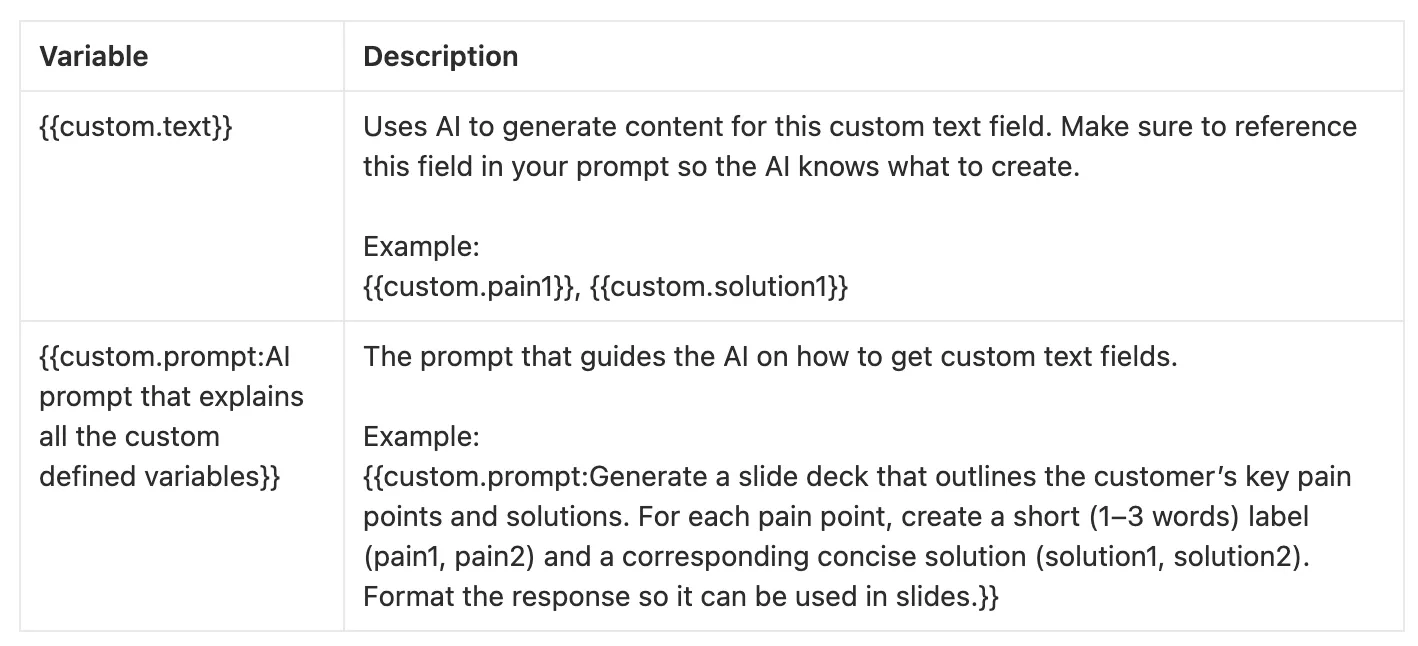
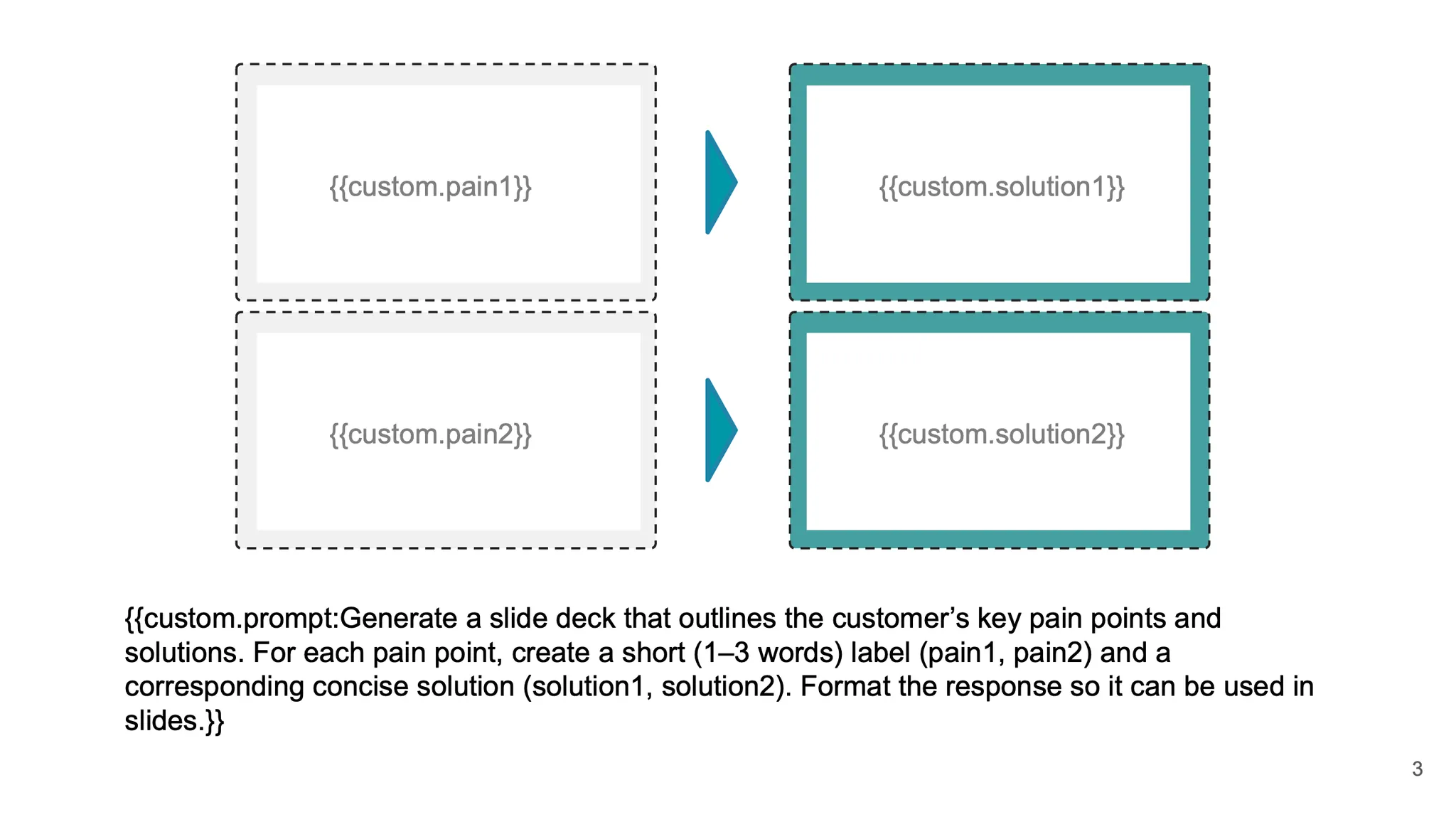
Custom AI text slides allow you to generate flexible, deal-specific text content in your presentation. Instead of only pulling predefined fields from the business case, you can create your own variables and generate them using AI.
Use custom variables to generate AI-powered content tailored to each business case. Place a prompt instruction and your custom variables on the same slide. The system extracts all custom variables, makes one AI call per slide with full business case context, and replaces all variables with generated content.
### Custom prompt
Defines instructions for the AI to generate content. This placeholder is removed from the final output after processing.
```
{{custom.prompt:Your instructions here}}
```
### Custom variable
A placeholder that will be replaced with AI-generated content based on the prompt. You can define any variable name after `custom.`.
```
{{custom.executiveTitle}}
```
```
{{custom.keyMessage}}
```
**Placement:** Place the prompt in a **separate** text box from your variable placeholders. The prompt box is removed during export. For a clean deck, position the prompt text box off the right edge of the slide (about 1px overlap) so it never appears in the exported deck.
### Example usage
Combine a prompt with multiple custom variables on a single slide. The AI receives context including business case data, account information, executive summary content, and slide context.
```
{{custom.prompt:Write an executive title that highlights the main value proposition}}
{{custom.executiveTitle}}
{{custom.keyMessage}}
```
### Chart variables
Variables for embedding charts from the business case. Adding a placeholder for a chart will render the chart in that place on your slide. It's usually best to give these charts a standalone slide with only a title to ensure there is enough space.
By default, charts use Minoa's standard styling. If you want full control over chart design — including bar colors, fonts, labels, and layout — the Minoa team can set up a **custom chart spreadsheet** for your organization. Once configured, you'll have access to a Google Spreadsheet where you can fully customize the appearance of each chart. The customized charts are then automatically used when exporting a business case. Reach out to the Minoa Support team to get started.
Use ROI chart variables to embed the ROI visualization. You can use the standard chart or reference a custom-designed chart from a specific Google Sheet.
### Standard ROI chart
Embeds the default ROI chart from the business case.
```
{{roiChart}}
```
### Custom ROI chart
Embeds a fully customized ROI chart from a Google Spreadsheet set up by the Minoa team. This gives you full control over the chart's colors, fonts, labels, and layout to match your brand guidelines. Replace `sheetId` with the spreadsheet ID and `tabName` with the sheet tab name — both are provided by the Minoa team when they configure your custom chart spreadsheet.
```
{{roiChart.sheetId.tabName}}
```

Use this variable to embed a chart comparing costs versus benefits.
### Cost benefit chart
Embeds the cost vs benefit comparison chart from the business case.
```
{{costBenefitChart}}
```
Use this variable to embed a chart showing the cost of not taking action.
### Cost of inaction chart
Embeds the cost of inaction visualization from the business case.
```
{{costOfInactionChart}}
```
Use this variable to embed a chart showing cumulative benefit vs investment over the contract duration (monthly). The chart is only included when the offer tab is visible and pricing data exists. If no investment data is present, the slide is removed.
### Breakeven chart
Embeds the breakeven chart from the business case.
```
{{breakevenChart}}
```
### Custom breakeven chart
Embeds a fully customized breakeven chart from a Google Spreadsheet set up by the Minoa team. This gives you full control over the chart's styling to match your brand guidelines. Replace `sheetId` and `tabName` with the values provided by the Minoa team.
```
{{breakevenChart.sheetId.tabName}}
```
Use this variable to embed a chart comparing cumulative benefit across multiple scenarios (yearly). The chart is only included when the offer tab is visible and the business case has two or more scenarios. If there is only one scenario, the slide is removed.
### Scenarios comparison chart
Embeds the scenarios comparison chart from the business case.
```
{{scenariosChart}}
```
### Custom scenarios chart
Embeds a fully customized scenarios comparison chart from a Google Spreadsheet set up by the Minoa team. This gives you full control over the chart's styling to match your brand guidelines. Replace `sheetId` and `tabName` with the values provided by the Minoa team.
```
{{scenariosChart.sheetId.tabName}}
```
### Overview and text content
Variables for including content from the Overview tab and other text-based tabs.
Use this variable to include the full content of text-based tabs like the Overview. This slide will be recognized as the generic template for any text-based slide in the deck.
### Full slide content
Includes the complete content from text-based tabs. If no slide with this variable exists, content from other tabs will not be exported.
```
{{slide.content}}
```

Use AI prompts to extract or summarize specific parts of the Overview tab. If using slides with AI prompts, you may want to remove the unformatted slide with `{{slide.content}}`.
### AI content extraction
Use a custom prompt to extract and format specific content from the overview.
```
{{custom.prompt:Summarize the key pain points from the executive summary}}
```
### Resource variables
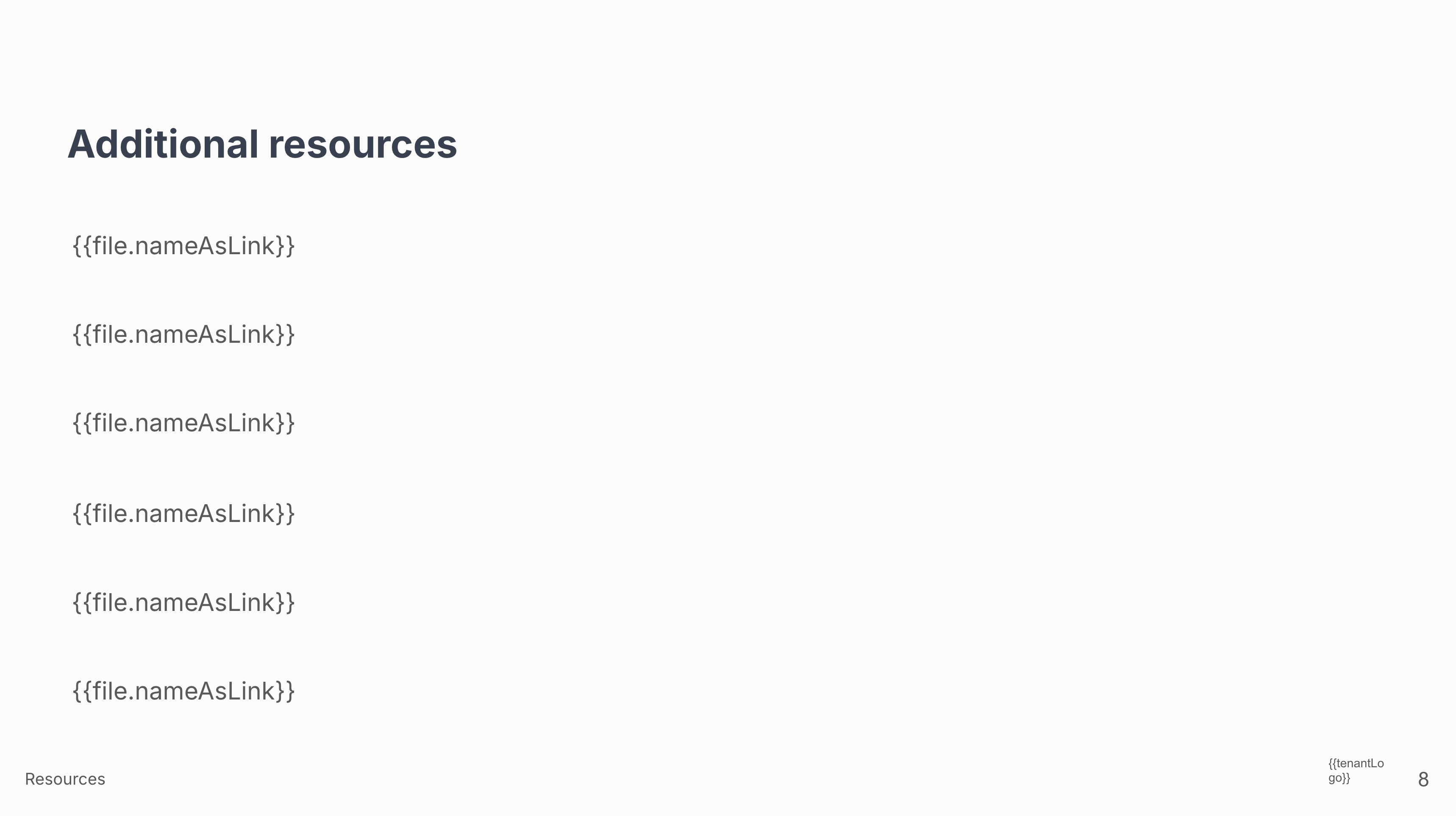
Variables for including a list of resources that act as hyperlinks to URLs or files added to the business case. The number of resources included will be capped at the number of placeholders - add multiple instances of these variables to include more resources.
Use file placeholders to display linked resources on your slides. Each placeholder gets replaced with the resource name, hyperlinked to its URL. Add multiple instances to include more resources in the export.
### File placeholder
Displays a resource as a clickable link. The placeholder is replaced with the resource name and automatically hyperlinked to its URL.
```
{{file.nameAsLink}}
```
### Timeline variables
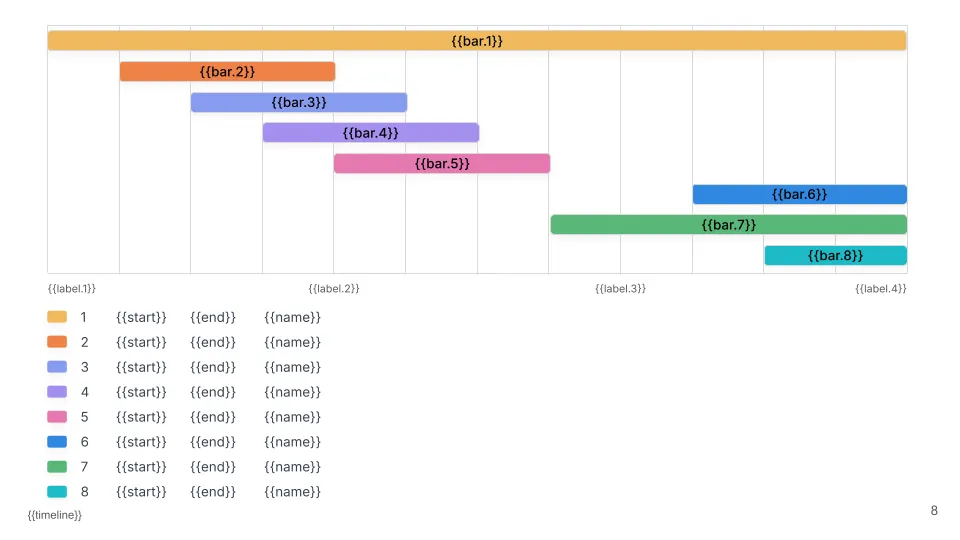
Variables for timeline slides showing phases and milestones.
Use this variable to embed a timeline visualization showing project phases and milestones.
### Timeline placeholder
Embeds the timeline from the business case showing phases and key milestones.
```
{{timeline}}
```
## Advanced slide types
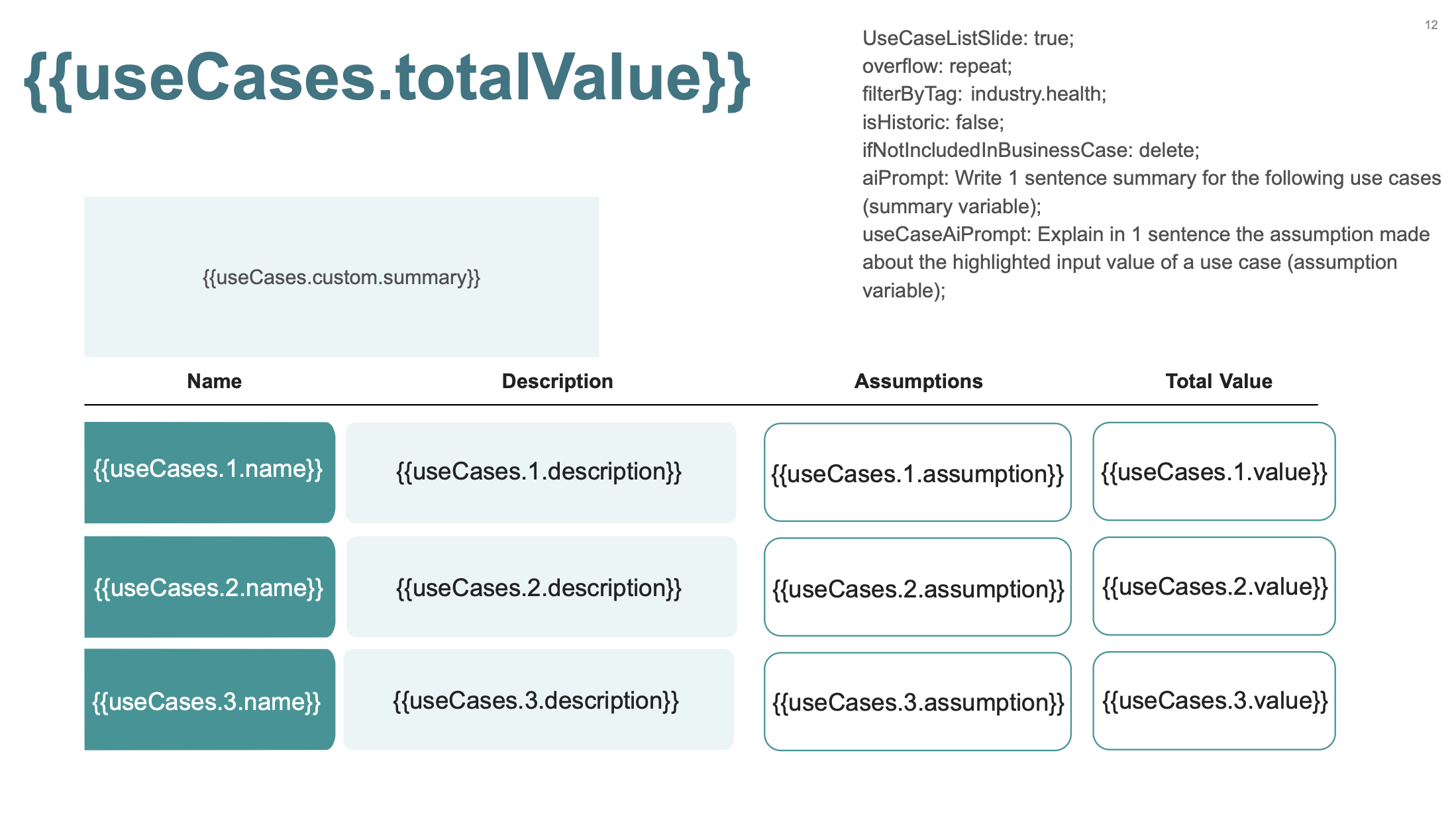
Beyond standard variable placeholders, you can create advanced slides that use a **settings text box** to configure special behavior. These slide types give you fine-grained control over which use cases appear and how they're displayed.
### Use cases list slide
Display multiple use cases on a single slide with optional filtering and overflow handling. This is ideal for summary slides, category breakdowns, or compact use case overviews.
Add a text box anywhere on your slide with the following settings. The text box will automatically be removed during export.
### Settings syntax
```
UseCaseListSlide: true
filterByTag: customerSegment.enterprise;
ifNotIncludedInBusinessCase: delete;
overflow: repeat;
aiPrompt: Summarize the overall value proposition.
Return the headline variable.;
useCaseAiPrompt: For each use case, write a one-sentence summary.
Return the tagline variable.;
isHistoric: false;
```
### Settings reference
| Setting | Required | Values | Default | Description |
| ----------------------------- | -------- | ---------------------- | -------- | ----------------------------------------------------------------------------------------------------- |
| `UseCaseListSlide` | Yes | `true` | — | Must be `true` to enable this slide type |
| `filterByTag` | No | `tagGroup.tagName` | Show all | Only show use cases with this property value (e.g., `department.sales`) |
| `ifNotIncludedInBusinessCase` | No | `delete` / `fillBlank` | `delete` | `delete` removes the slide if no use cases match; `fillBlank` keeps the slide with empty placeholders |
| `overflow` | No | `slice` / `repeat` | `slice` | `slice` shows only what fits; `repeat` creates extra slides for remaining use cases |
| `aiPrompt` | No | text | — | Instructions for AI to generate `{{useCases.custom.*}}` content |
| `useCaseAiPrompt` | No | text | — | Instructions for AI to generate `{{useCases.N.custom.*}}` content for each use case |
| `isHistoric` | No | `true` / `false` | `false` | Set to `true` to use data from the value realization scenario of the business case |
### Overflow behavior
* **slice** (default): Show only as many use cases as you have placeholder groups. Extra use cases are not displayed.
* **repeat**: Duplicate the slide to accommodate all matching use cases. For example, if you have 3 placeholder groups and 7 use cases, the export creates 3 slides.
### Global variables
These apply to the entire filtered set of use cases:
```
{{useCases.totalValue}}
```
Total formatted value of all matching use cases.
```
{{useCases.count}}
```
Number of use cases that match the filter.
### Use-case-level variables
Create placeholder groups for each use case slot. Use case slots are numbered starting at 1:
```
{{useCases.1.name}}
{{useCases.1.description}}
{{useCases.1.value}}
```
```
{{useCases.2.name}}
{{useCases.2.description}}
{{useCases.2.value}}
```
Add as many numbered groups as you want to display on one slide.
Generate dynamic content using AI by combining prompts in your settings with custom variable placeholders. There are **two separate prompts** for different scopes:
* **`aiPrompt`** → For slide-level variables (`{{useCases.custom.*}}`)
* **`useCaseAiPrompt`** → For use-case-level variables (`{{useCases.N.custom.*}}`)
### How it works
1. Add the appropriate prompt in your settings with instructions
2. Add placeholder variables on the slide
3. Reference the variable names in your prompt so the AI knows what to generate
### Slide-level AI variables (aiPrompt)
Generate content based on ALL matching use cases. The AI sees the full list of use cases when generating.
**Placeholders:**
```
{{useCases.custom.headline}}
{{useCases.custom.summary}}
```
**Settings:**
```
aiPrompt: Create a compelling headline and 2-sentence summary for this group of use cases.
Return the headline variable with an executive-friendly title.
Return the summary variable with a brief overview.;
```
### Use-case-level AI variables (useCaseAiPrompt)
Generate unique content for EACH use case individually. The AI makes a separate call for each use case, receiving only that use case's context.
**Placeholders:**
```
{{useCases.1.custom.tagline}}
{{useCases.2.custom.tagline}}
{{useCases.3.custom.tagline}}
```
**Settings:**
```
useCaseAiPrompt: Write a one-line value tagline for this use case.
Return the tagline variable.;
```
Use `aiPrompt` when you need content that considers all use cases together (like a summary). Use `useCaseAiPrompt` when each use case needs unique, individually-tailored content.
Use `filterByTag` to show only use cases with a specific property value. The format is `tagGroup.tagName`.
### Example
To show only use cases with the "Enterprise" value in the "Customer Segment" property group:
```
filterByTag: customerSegment.enterprise;
```
Value names are normalized (spaces removed, converted to lowercase) when matching.
Create separate slides for each value in a property group to build category breakdowns. For example, with a "Department" property group: one slide for Sales, one for Operations, one for Finance.
Set `isHistoric: true` to display realized values from the value realization scenario instead of projected future values.
This is useful for expansion deals where you want to show the value already delivered alongside new projected value.
```
isHistoric: true;
```
**Example:**
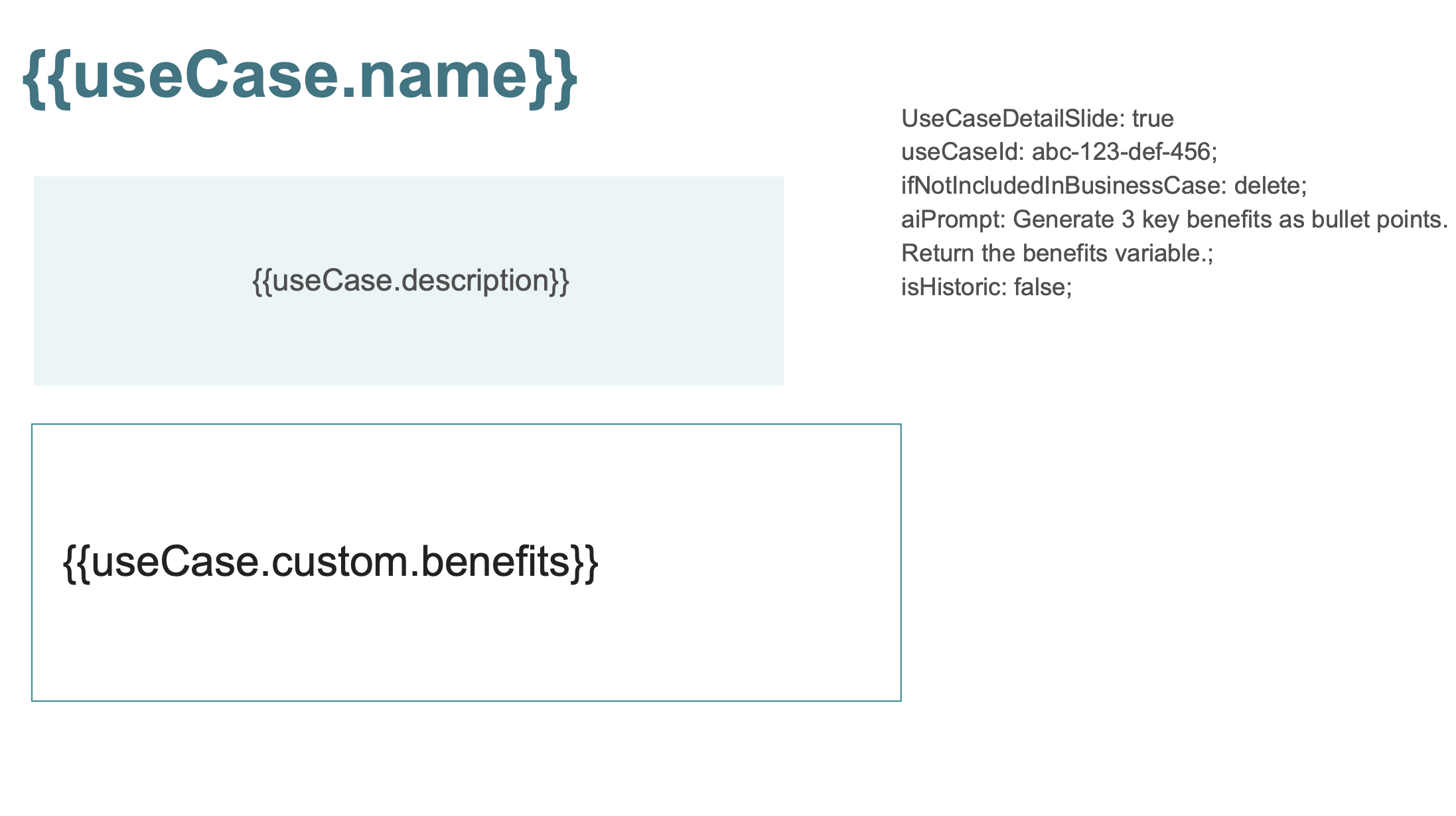
### Use case detail slide
Display a specific use case by ID with custom layouts and AI-generated content. Use this for featured use cases that need special treatment beyond the standard repeating slides.
Add a text box anywhere on your slide with the following settings. The text box will automatically be removed during export.
### Settings syntax
```
UseCaseDetailSlide: true
useCaseId: abc-123-def-456;
ifNotIncludedInBusinessCase: delete;
aiPrompt: Generate 3 key benefits as bullet points.
Return the benefits variable.;
isHistoric: false;
```
### Settings reference
| Setting | Required | Values | Default | Description |
| ----------------------------- | -------- | ---------------------- | -------- | ---------------------------------------------------------------------------------------------------------- |
| `UseCaseDetailSlide` | Yes | `true` | — | Must be `true` to enable this slide type |
| `useCaseId` | Yes | ID string | — | The ID of the use case to display (copy from Value Framework) |
| `ifNotIncludedInBusinessCase` | No | `delete` / `fillBlank` | `delete` | `delete` removes the slide if use case isn't selected; `fillBlank` keeps the slide with empty placeholders |
| `aiPrompt` | No | text | — | Instructions for AI to generate `{{useCase.custom.*}}` content |
| `isHistoric` | No | `true` / `false` | `false` | Set to `true` to use data from the value realization scenario of the business case |
### Getting the use case ID
In the Value Framework, open a use case, click the three-dot menu in the top right of the use case page, and select **Copy ID**.
### Standard variables
```
{{useCase.name}}
```
The use case name.
```
{{useCase.description}}
```
The use case description (plain text).
```
{{useCase.value}}
```
The total calculated benefit value, formatted with currency.
### AI-generated custom variables
Generate custom content by combining `aiPrompt` in settings with placeholders:
```
{{useCase.custom.benefits}}
{{useCase.custom.summary}}
{{useCase.custom.talkingPoints}}
```
Example settings:
```
aiPrompt: Based on this use case, generate executive-ready content.
Return the benefits variable with 3 bullet points.
Return the summary variable with a 2-sentence overview.
Return the talkingPoints variable with key discussion topics.;
```
When generating custom variables, the AI has access to rich context about the use case:
* **Name and description** — Full use case content
* **Total value** — Calculated benefit with currency formatting
* **Category** — Cost reduction, revenue increase, risk mitigation, etc.
* **Calculations** — Formula breakdowns with math explanations
* **Benefit breakdown** — Value split by calculation block
* **Timeline** — Start and end dates if configured
* **Timeline notes** — Implementation notes
* **Highlighted inputs** — Key inputs marked for emphasis
* **Input notes** — Assumptions and sources for inputs
This context allows the AI to generate highly relevant, deal-specific content.
Use `UseCaseDetailSlide` when you need:
* **Custom layouts** — Different design for a flagship use case
* **Case study slides** — Dedicated slides for proven customer outcomes
* **Industry-specific content** — Tailored messaging for key use cases
* **Value realization comparisons** — Show realized value for specific outcomes
Use UseCaseDetailSlide when you need a completely custom layout for a specific use case that differs from the standard repeating slides.
**Example:**
## Static slides for use cases
You can add specific slides with pre-formatted content to a use case. Include a hashtag of the Use Case ID in a textbox on the template slide. This textbox will be removed and the slide will be inserted after the use case slides in the generated deck.
Example content of textbox:
```
#usecase-abc123 Use Case Name
```
You can copy this entire text snippet from the Value Framework. On the use case detail page, click the three-dot
menu and click **Copy slide marker**.
Note: The text validation matches only against the hashtag and the ID. It's recommended to add the name of the use case so that editors can more easily identify what use case the slide relates to.
## Additional template examples
Below are additional examples of master template slides. Layout, colors, fonts, background elements, etc. can be completely customized. Please message us to get an editable copy of this sample slide deck.
**Cover Slide**

**Final Slide**