> ## Documentation Index
> Fetch the complete documentation index at: https://docs.minoa.io/llms.txt
> Use this file to discover all available pages before exploring further.
# Milestones
> Track key rollout checkpoints and implementation progress alongside your realized value
Milestones are simple checklist items that represent key moments in realizing the value of your product. They help you track progress that isn't captured in benefit calculations—like team onboarding completion, user adoption thresholds, or integration setup.
**Think of milestones as:** The story of implementation progress, while measurements tell the story of financial
impact.
## Why track milestones?
Not everything that matters shows up in your benefit calculations. Milestones give you a way to acknowledge important checkpoints like:
* All departments onboarded
* 75% monthly active users achieved
* Integration with CRM completed
* Executive sponsor alignment secured
* First quarterly business review completed
Together with your [measurements](/pages/value-realization/measurements), milestones paint a complete picture of value realization—both the "how we got there" and "what we achieved."
## Milestone types
You'll work with two types of milestones in your business case:
### Global milestones
These apply across the entire business case and typically represent account-wide achievements.
**Common examples:**
* Contract kickoff completed
* Executive sponsor identified
* Initial team training delivered
* Quarterly business review conducted
* Renewal discussion initiated
### Use case milestones
These are linked to specific use cases and reflect key moments in rolling out that particular feature or capability.
**Common examples:**
* Feature enabled for pilot team
* Workflow integration completed
* Champion training completed
* Department-wide rollout finished
* First success story documented
**Linking matters:** Use case milestones help you understand which implementation activities drove improvements in
specific measurements during certain periods.
## Milestone structure
Every milestone has these key fields:
| Field | Purpose | Required |
| --------------------- | ------------------------------------------------------------------------ | -------- |
| **Name** | Clear description of what gets accomplished | Yes |
| **Start Month** | Month you expect work to begin (YYYY-MM) | Yes |
| **Planned End Month** | Month you expect to complete the milestone (YYYY-MM) | Yes |
| **End Month** | Month the milestone was actually completed (shown when marked complete) | No |
| **Related Use Cases** | One or more use cases this milestone supports (optional—omit for global) | No |
Together, these fields help you track whether value realization is on schedule—and surface delays before they impact your renewal.
## Creating milestones
You have several ways to add milestones to your business case:
### From a template
Your organization's Value Framework can include milestone templates that give you a head start.
Navigate to the business case where you're tracking value realization.
Open the Milestones view in your business case.
Click the **Milestone** button (with the **+** icon) to open the create milestone modal.
In the modal header, click **Import**, then choose the milestone template that matches your customer's implementation type or product tier.
Review the pre-filled details, adjust start and planned end months and related use cases if needed, then click **Create**.
The milestone is added from the template. You can edit it anytime from the Milestones view.
### Manually
Create milestones directly at any time.
Open the Milestones view in your business case.
Click the **Milestone** button (with the **+** icon).
* Enter the milestone name
* Set **Start Month** and **Planned End Month**
* Optionally select one or more **Related Use Cases** (leave empty for a global milestone)
Click **Create** to add the milestone.
## Managing milestones
### Updating dates and details
Navigate to the Milestones view.
Open the milestone menu and choose **Edit milestone**.
* Adjust **Start Month** or **Planned End Month**
* Add or change **End Month** when marking complete
* Update the name
* Change **Related Use Cases** (clear selections for a global milestone)
Click **Save** to update the milestone.
### Marking milestones complete
When you complete a milestone, record the end month:
1. Open the milestone editor
2. Use **Mark Milestone completed** or set **End Month** to the month it was completed
3. Click **Save**
The milestone will show as completed with a checkmark and the completion month.
That's valuable information! The difference between **Planned End Month** and **End Month** helps you:
* Identify implementation delays that might affect renewal
* Recognize areas where rollout went smoother than expected
* Adjust future milestone projections for similar customers
Don't adjust the projected date to match the actual—the variance tells an important story.
### Checking off milestones
For quick updates, you can check off milestones without opening the full editor:
1. Navigate to the Milestones view
2. Click the checkbox next to any milestone
3. The end month is automatically set to the current month
### Deleting milestones
Need to remove a milestone that's no longer relevant?
1. Navigate to the Milestones view
2. Find the milestone you want to remove
3. Click the 3-dot menu next to it
4. Select **Delete**
5. Confirm the deletion
**Deletion is permanent.** If you might need this milestone later, consider leaving it unchecked rather than
deleting it.
## Viewing milestone progress
The Milestones view shows all milestones in one place:
* **Global milestones** at the top
* **Use case-linked milestones** grouped by use case below
* Completed milestones show with a checkmark and completion month
* Summary cards at the top show completion progress and how many milestones are delayed (past planned end, not completed)—individual milestone cards do not change color for delays
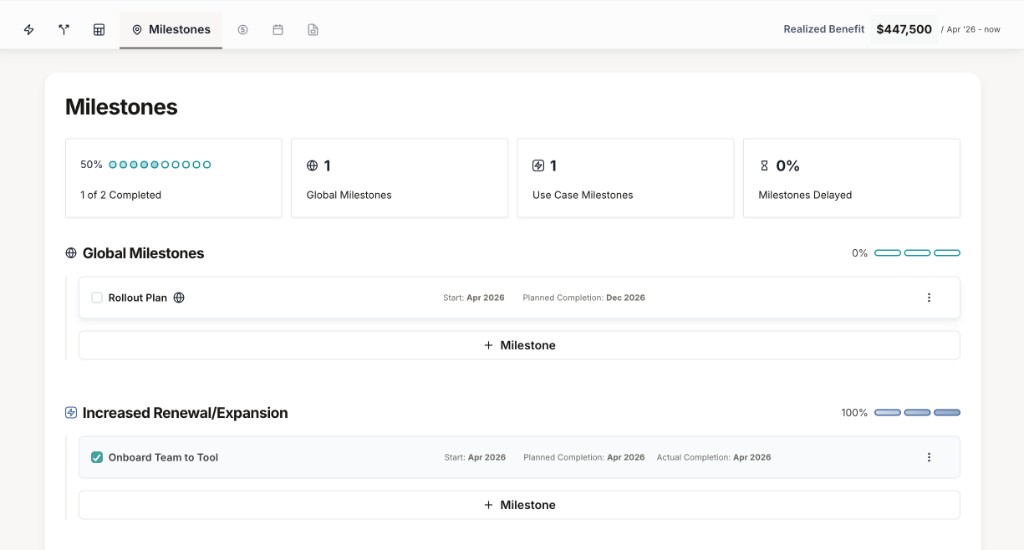
This view gives you a quick status check for the entire implementation alongside your [Value Summary](/pages/value-realization/measurements#the-value-summary).
## Best practices
Set planned end months based on actual implementation timelines, not wishful thinking. Realistic projections
help you spot delays early.
Check off milestones as soon as they're completed. Stale milestone data loses its value as a progress indicator.
Connect milestones to use cases when there's a clear relationship. This helps explain why measurements improved
(or didn't) in certain periods.
Don't create milestones for every minor task. Focus on checkpoints that truly matter to value realization and
customer success.
## Common milestone patterns
Different implementation approaches call for different milestone structures. Here are proven patterns:
**Scenario:** Rolling out to multiple teams or departments over time.
**Milestone pattern:**
* Pilot team selected
* Pilot team onboarded (linked to first use case)
* Pilot success documented
* Department 1 rollout completed
* Department 2 rollout completed
* Full organization rollout completed
* 80% adoption achieved across all teams
**Scenario:** Success depends on connecting to multiple systems.
**Milestone pattern:**
* CRM integration completed (linked to relevant use case)
* Data warehouse connection established
* SSO configured
* Reporting dashboards deployed
* API access granted to key teams
* First automated workflow deployed
**Scenario:** Value comes from widespread usage, not just availability.
**Milestone pattern:**
* Product launched to all users
* 25% monthly active users achieved
* 50% monthly active users achieved
* 75% monthly active users achieved
* First power user community established
* Executive dashboard adoption confirmed
**Scenario:** Requires significant process changes and stakeholder alignment.
**Milestone pattern:**
* Executive sponsor identified
* Change champions trained (linked to relevant use case)
* Old process documented
* New process defined and approved
* Team training completed
* Process transition completed
* First QBR with stakeholders conducted
## Milestones in storytelling
When you present value realization to your customer, milestones provide critical context:
**Without milestones:**
"Your benefit increased from $5,000 in June to $20,000 in September."
**With milestones:**
"Your benefit increased from $5,000 in June to $20,000 in September—right after we completed the Department 2 rollout in August and achieved 75% adoption across both teams."
**Pro move:** Reference specific milestones when explaining trends in the Value Summary during quarterly business
reviews or renewal discussions.
## Troubleshooting
Open the **Milestones** view—milestones are listed there, grouped under global milestones and by use case when
linked.
Edit the milestone and update **Related Use Cases** to the correct use case(s), or clear all selections to make it
a global milestone.
Edit the milestone and clear completion (for example, use **Mark as incomplete** in the editor). The milestone
returns to uncompleted status.
After importing from a template, you can edit, delete, or add milestones freely. Templates are starting points,
not requirements.
Milestones set up! Combine them with [monthly measurements](/pages/value-realization/measurements) to tell the
complete value story—financial impact backed by implementation context. Heading into a renewal or upsell? See
[Upsells and renewals](/pages/value-realization/upsells-and-renewals) to use that story in the next contract
conversation.