
1
Find your deal
If you’re logged into Minoa, look for your opportunity using the filter or search bar. If you’re in Salesforce or your CRM, you can access the opportunity in Minoa via the widget.
2
Configure context
You’ll be directed to the context tab of your Deal Page.
Review what Minoa knows and add what it’s missing (calls, files, notes). This step does more for the end result than any other. You can always add additional context later in your deal page or through the Business Case Agent.
Review what Minoa knows and add what it’s missing (calls, files, notes). This step does more for the end result than any other. You can always add additional context later in your deal page or through the Business Case Agent.
3
You'll be directed to your deal page
Your deal page is your main hub for every opportunity. You can generate your business case from here, as well as other value story docs and customer surveys.
4
Select 'Generate Business Case'
You’ll be directed to the Business Case Flow. Minoa is going to look at all the context it has, your company’s value framework, and suggestion use cases that could be beneficial for your customer.
5
Select Use Cases
Keep all suggested Use Cases, dismiss ones you don’t want to use yet, or add additional ones manually. You can always add and modify use cases within the Business Case itself, especially as your conversations continue.
6
Review Inputs
Hit Continue. Minoa will then sweep for any relevant inputs and indicate which inputs came from where (from a source or default assumptions). You can continue to manually modify inputs or ask the agent to do so within the Business Case.
7
Ask the Agent For Help
Ask the agent to review calculations, inputs, and modify the Business Case as you learn more about your customer.
8
Collaborate with Your Customer
Build your Business Case with your stakeholder/champion. Present directly or share the business case directly. Credibility builds as you build the Business Case with your customer.
9
Share
Export your Business Case using templates or with the agent’s help.
Find your deal
Your home page lists every business case in your workspace. Search by name, or click Filters to narrow by:- Opportunity Status — Open, Closed Won, or Closed Lost
- Opportunity Owner — yourself, specific team members, or whole teams
- Business Case — deals with or without one
- Level of Detail — Low, Medium, or High, so you can spot the cases that need work
Configure context
This is the step that determines the quality of everything downstream, and it’s the one people click past. What you’ll see depends on your setup:- With a CRM connected — an accordion showing the linked opportunity. If the business case isn’t linked yet, connect one here.
- With a call recorder connected — an accordion for calls. Minoa attaches everything associated with the deal automatically; add or remove as needed.
- Everyone — a prompt field, and a paperclip for files like RFPs, transcripts, or exported CRM notes.
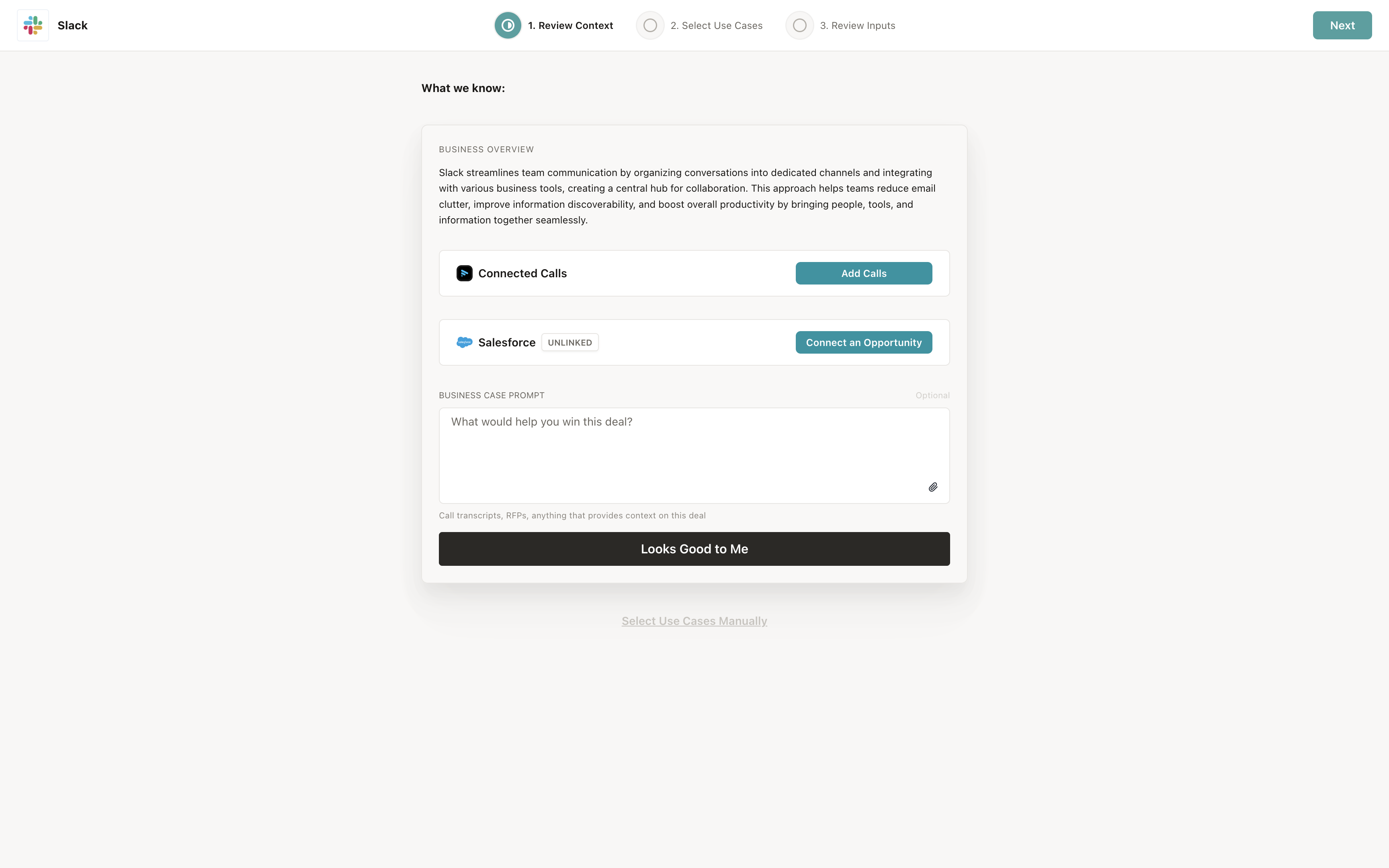
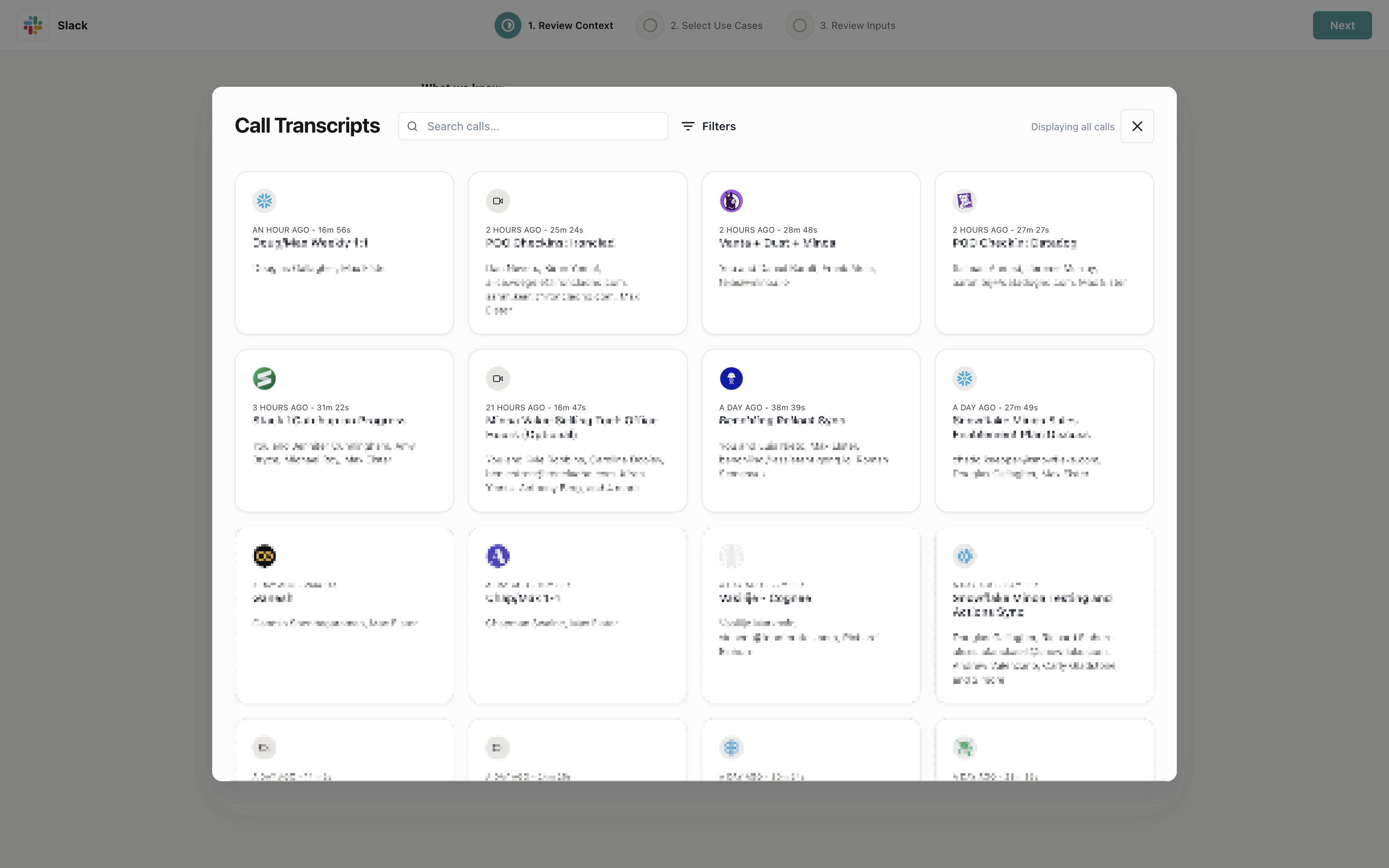
Adding calls
If you have Gong, Chorus, Fathom, Momentum, Attention, or Zoom connected, add every relevant conversation — discovery, technical deep-dives, the call where their VP of Ops complained about something for ten minutes.- Click Add Calls in the Connected Calls section
- Select the calls you want
- Remove any that got attached automatically but aren’t relevant
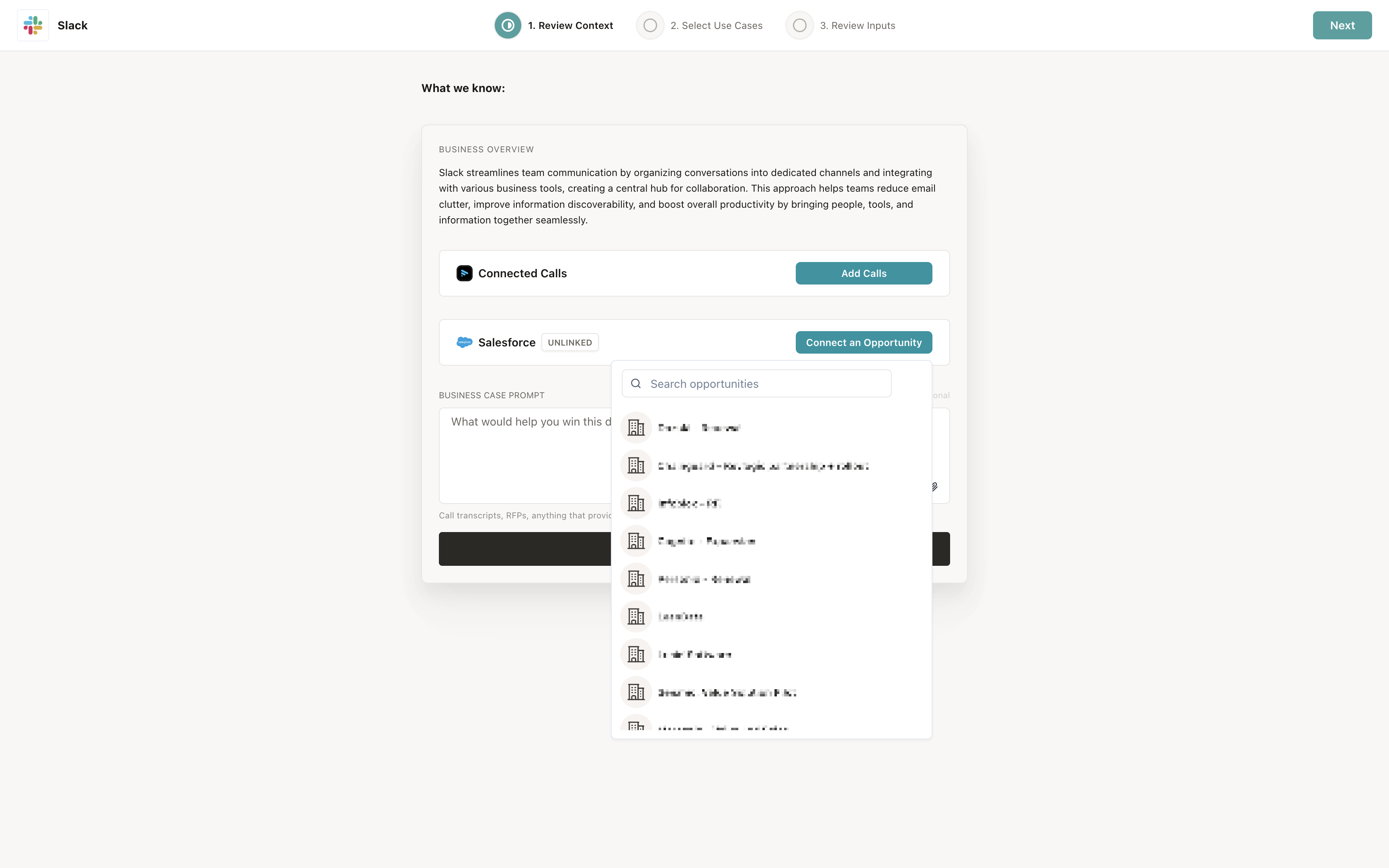
Connecting a deal
If the business case isn’t linked to a CRM record yet:- Click Connect an Opportunity in the CRM section
- Search and select it
- The business case syncs from there on
Adding files and a prompt
Attach RFPs, transcripts, or notes, and add a prompt if you want to steer the suggestions (“focus on the operations team, not IT”). Files save automatically and get analyzed alongside everything else. When you’re done, click Looks Good to Me.Select use cases
Minoa analyzes your context and comes back with suggested use cases. This can take two to three minutes with a lot of context attached — worth the wait, because the suggestions get sharper with everything you added. Each suggestion comes with a reason. That’s the part to actually read. When Minoa surfaces a use case, it’s tied to something specific — a line in a call transcript, a CRM field, a passage in a document you uploaded. You’re not picking from a generic menu; you’re seeing what the agent found and why it thinks it applies here. For each suggestion you can:- Keep it, and rename it later to match the customer’s language
- Change the calculation behind it from the dropdown
- Drop it if the reasoning doesn’t hold up
Select inputs
Now the numbers. Minoa pre-fills what it can and shows you where each value came from. Every input has a source. Values are pulled from call transcripts, CRM records, public web research, and your uploaded documents, and each one is labelled with where it came from. Anything Minoa had to assume is flagged as an assumption rather than presented as fact. You also get a preview of the calculated benefit as you go, so you can see what a change is worth before you commit to it. Work through them in this order:- Correct the assumptions first — these are Minoa’s guesses, and they’re where the case is weakest
- Verify anything sourced from the web — public headcount and revenue figures are often stale
- Leave sourced-from-call values alone unless you know better; those came from the customer
- Fill in what only you know from conversations that weren’t recorded
Nothing here is final. You’ll revisit inputs every time you learn something new, and you can ask the AI Value Engineer to make changes for you rather than clicking through them.
Add an investment
With the use cases tailored, define the pricing.- Go to the Investment tab
- Add a recurring fee, a one-time fee, or both
- Use the visibility control in the top right to hide the tab while you’re still building the benefit side
 Hiding it early is the default move for a reason — see Introduce Value Before Price for the full play. Adding an investment covers fee structures and the multi-year view.
Share it
Three options, roughly in order of how much they help you.Collaborate directly in the business case
Business cases with clear evidence of collaboration correlate with higher win rates, and this is the option that produces it.- Click the share button in the top right
- Add your champion’s email
- Give them the Editor role

Send a one-pager
A document version of the business case, regenerated whenever you want the latest numbers, with a link back to the full case at the bottom.
Export a deck
A branded slide deck to leave with your champion.- Click the export icon in the left toolbar
- Choose Google Slides, PowerPoint, or PDF
- Check your browser isn’t blocking popups — this is far and away the most common reason an export appears to fail
- Copy the deck to your own drive before editing

You have a business case grounded in the customer’s own context, with sources behind the numbers and a champion who can edit it. From here, Introduce Value Before Price covers how to bring pricing into the conversation.
Key takeaways
- Context is the whole job. Twenty minutes on calls and files beats two hours of manual editing later.
- Read the reason on every suggestion. A use case you can’t trace back to something the customer said won’t survive their scrutiny.
- Fix the assumptions first. They’re flagged for you, and they’re where the case is weakest.
- Don’t guess at inputs — ask. A survey response with their name on it is worth more than a plausible estimate.
- Get your champion editing. Collaboration is the single strongest signal in a business case.