
Create an expansion business case
Start by creating a new business case for your expansion opportunity.
Add use cases to the historic scenario
Add use cases that show value already realized from the existing contract.
Create an expansion business case
Start by creating a new business case for your expansion opportunity. This follows the same process as creating any business case.- Navigate to your opportunity
- Click Create business case
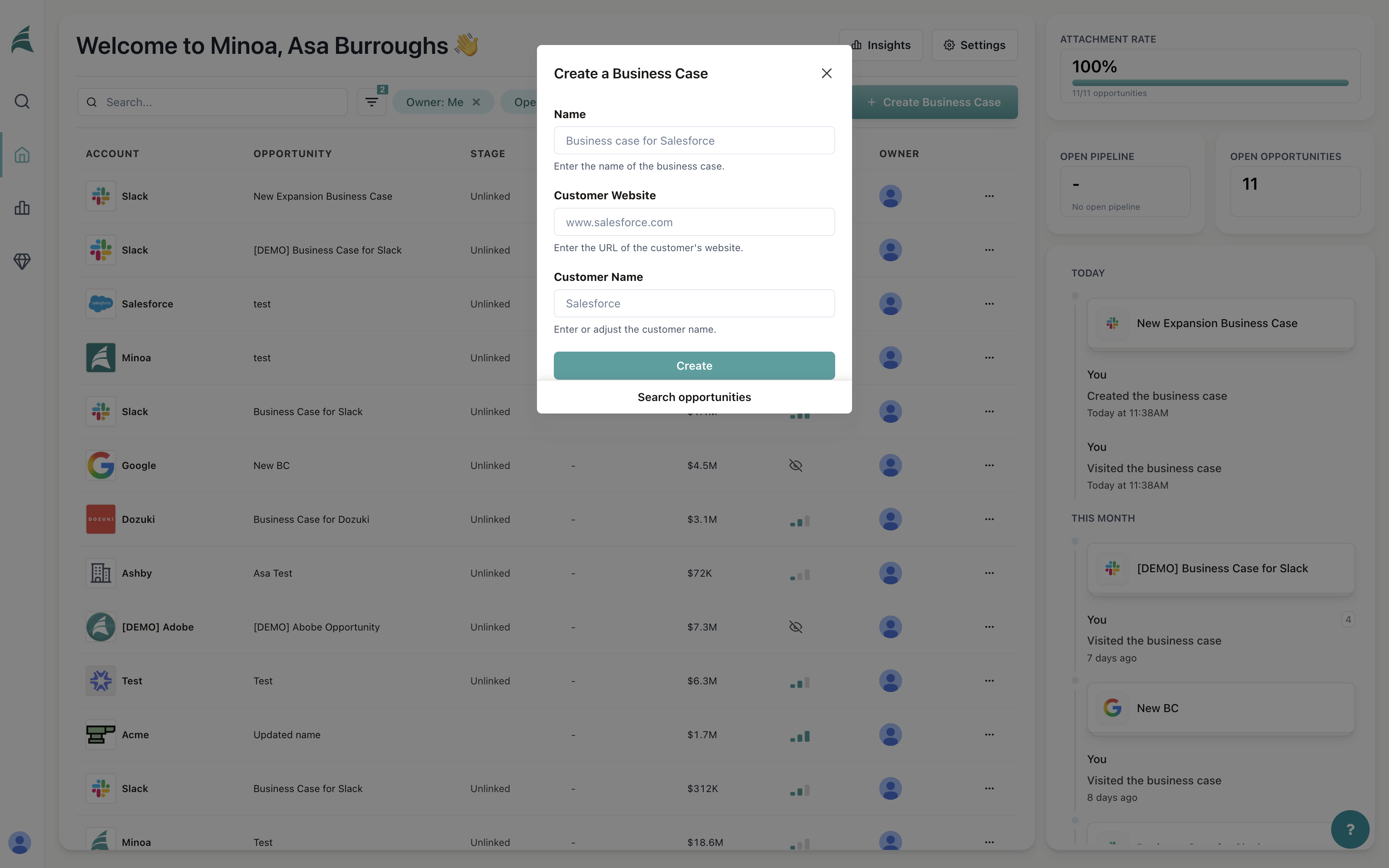
Add a historic scenario
Once your business case is created, you’ll need to configure the historic scenario to represent your existing contract period.Need just a historic scenario? Right now, you cannot create a historic scenario without a future scenario. Both scenarios are required to use historic scenarios in a business case. If you’re working with a flat renewal contract where there’s no change to the projected benefit, create a future scenario that matches your historic scenario exactly—same use cases, same investments, same time period. This lets you model the historic value while meeting the requirement that both scenarios exist.
- Navigate to the Scenarios tab in your business case
- Click on the historic scenario to open it
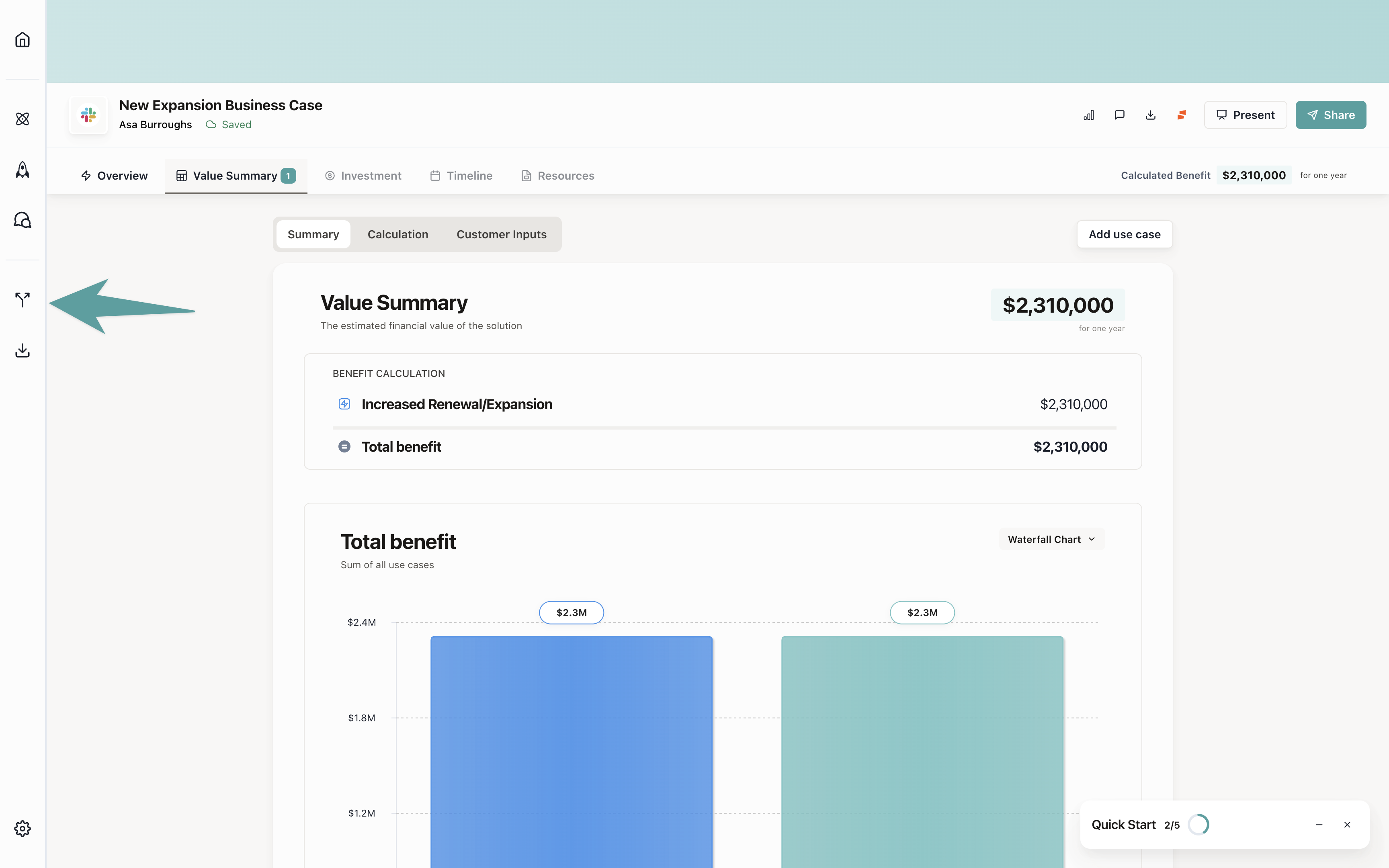
- Click Create Historic Scenario or configure the existing one
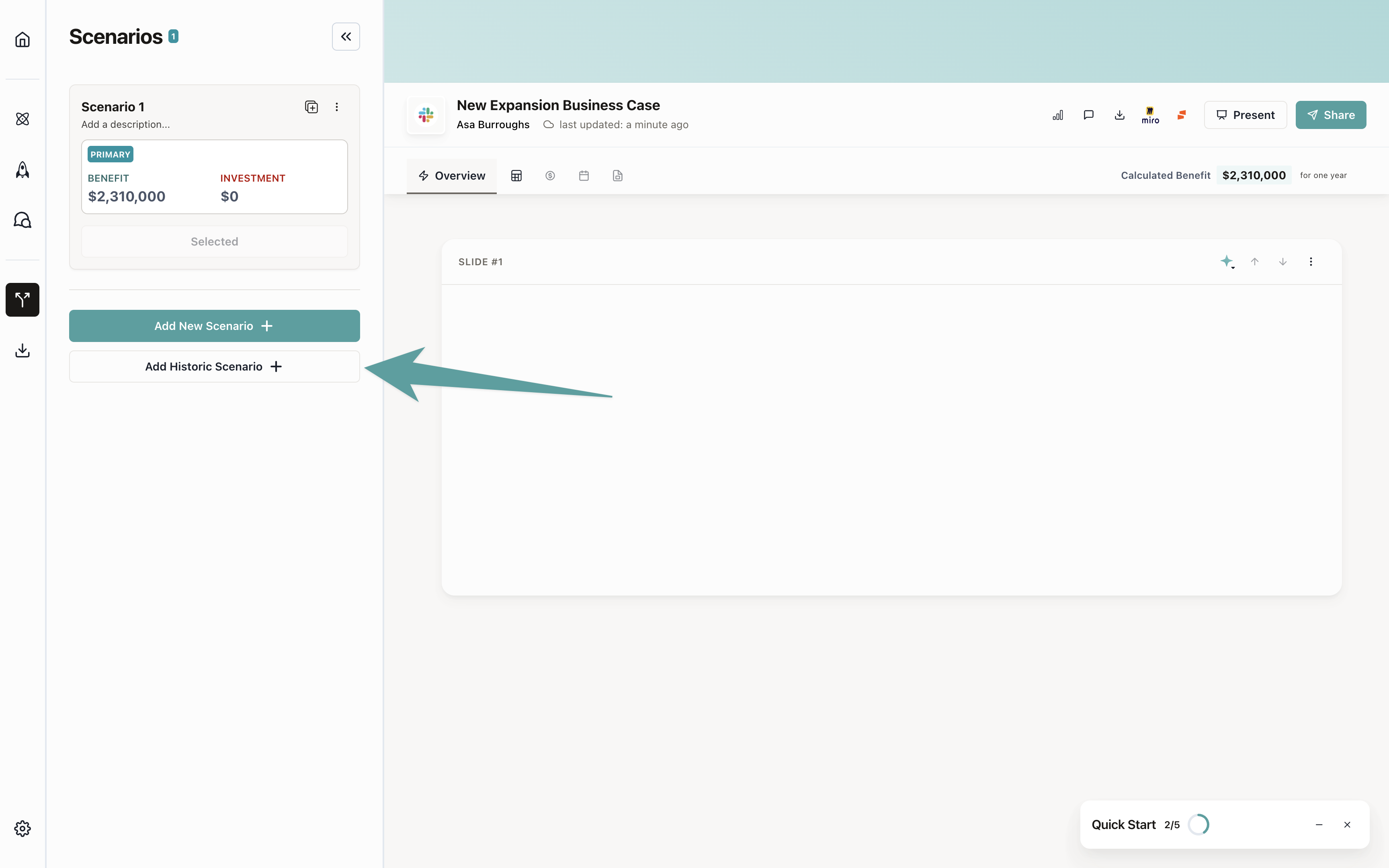
Configure the historic scenario
Set the time period for your historic scenario to match your existing contract.- Set the Start Date to when the original contract began
- Set the End Date to when the original contract ends (or when the expansion begins)
- Rename the scenario to something clear and descriptive (e.g., “Current Contract - Year 1” or “Existing Agreement”)
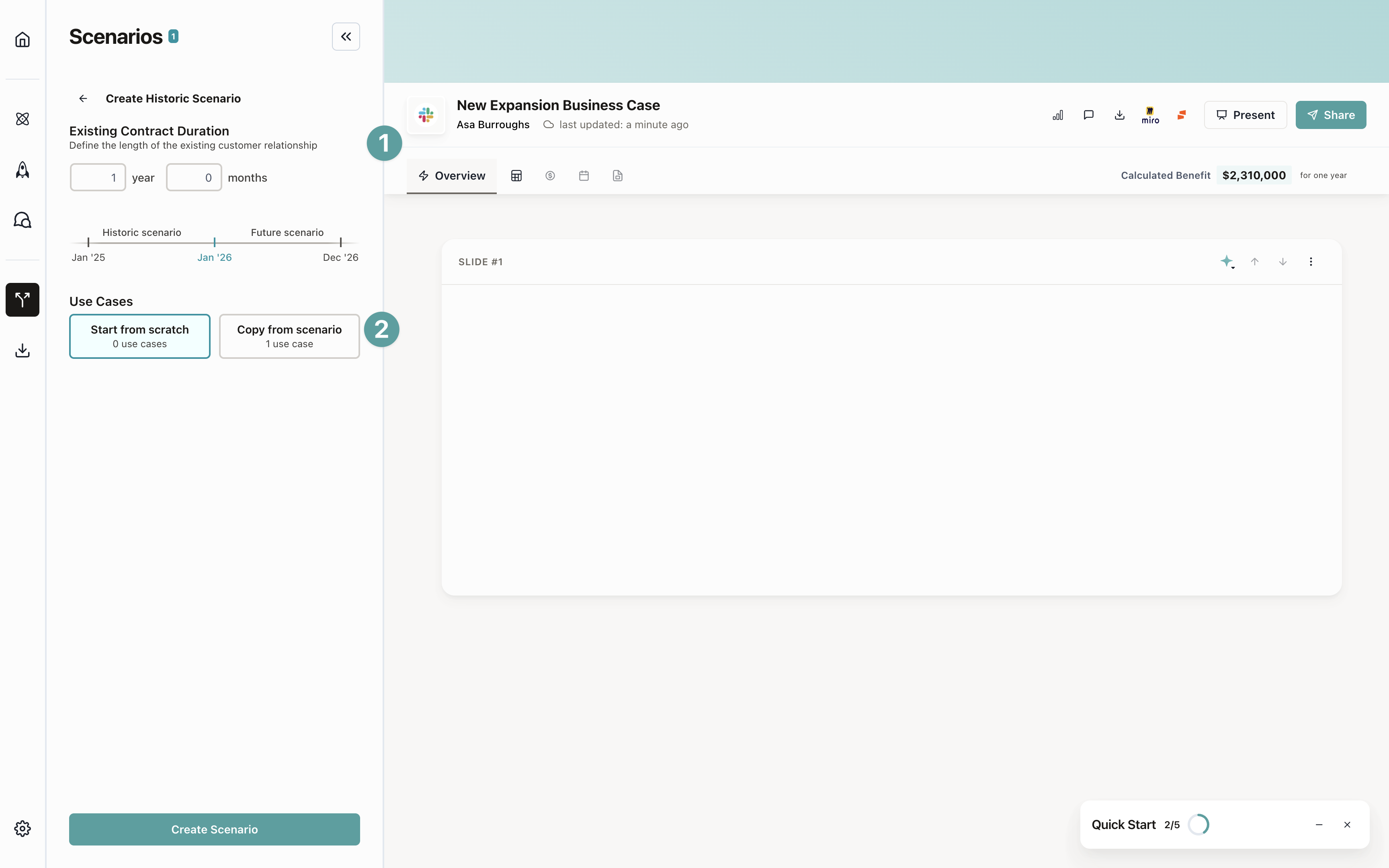
The historic scenario duration should match your existing contract period. This ensures accurate comparison with the
future expansion scenario.
Add use cases to the historic scenario
Add use cases that represent value already realized from the existing contract. These show what you’ve delivered so far.- With the historic scenario selected, navigate to the Calculation tab
- Click Add Use Case or select from your value framework
- Choose use cases that reflect value already delivered
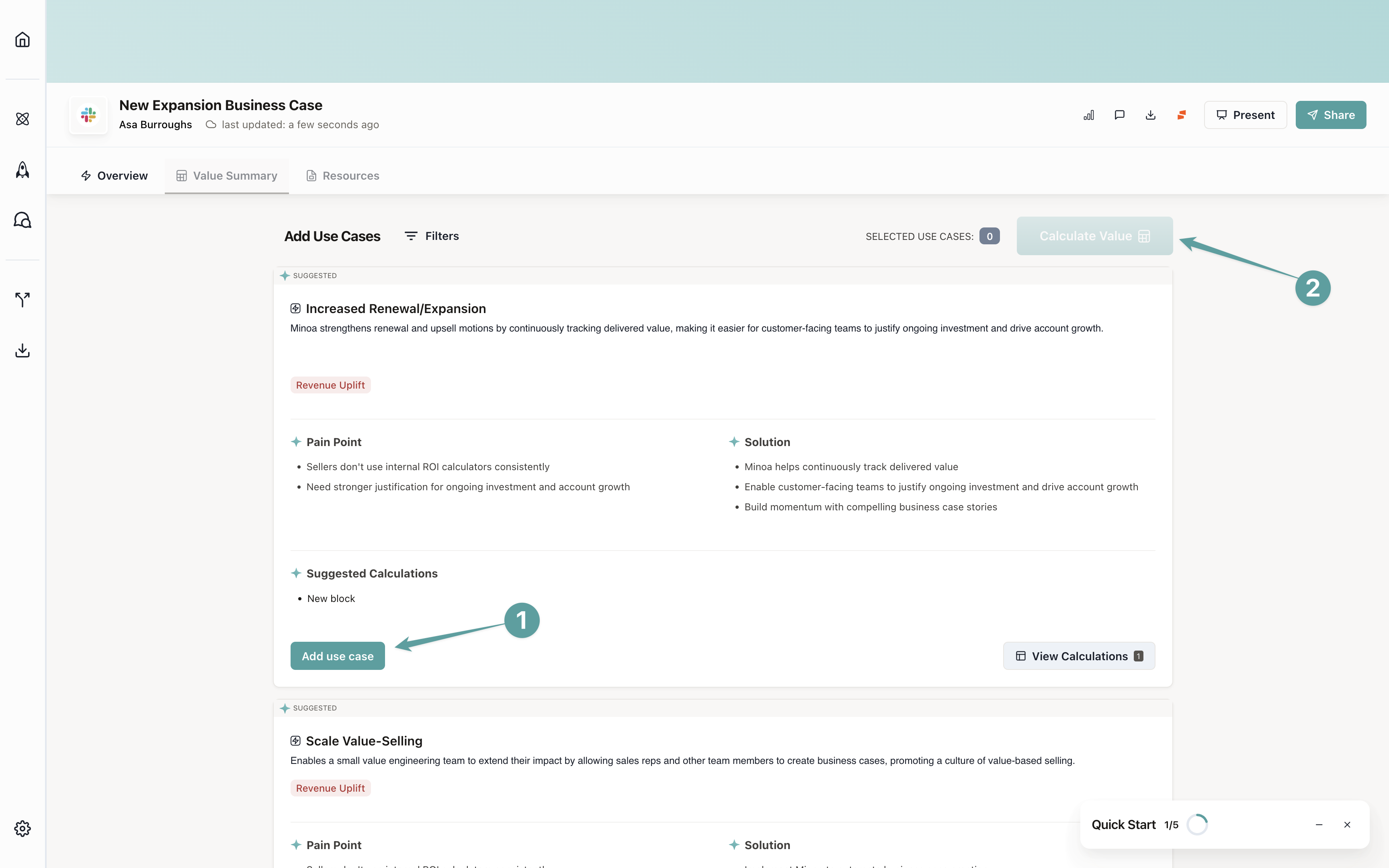 Configure the use case inputs with values that reflect what’s been achieved during the historic period. These should represent realized value, not projections.
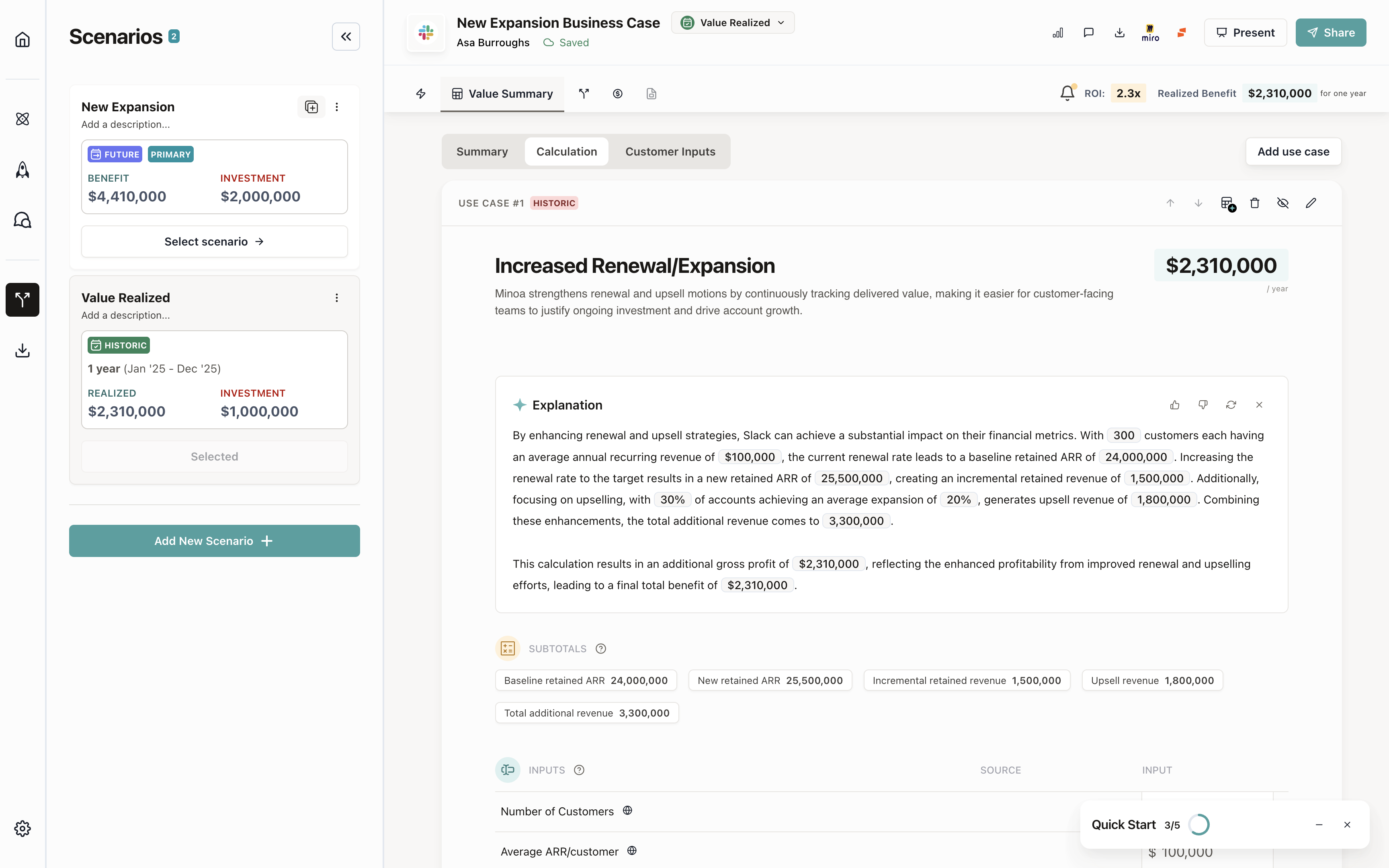
Historic scenario use cases should reflect actual, realized value. Use data from customer success reports, value
tracking, or other sources that show what’s been delivered.
Add use cases to the future scenario
Now add use cases to the future scenario that show potential value from the expansion. These represent the additional value the buyer will realize.- Switch to the Future scenario tab
- Rename the future scenario to something descriptive (e.g., “Expansion - Year 2” or “Proposed Expansion”)
- Navigate to the Calculation tab
- Click Add Use Case and select from your value framework
- Choose use cases that represent additional value from the expansion
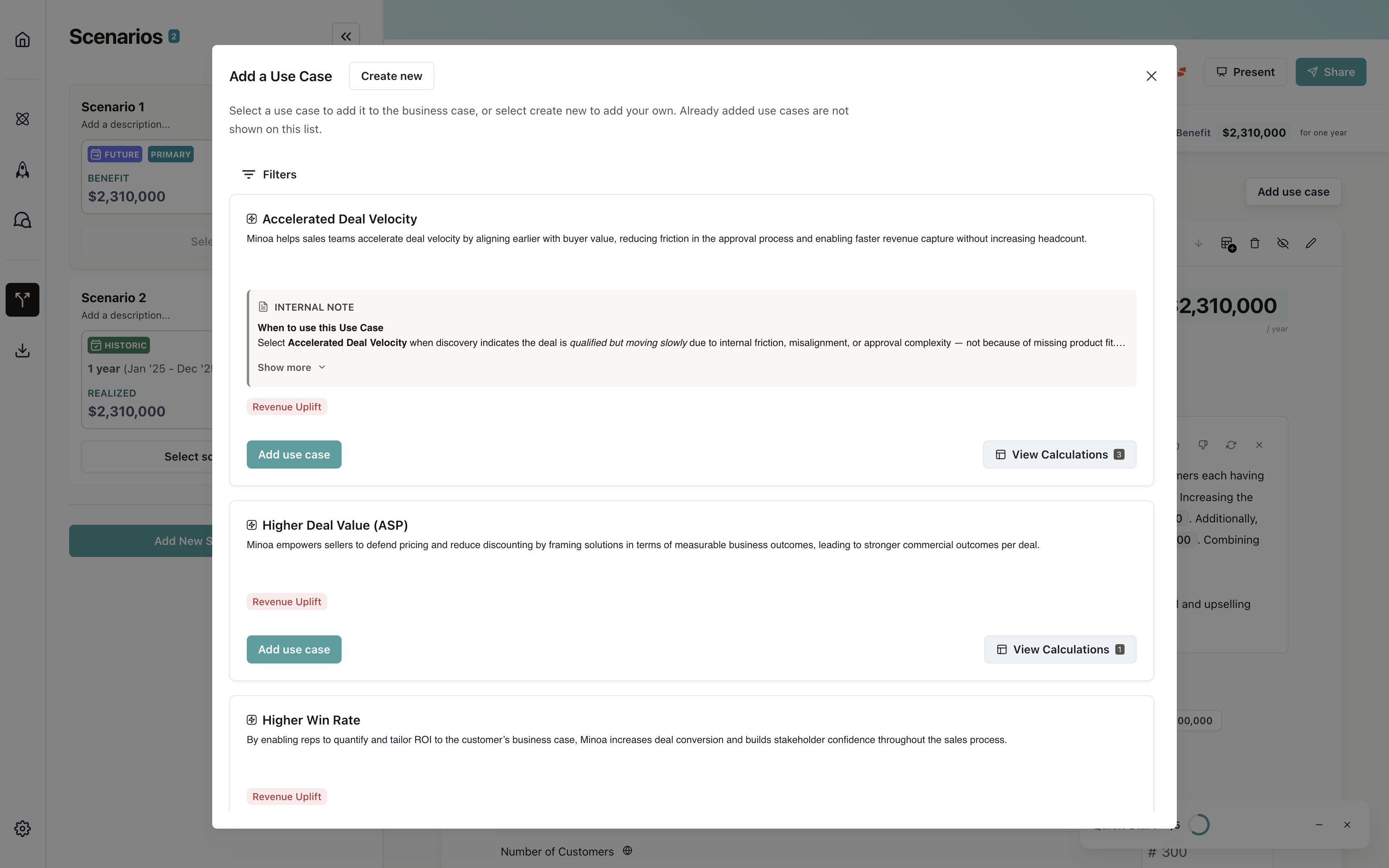 Configure these use cases with inputs that reflect the expansion opportunity. These can be projections based on the expansion scope, new features, or increased usage.
Future scenario use cases can include both continuation of existing value and new value from expansion features or
increased scale.
Add investment to historic scenario
Add the investment (fees) that reflect the existing contract value. This shows what the buyer has already paid.- Switch back to the Historic scenario
- Navigate to the Investment tab
- Click Add Fee
- Enter the fees from the existing contract:
- Recurring fees: Monthly or annual fees from the current contract
- One-time fees: Any setup fees or one-time charges already paid
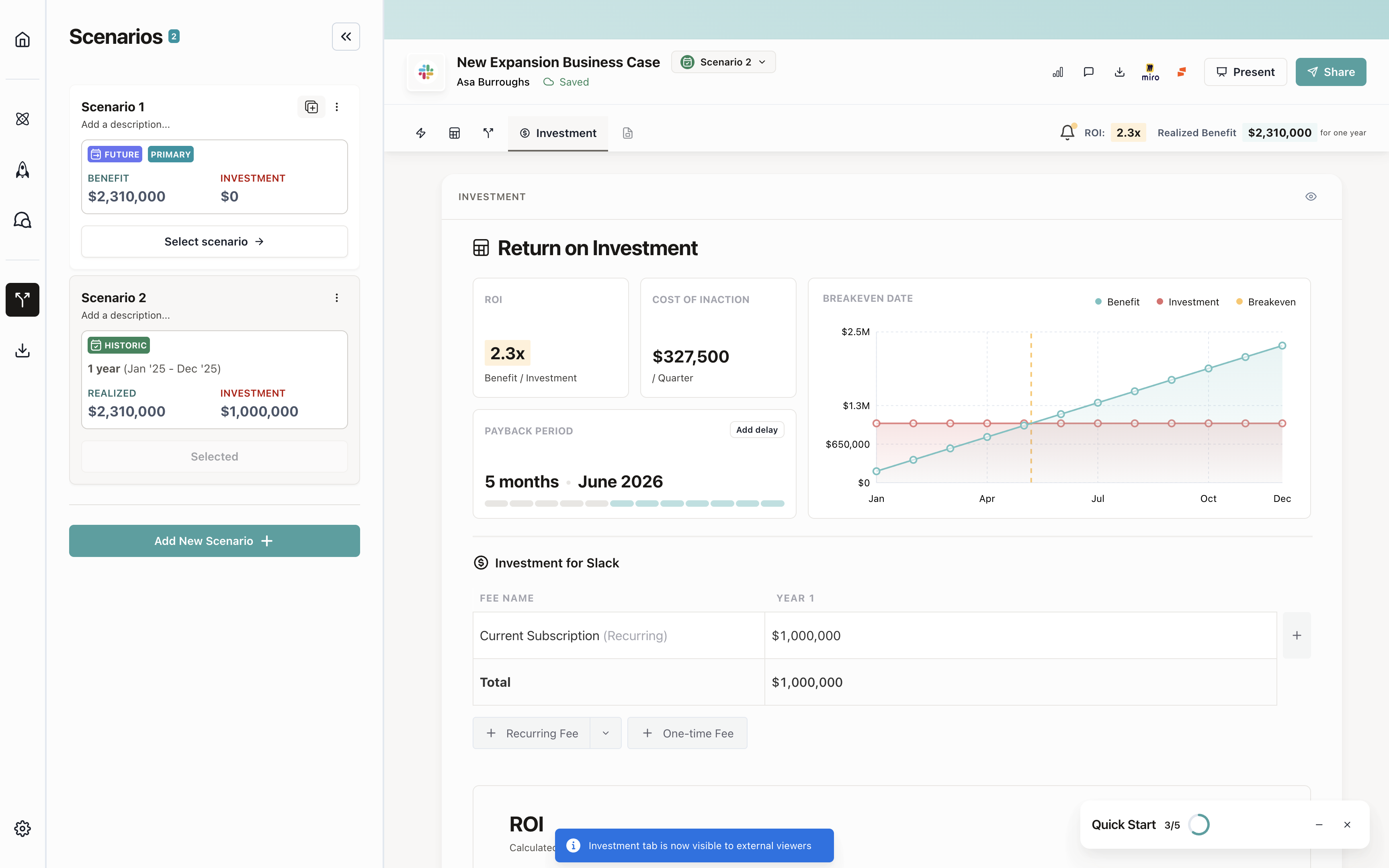
The historic investment should match the actual contract value. This creates an accurate baseline for comparing ROI
between the existing contract and the expansion.
Add investment to future scenario
Add the investment for the expansion to show the new contract value.- Switch to the Future scenario
- Navigate to the Investment tab
- Click Add Fee
- Enter the fees for the expansion:
- Recurring fees: New monthly or annual fees for the expansion
- One-time fees: Any setup fees or one-time charges for the expansion
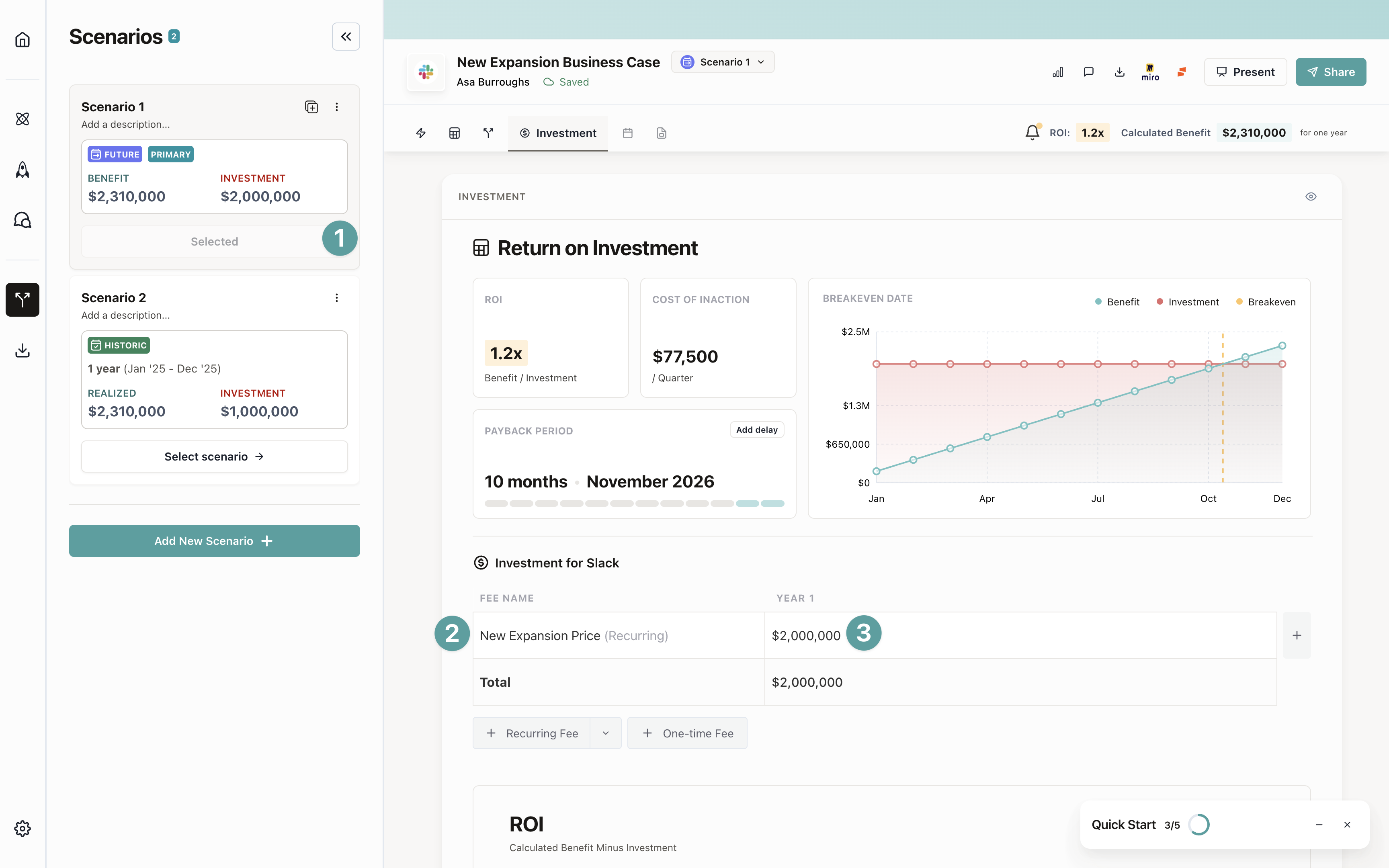
The future investment represents the total contract value including the expansion. This might be the sum of existing
plus new fees, or a new total contract value depending on your pricing structure.
Review scenario comparison
Use the scenarios comparison tab to see a side-by-side view of both scenarios. This helps buyers understand the full value story.- Navigate to the Scenarios tab
- Click Compare Scenarios or view the comparison view
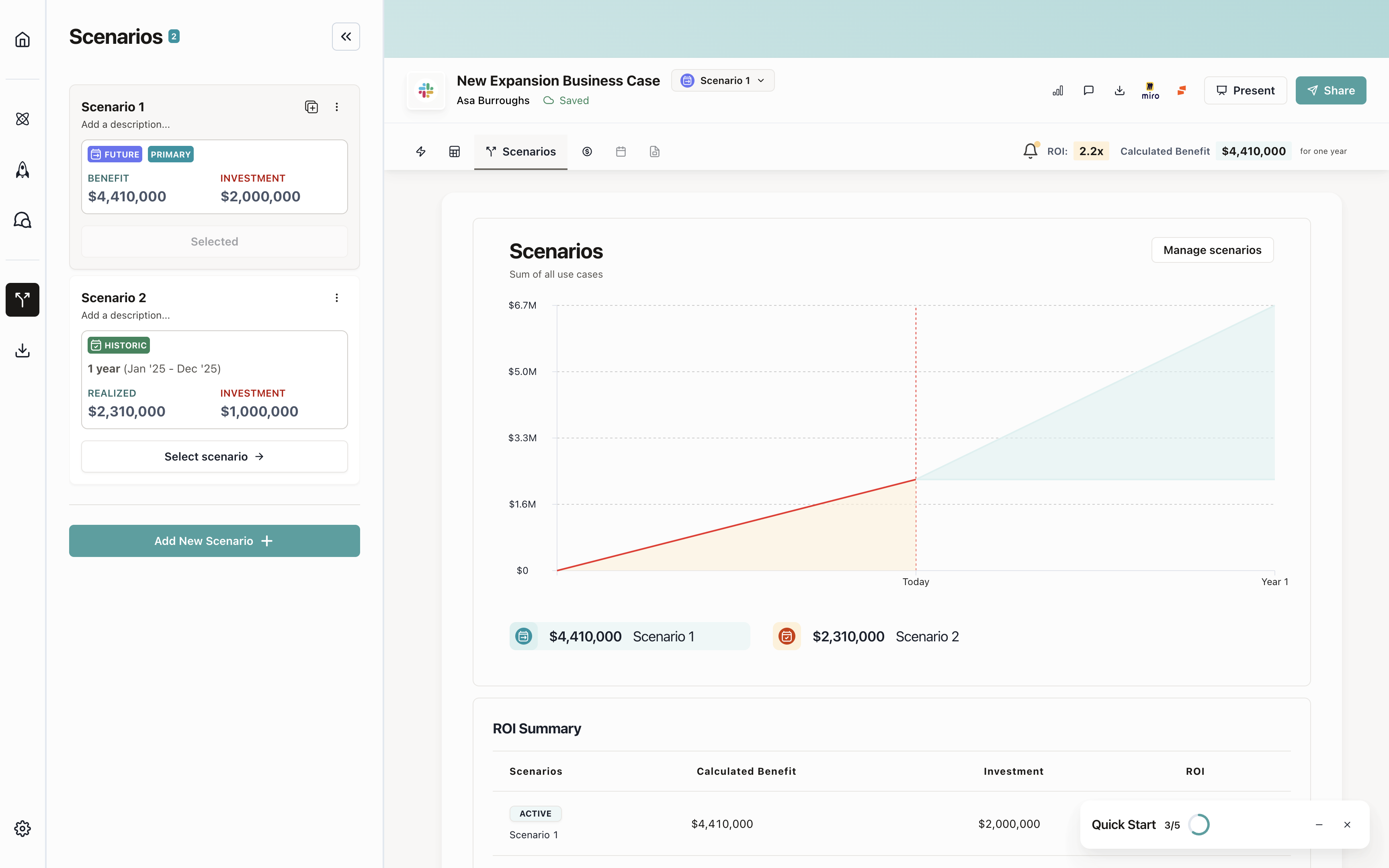 The comparison view shows:
- Value realized: Total value from the historic scenario (existing contract)
- Future value: Total value from the future scenario (with expansion)
- Investment comparison: Existing contract value vs. expansion investment
- ROI comparison: ROI for each scenario side-by-side
Your expansion business case is complete! The comparison view helps buyers see both what you’ve already delivered
and what’s possible with expansion.
Why historic scenarios matter
Historic scenarios are powerful for expansion deals because they:- Show proven value: Demonstrate what you’ve already delivered, not just projections
- Build trust: Buyers see real results before committing to expansion
- Create context: The comparison makes expansion value more credible
- Support renewal: Help justify continuing and expanding the relationship
Learn more about scenarios and how they help model different deal structures and
time periods.