
What Gets Synced
Opportunities
Accounts
Business Cases
Minoa_Business_Case__c records.How It Works
Data Sync (Salesforce → Minoa)
Minoa automatically syncs opportunity and account data from Salesforce via REST API:- Sync frequency: Every 15 minutes
- Incremental sync: Only fetches opportunities modified since the last sync to minimize API calls
- Data synced: Opportunities, Accounts, Contacts, and configured custom fields
Write-Back (Minoa → Salesforce)
When you create or update a business case in Minoa, the data is written back to Salesforce:- Custom Object:
Minoa_Business_Case__cstores business case details linked to each Opportunity - Real-time updates: Changes in Minoa are reflected in Salesforce immediately
- Opportunity fields: optionally write Minoa data straight onto the standard Opportunity, using either the fields the package installs or fields you create — see Sync Minoa Data into Opportunity Fields
Minoa Salesforce App
The optional Minoa Salesforce App provides:- A custom Lightning component for the Opportunity page
- The
Minoa_Business_Case__candMinoa_Opportunity_Intelligence__ccustom object definitions - Pre-configured fields for business case and Opportunity Intelligence data
Integration Setup Guide
Prerequisites
- Admin access to your Salesforce org (for installing the managed package)
- Admin or Integration permissions in Minoa
Connect Salesforce
Create Your Minoa Account
Go to Integrations
Connect Salesforce
yourcompany.my.salesforce.com), and authenticate through Salesforce.Grant Permissions
Install the Minoa Salesforce App
The Minoa Salesforce App adds a custom Lightning component to your Opportunity pages and creates theMinoa_Business_Case__c custom object.
Navigate to the Installation Page
Configure Installation Settings
Wait for Installation
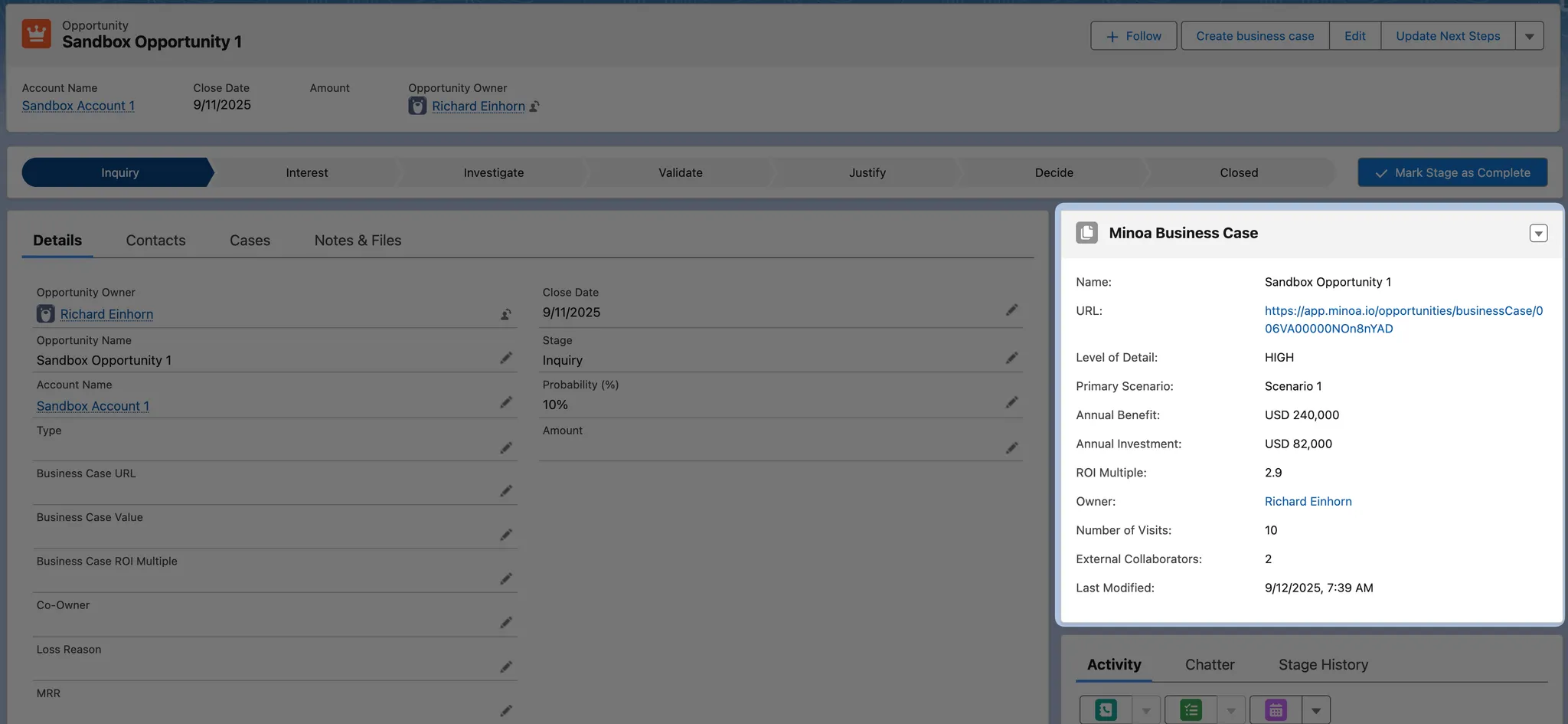
Add the Widget to Opportunity Pages
minoaBusinessCase, returns nothing.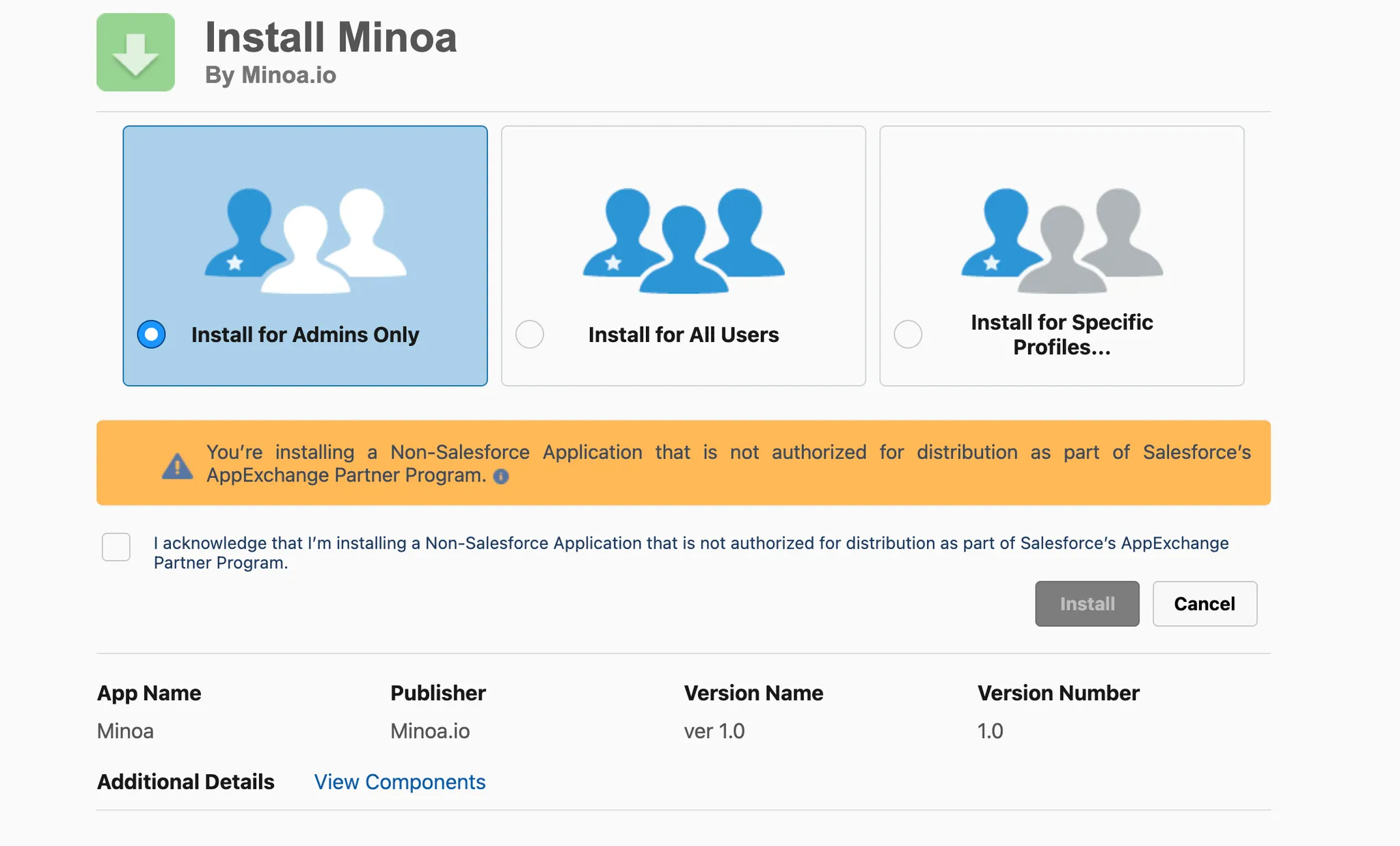
Configuration Options
Access the configuration modal from Settings → Integrations → Salesforce → Manage.Opportunity Field Mapping
Business Case Write-Back Fields
When you create or update a business case in Minoa, these fields sync to theMinoa_Business_Case__c object in Salesforce:
Custom Opportunity Value Field
If your organization uses a custom field to track opportunity value (instead of the defaultAmount field), you can configure Minoa to use that field.
Co-Owners for Opportunities
By default, Minoa shows opportunities to the Opportunity Owner. Configure additional co-owners to give other team members access to relevant opportunities: Option 1: Additional Owner Field- Select a custom Salesforce field that references another user (e.g.,
Presales_Engineer__c,Solutions_Consultant__c) - The user referenced in this field will see the opportunity in their Minoa dashboard
- Select one or more Opportunity Team Member roles (e.g., “Value Engineer”, “Solutions Architect”)
- Users assigned to these roles on an opportunity will see it in their Minoa dashboard
- You can configure up to 5 different team roles
Account Metadata Fields
Configure which Salesforce Account fields should sync to Minoa for account context:Sync Management
- Last synced at: Shows when the last successful sync occurred
- Reset: Force a full resync of all opportunities (useful after changing configuration)
- Sync now: Trigger an immediate sync instead of waiting for the scheduled interval
- Multi-currency: Shows whether your Salesforce org has multi-currency enabled (read-only)
- Re-Auth: Re-authenticate the Salesforce connection if you encounter permission issues
- Backfill: Recreate all
Minoa_Business_Case__crecords in Salesforce from Minoa data - Opportunity fields: Write Minoa data into custom fields on the standard Opportunity — see Sync Minoa Data into Opportunity Fields
Sync Minoa Data into Opportunity Fields
Reports, list views, and forecasting tools live on the Opportunity. Map Minoa data onto custom fields on the standard Opportunity object and that signal lands where your team already looks. There are two ways to get the fields. Use whichever suits your org — the mapping step is the same either way.Option A: Use the fields the Minoa package installs
From version 1.5.0, the Minoa managed package ships both fields on the standard Opportunity, so there is nothing to create:Option B: Create your own fields
Create the fields yourself if you are not on 1.5.0 yet, or if you want to name them your way:Turn On the Hourly Opportunity Intelligence Sync
Get the Field Ready in Salesforce
Minoa__Has_Business_Case__c and Minoa__Value_Signal__c, and use Set Field-Level Security to give the integration user’s profile or permission set read and write access.Creating your own (Option B): go to Setup → Object Manager → Opportunity → Fields & Relationships → New and create the field using the label, API name, and type from the table above. Give the integration user write access to it.Map It in Minoa
Which fields Minoa accepts
Which fields Minoa accepts
- A custom field on Opportunity — either one your team created or one the Minoa managed package installs. Standard fields and fields from another vendor’s managed package are not eligible.
- Writable by the connected integration user, both at the object and the field level
- Not a formula, roll-up summary, auto-number, unique, or deprecated field
- The right type for the data point, per the table above
- Not already synced from Salesforce into Minoa — writing it would overwrite the value Minoa reads
How and when values are written
How and when values are written
- Mapped values go out on the same hourly run as Opportunity Intelligence, and only for deals that changed since the last write.
- Opportunity fields and the
Minoa_Opportunity_Intelligence__crecord succeed and fail independently, so a validation rule on your Opportunity never re-triggers writes to the package record. - A Value Signal longer than the target field is cut at a word boundary. Minoa warns you when the field holds fewer than 1,000 characters — a Long Text Area keeps the whole thing.
When Salesforce rejects a field
When Salesforce rejects a field
Securing the Integration
We recommend using a dedicated integration user with minimally scoped permissions for the Minoa Salesforce integration. This follows security best practices and makes it easier to audit integration activity.Required Permissions
The integration user needs read access to:AccountsOpportunitiesand related objects (OpportunityTeamMember,OpportunityLineItem)ContactsUsers
Minoa_Business_Case__c(custom object created by installing the Minoa managed package)Minoa_Opportunity_Intelligence__c(custom object added in version 1.4.0, used for Opportunity Intelligence)
Opportunity and field-level write access on each mapped custom field. Minoa reads field-level security when it builds the picker, so a field the user can’t write simply won’t be offered.
Minoa_Business_Case__c is linked to Opportunity via a parent–child (master-detail or lookup) relationship, certain Salesforce configurations may enforce cascading rules or sharing settings that require the integration user to have broader permissions on the parent Opportunity object (e.g., edit access). If you experience permission errors when Minoa creates, updates, or deletes business case records, review your org’s relationship settings between Minoa_Business_Case__c and Opportunity and adjust the integration user’s permissions accordingly.Setting Up an Integration User
- Create a dedicated Salesforce user (e.g.,
minoa-integration@yourcompany.com) - Assign a Profile or Permission Set with the minimum required permissions listed above
- Use this user’s credentials when connecting Minoa to Salesforce
Using the Salesforce App
The Minoa Salesforce App adds a custom component to your Opportunity pages that displays business case information.Create a New Business Case
If no Minoa Business Case record is linked to the Opportunity, the component displays a Create Minoa Business Case button. Clicking this button redirects to the Minoa app where you can create a new business case that automatically syncs back to Salesforce.Review an Existing Business Case
If a Minoa Business Case is linked to the Opportunity, the component displays:- Estimated value and ROI
- Number of external collaborators
- Level of detail indicator
- Number of prospect visits
- Last updated timestamp
Quick Actions
- Open in Minoa: Opens the business case in the Minoa app for editing
- Copy Sharing Link: Copies the prospect-facing link to share the business case
Configuring Component Visibility
You can control which users see the Minoa component using Salesforce’s standard component visibility settings:- In Lightning App Builder, select the Minoa Value Intelligence component on the page
- Click Set component visibility
- Define filters based on user profiles, roles, or custom conditions
Showing Value Realization Fields
From version 1.3.0 of the Minoa Salesforce App, the widget can also surface value realization progress on the Opportunity:- Realized Benefit To Date — the actual benefit delivered so far (cumulative through the current month) from the business case’s Value Realization scenario.
- Projected Benefit To Date — the benefit the matching plan expected to have delivered by today, for an at-a-glance pacing comparison.
Minoa__Realized_Benefit_To_Date__c and Minoa__Projected_Benefit_To_Date__c fields on Minoa_Business_Case__c, and appear only when the business case has a Value Realization scenario.
Admins control whether these fields show on the widget using the Show Value Realization Fields property on the component:
- In Lightning App Builder, select the Minoa Value Intelligence component on the page
- In the component properties panel, toggle Show Value Realization Fields on or off
- Click Save
Showing Opportunity Intelligence
Opportunity Intelligence gives you Minoa context on the Opportunity itself — even before anyone has built a business case. The widget shows it under an Opportunity heading, above the Business Case section:- Value Signal — one sentence on why this deal needs a value asset: the concrete buyer pain or outcome that makes a business case, ROI model, or buyer-facing document useful for the decision or the internal approval. Minoa grounds it in the strongest evidence on the deal — quantified impact, urgency, stakeholder engagement, budget and procurement, survey responses, document engagement, or recent calls. When there isn’t enough context yet, it says so rather than guessing.
- Deal Documents — links to the Minoa documents already created for the deal (Value Hypothesis, One-Pager, Discovery Summary, and the rest), plus an Add new link to start another one.
Minoa_Opportunity_Intelligence__c object. Until Minoa has written anything for an Opportunity, the section shows an empty state with the Add new link, so reps always have a way in.
Admins control whether this section shows using the Show Opportunity Intelligence Fields property on the component:
- In Lightning App Builder, select the Minoa Value Intelligence component on the page
- In the component properties panel, toggle Show Opportunity Intelligence Fields on or off
- Click Save
Multi-Language Support
The Minoa Salesforce App supports translations. Contact us for instructions on translating the component text for your organization’s languages.Show Business Case in Forecast
A checkbox on the Opportunity that says “this deal has a business case” is what makes value selling visible in forecasting, deal reviews, and analytics tools like Clari. The fastest way there: map Business Case Exists to a Checkbox on Opportunity — eitherMinoa__Has_Business_Case__c, which the package installs from 1.5.0, or one you create. See Sync Minoa Data into Opportunity Fields — Minoa keeps it current on every hourly run, and no formula is involved.
Alternative: build the checkbox from a roll-up summary
Alternative: build the checkbox from a roll-up summary
- Go to Setup → Object Manager → Opportunity
- Click Fields & Relationships → New → Roll-Up Summary
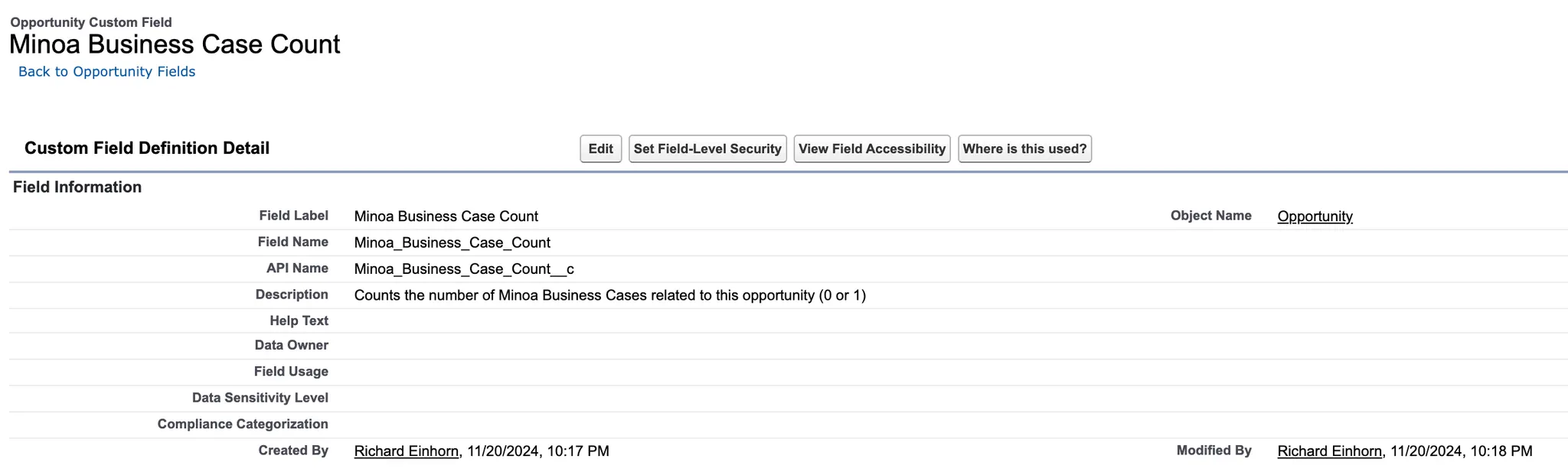
- Name the field (e.g.,
Minoa_Business_Case_Count) - Select
Minoa_Business_Case__cas the related object - Choose COUNT as the roll-up type
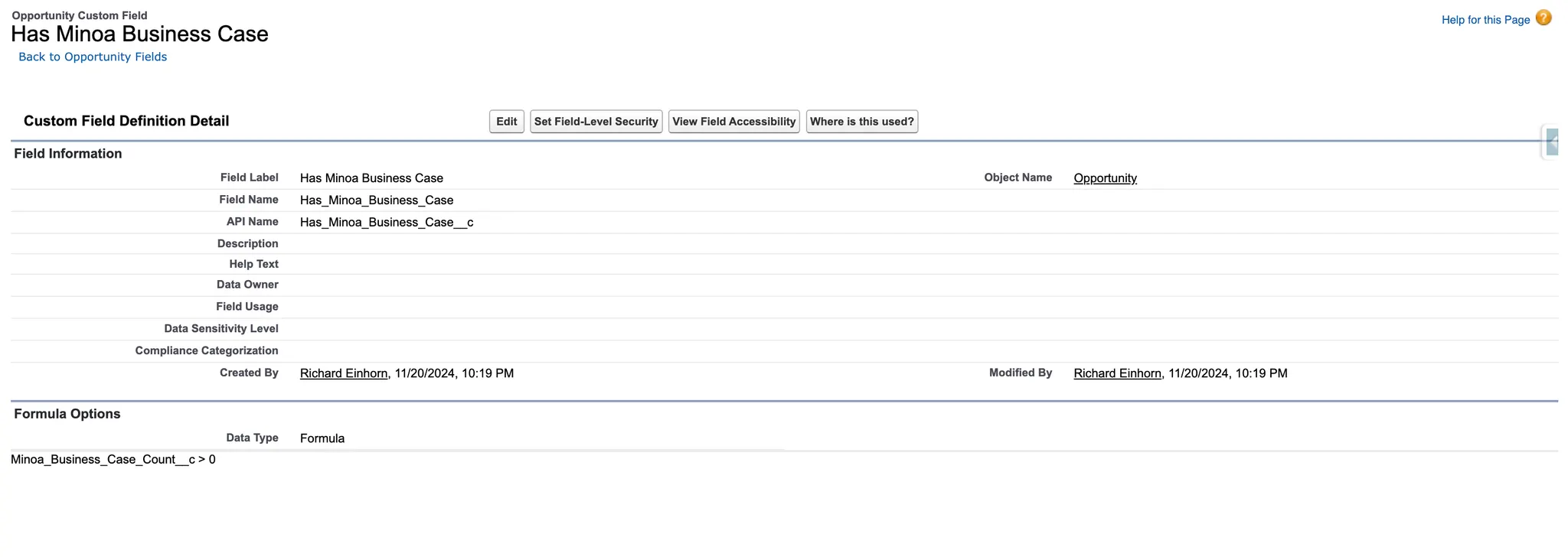
- Create a new Formula field on Opportunity
- Set the return type to Checkbox
- Use the formula:
Minoa_Business_Case_Count__c > 0 - Name the field (e.g.,
Has_Minoa_Business_Case)
Using in Clari
To display the checkbox in Clari’s pipeline view:- Log in to Clari as an admin
- Navigate to Settings → Data Integration → Salesforce Fields
- Add your checkbox field to the integration
- Sync and add the field to your pipeline view columns
Package Versions and Upgrades
Minoa ships the Salesforce app as a managed package. There is one current package — the 2nd generation package — plus a retired 1st generation package that a small number of older orgs still have installed.2nd Generation Package (current)
This is the only package Minoa maintains, and the one every new install gets. Install or upgrade it from the install link.Upgrading to a Newer Version
Upgrades within the 2nd generation package are in place: you install the newer version over the one you already have. There is no uninstall, no record deletion, and no backfill.Install the Latest Version
Confirm the Version
Grant Access to New Objects
Minoa_Opportunity_Intelligence__c object. Give your integration user read, write, and delete access to it — see Required Permissions.Grant Access to New Fields
Minoa__Has_Business_Case__c and Minoa__Value_Signal__c to the standard Opportunity, for Opportunity field sync. They install with field-level security switched off — grant the integration user write access before mapping them, and grant read access to anyone who should see them on a record or in a report.Turn On the New Widget Sections
Minoa_Business_Case__c records are untouched by an upgrade, and your page layouts keep the widget where you put it.1st Generation Package (retired)
The 1st generation package is no longer maintained and receives no new fields or fixes. Salesforce lists it in Setup → Installed Packages as Minoa, Publisher Minoa, Version 1.0.1.2.0 or 1.4.0, you are already on the 2nd generation package and the migration below does not apply to you. Follow Upgrading to a Newer Version instead.Migrating from the 1st generation package to the 2nd generation package
Migrating from the 1st generation package to the 2nd generation package
1.0. Unlike a 2nd generation upgrade, it requires an uninstall.Identify the Existing Package
Prepare for Uninstall
Uninstall the Old Package
Install the 2nd Generation Package
Minoa_Business_Case__c.Backfill Business Case Data
Troubleshooting
My opportunities aren't syncing
My opportunities aren't syncing
Business cases aren't appearing in Salesforce
Business cases aren't appearing in Salesforce
Minoa_Business_Case__c.My Opportunity field mapping shows 'Paused'
My Opportunity field mapping shows 'Paused'
I see authentication errors
I see authentication errors
- Go to Settings → Integrations → Salesforce
- Click Re-Auth
- Re-authenticate with Salesforce
Clicking 'Create Business Case' throws a 'Cannot read properties of undefined' error
Clicking 'Create Business Case' throws a 'Cannot read properties of undefined' error
.then() on a navigation method that doesn’t return a Promise.Install the latest version of the Minoa Salesforce App from the install link to resolve this issue.Sync seems slow for my large org
Sync seems slow for my large org
Getting Help
If you encounter issues during setup or have questions:- Email: support@minoa.io
- Slack: Reach out to your Minoa contact for real-time support