
How a workflow works
When something happens on the deal, if the deal qualifies, then send the right thing to the deal owner.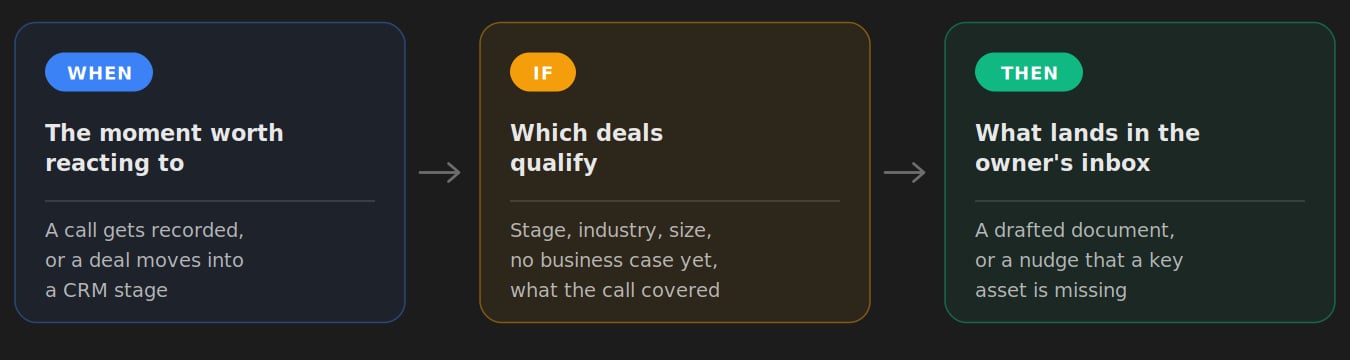
Automatically send drafted documents
Below are documents that Minoa can put together and send directly to a deal owner’s inbox. They can use the document as is or be redirected to Minoa to further customize and edit.- Account POV
- Build vs. Buy
- Cost of Inaction
- Deal Handoff
- Discovery Summary
- One-Page Business Case
- Time Machine Retro
- Value Hypothesis.
Flag what’s missing and send a reminder
You can also send alerts to remind a rep to create a value story. Not every workflow should draft something. Sometimes the right move is to tell the rep the deal is thin and hand them the link. Example: a deal hits a particular stage with no business case attached. The owner gets an email that says so, with a one-click path to build it. No auto-draft, because a business case a rep did not touch is a business case they cannot defend.Three workflows worth stealing
- First call, no case yet. A discovery call gets recorded on a deal with no business case. Send the Value Hypothesis.
- Build-in-house talk detected. The transcript shows the buyer weighing an internal build. Send Build vs. Buy.
- Late stage, nothing attached. The deal moves to Negotiation without a business case. Email the owner and ask them to build one.
Before you set one up
- Your CRM is connected and syncing (Salesforce or HubSpot), and the integration is live in production, not sandbox.
- Your call recording is connected if you want to trigger on calls.
- Transcript analysis is on if you want to filter on what was said.
- You have admin access to Settings.
Set one up
- Go to Settings → Workflows and create a new workflow.
- Name it so the next admin knows what it does. “Late stage, no BC, nudge owner” beats “Workflow 3.”
- Pick the trigger. A call, or a stage change.
- Narrow the cohort. Stage, industry, company size, whether a business case already exists, what the call covered. Every filter you add cuts noise and cost.
- Choose the action. A document, or a missing-asset reminder.
- Write the criteria in plain English. This is the part that matters most. Tell the agent when this document is worth sending and when it is not. “Only if the buyer named a metric they are trying to move” is a real instruction.
- Set the cooldown and the recipient. Cooldown is how long before the same deal can trigger again. Default recipient is the CRM deal owner.
- Save it off. Watch the run log. Then turn it on. A workflow that has never been observed should not be live.
Why it will not spam your reps
The loudest objection we hear is that automation cracks out a bunch of junk. So firing the trigger is not permission to send. Two gates sit in front of every run.- Hard checks. The deal has an active owner with an email. The cooldown is clear. The document does not already exist. The deal is eligible, so services shells and test opps drop out. Your workspace is under its daily email cap.
- A judgment call. An agent reads the deal and reads your criteria, then decides send or skip. It has read-only access to account context, call summaries, transcripts, and the deal timeline. It cannot change anything. It returns a decision and a reason.
Read the run log
Settings → Workflows → Run log. It shows every run, filterable, with:- Sent or skipped, and why
- Which deal and which trigger fired it
- The recipient and the document link
- Attempts and timestamps
Limits, on purpose
- Two triggers. A call, or a stage change. No schedules, no webhooks.
- One shape per rule. One action, one recipient. No branching.
- Built-in filters only. Stage, industry, size, business-case presence, call evidence. Custom CRM fields are not in scope yet.
- 20 active workflows per workspace.
- Cooldowns from 1 to 90 days.
- A daily email cap per workspace, so a busy week cannot blast the field.
- Runs retry up to three times, then stop and log the failure.
- Pricing documents are excluded.