
1
Get the link
Your vendor shares a business case link with you directly or via an email invitation.
2
Open the link and enter your email
Open the link and enter your email address so your vendor knows who is reviewing the case.
3
Open the confirmation email
Check your inbox for a verification email and click the link inside.
4
Review the business case
The verification link takes you straight into the business case.
Receiving the invitation
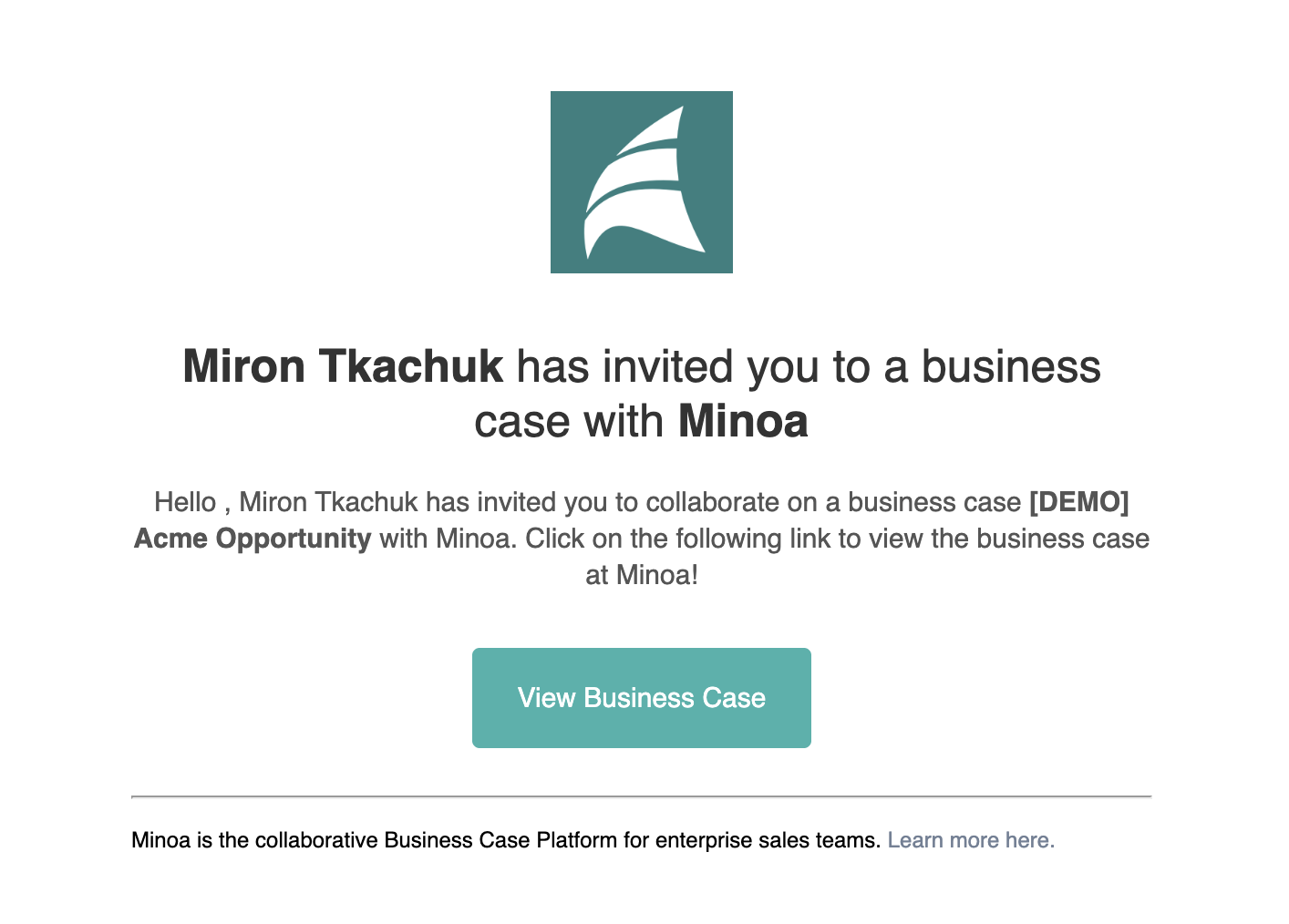
Your vendor can share the business case with you in two ways:- Direct link — sent to you via email, Slack, or any other channel
- Email invitation — an automated email from Minoa with a View Business Case button
Verifying your email
When you open the link, you’ll be asked to verify your email address. This lets your vendor know who is reviewing the business case — no account or password is needed.- Enter your email address in the Email address field
- Click Send Verification Email
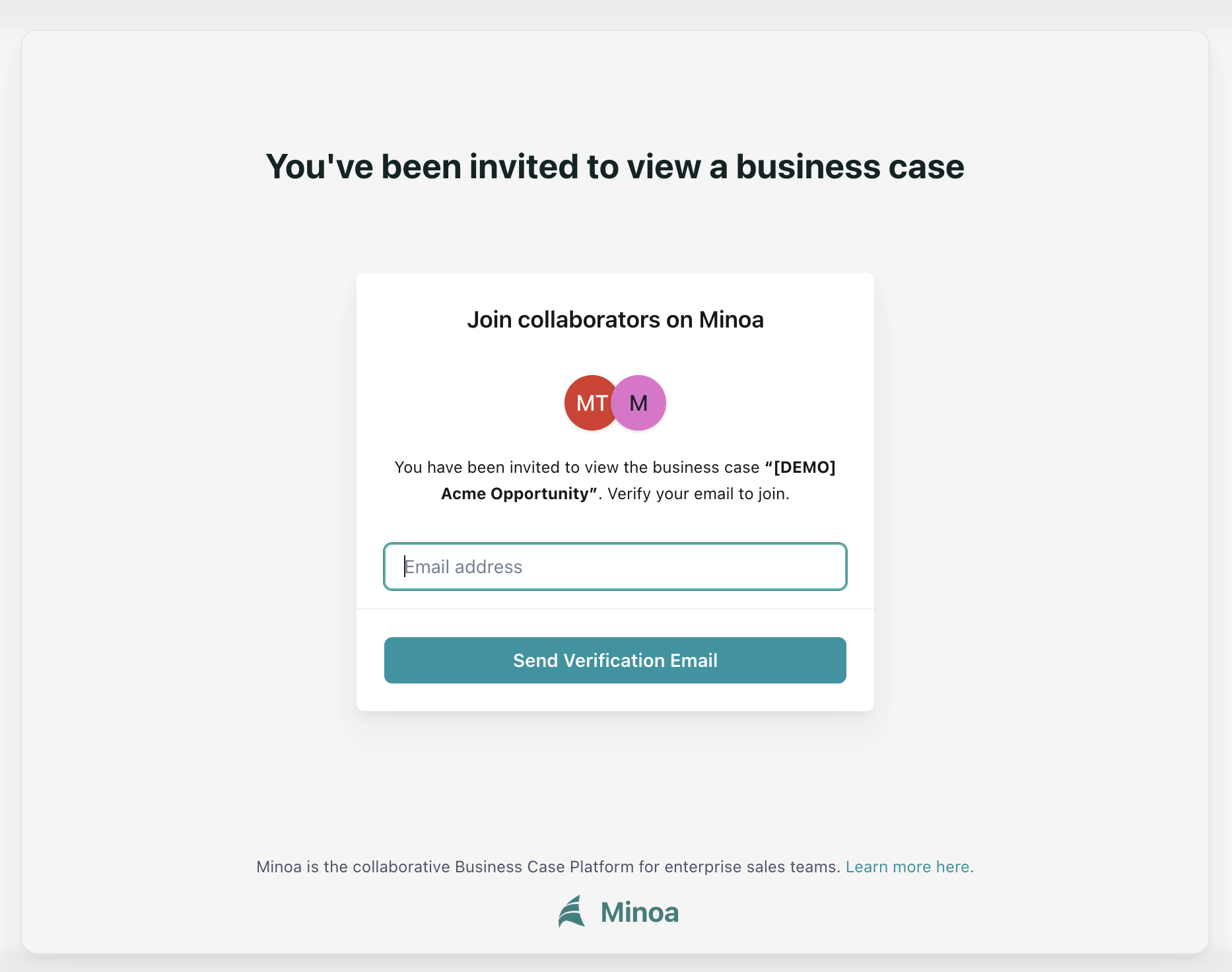
Email verification ensures your vendor knows exactly who is reviewing and collaborating on the business case. Your email is never shared with third parties.
Opening the verification email
After submitting your email, you’ll receive a verification email from Minoa. Open your inbox and click Verify Email & View Business Case.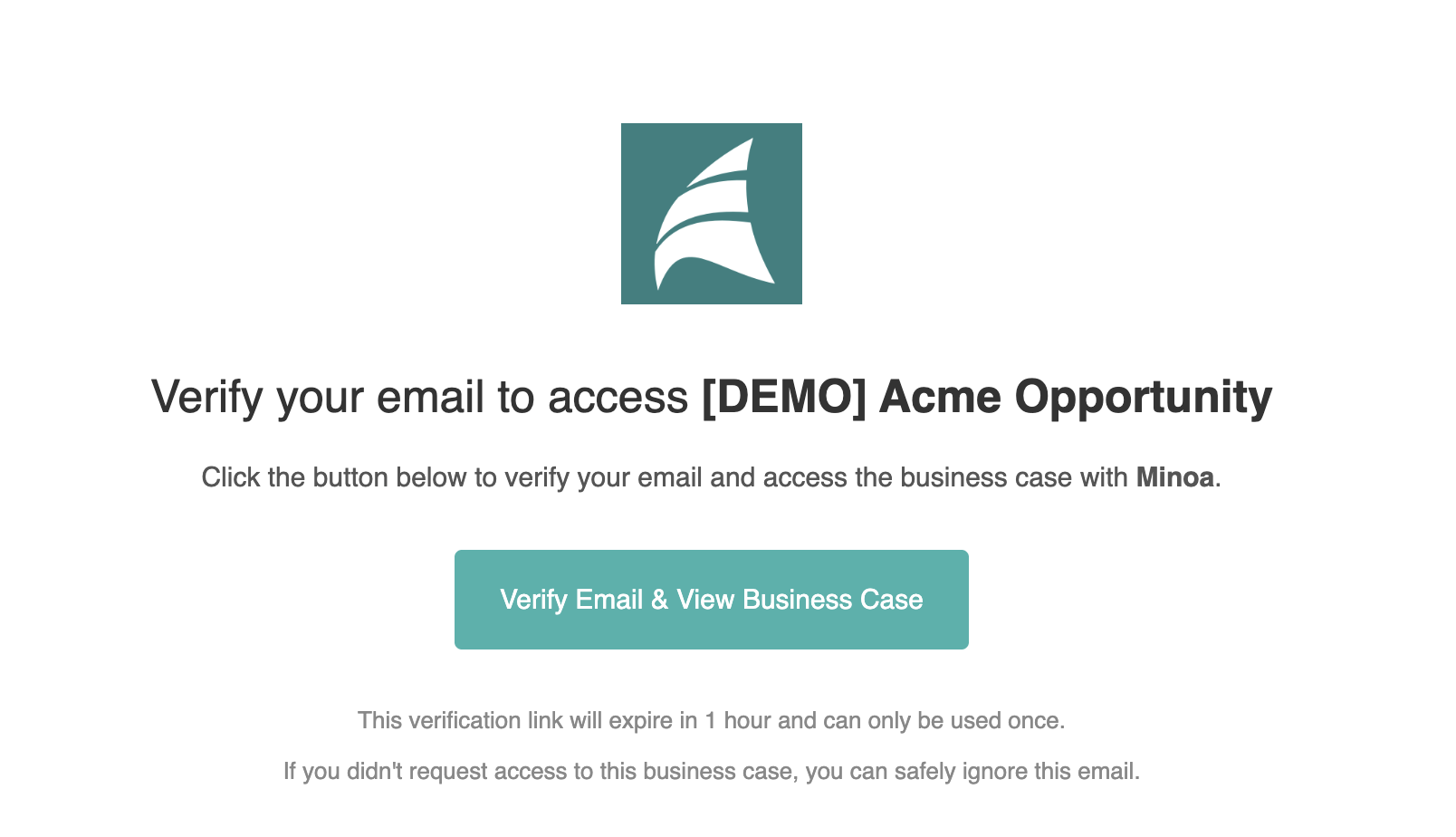
Handling expired links
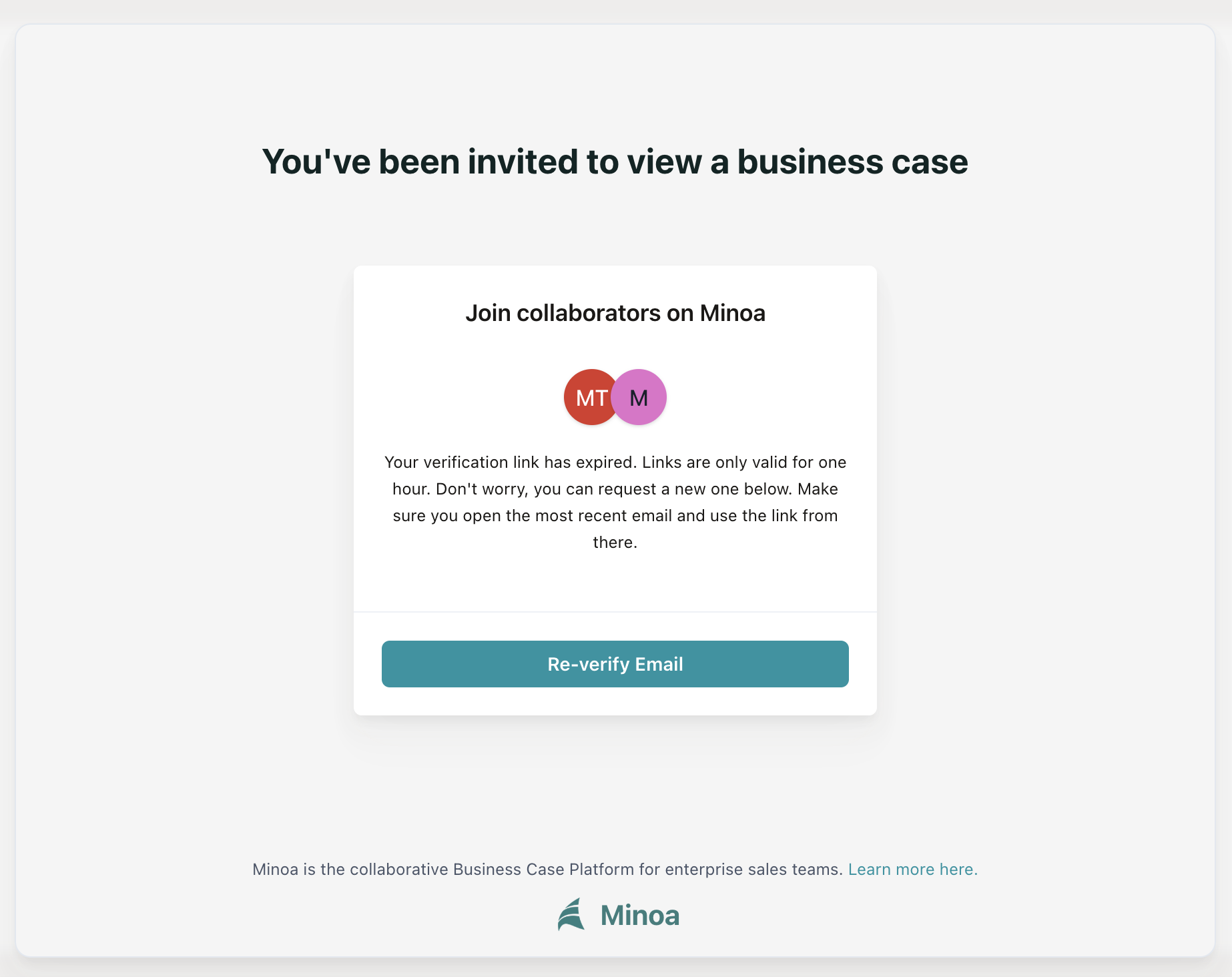
A verification link will not work if it:- is older than 1 hour
- has already been used once
- is not the most recent link you requested (only the latest verification email is valid)
- Click Re-verify Email
- Enter your email address and click Send Verification Email
- Open the most recent verification email in your inbox — older emails will not work
- Click Verify Email & View Business Case in the new email
Reviewing the business case
After clicking a valid verification link, you’ll land directly on the business case.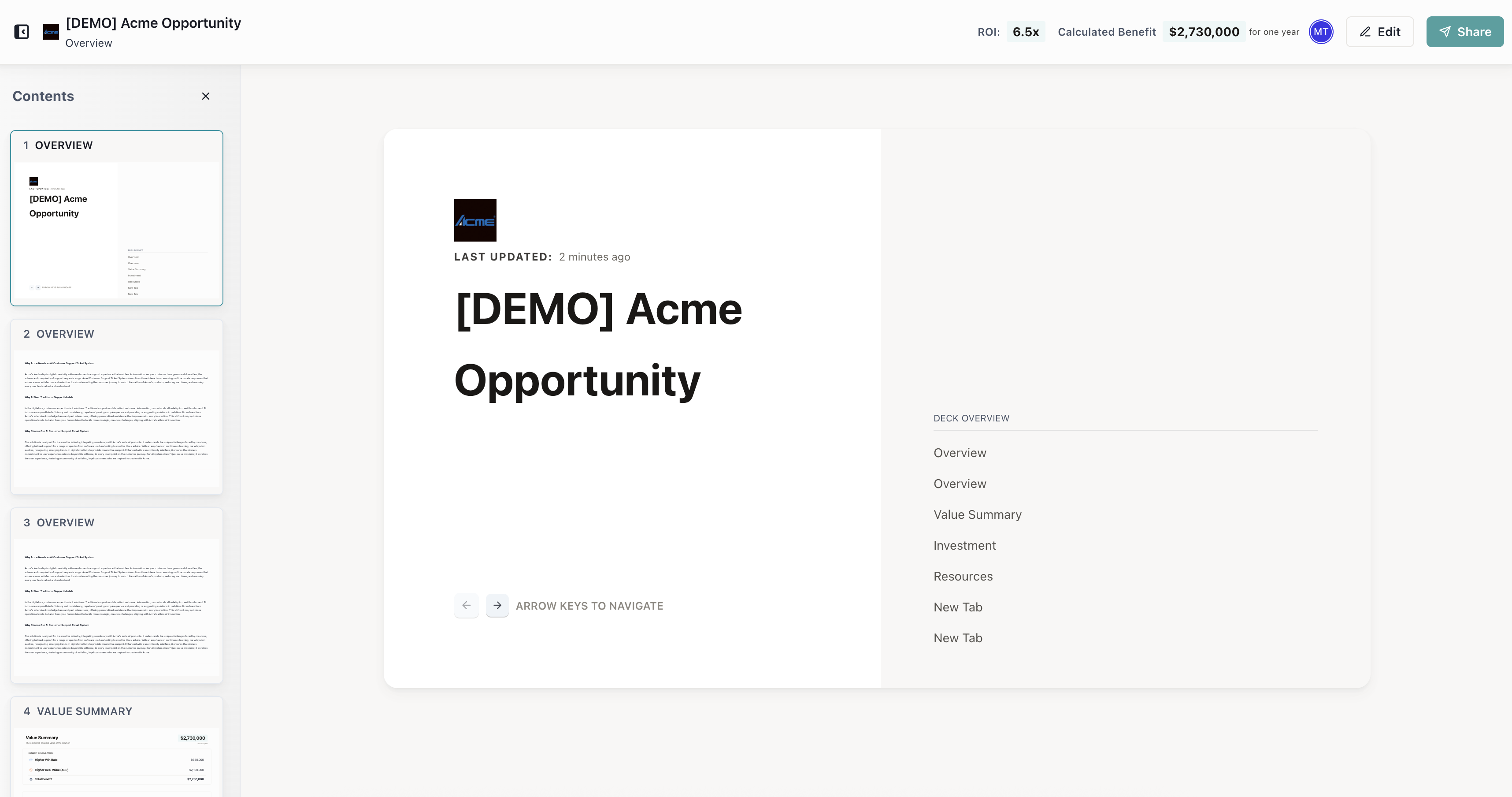
You don’t need a password or an account. The verification link is the only thing you need to access the business case. Bookmark it or keep the email handy for quick access.